
This is the print version of this page. All content is copyright Indezine.com 2000-2026.
Thoughts and impressions of happenings in the world of PowerPoint and presentations, continuously updated since 2003.
See Also:
PowerPoint and Presenting Notes
PowerPoint and Presenting Glossary
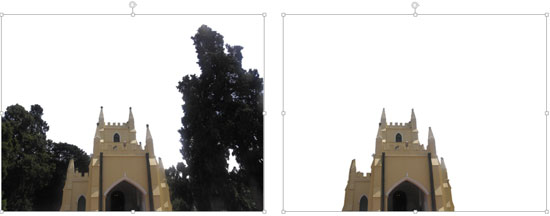
Do you want to remove a sky, a wall, any backdrop, or something else in a photograph so that the slide background shows through within the removed parts of the picture? The Remove Background option may be just what you need to remove the background from an inserted picture.
Filed Under:
PowerPoint 2013
Tagged as: Pictures, PowerPoint 2013, Tutorials
Comments Off on Learn PowerPoint 2013 from Windows: Remove Background from Pictures
When you insert an audio clip on your slide, you can see a sound icon that represents the audio clip. Of course, it rarely matters what the icon looks like if you have set your audio clip to play automatically. However, if you actually plan to click on this picture to play your audio clip — then you might want to use another picture instead.

Explore the Format tab for audio clips in PowerPoint 2013 for Windows.
Filed Under:
PowerPoint 2013
Tagged as: PowerPoint 2013, Sounds, Tutorials
Comments Off on Learn PowerPoint 2013 from Windows: Format Tab for Audio Clips
When you insert an audio clip into a PowerPoint slide, you can control its volume, set it to play looped, or even hide the audio icon. These are some of the advanced options available for any inserted audio clip in PowerPoint. Remember that these advanced options only exist so that you can use them when they are required, rather than using them just because they exist! Let us explore all these advanced audio options in PowerPoint 2013.
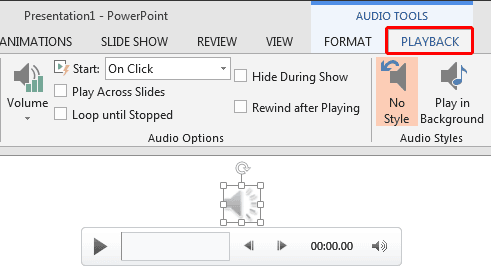
Explore advanced audio options in PowerPoint 2013 for Windows.
Filed Under:
PowerPoint 2013
Tagged as: PowerPoint 2013, Sounds, Tutorials
Comments Off on Advanced Audio Options in PowerPoint 2013 for Windows
Once you insert an audio clip into your presentation, you may find that it is too long, or there may be parts in the clip that you don’t want the audiences to hear. Or maybe you just need a small bit to play — like the sound of that trumpet blowing! Fortunately, PowerPoint’s Trim Audio option can make this easy for you.

Learn how to trim audio clips in PowerPoint 2013 for Windows.
Filed Under:
PowerPoint 2013
Tagged as: PowerPoint 2013, Sounds, Tutorials
Comments Off on Learn PowerPoint 2013 for Windows: Trim Audio Clips
Insert an audio file within your PowerPoint slide, and choose to play it either with a click, or set it to play automatically. Whichever option you choose, some files can sound loud and unexpected! Have you not experienced the sudden scare or shock when a shrill voice interrupts an almost silent environment? Rather than shake the soul of your audiences, you can use PowerPoint’s fade options to add a gradual increase to the volume of your audio files. PowerPoint provides both Fade In and Fade Out effects that you can add to the beginning and end of your audio clips. These fade options make your audio clips sound smoother and more subtle.

Learn to fade your audio clips in PowerPoint 2013 for Windows.
Filed Under:
PowerPoint 2013
Tagged as: PowerPoint 2013, Sounds, Tutorials
Comments Off on Fade Effect for Audio Clips in PowerPoint 2013 for Windows
Microsoft and the Office logo are trademarks or registered trademarks of Microsoft Corporation in the United States and/or other countries.