
This is the print version of this page. All content is copyright Indezine.com 2000-2026.
Thoughts and impressions of happenings in the world of PowerPoint and presentations, continuously updated since 2003.
See Also:
PowerPoint and Presenting Notes
PowerPoint and Presenting Glossary
 Jeff Robson is a serial entrepreneur who solely founded Access Analytic, a specialized consultancy that provides financial modelling & management reporting services. He regularly speaks at training events, conferences and seminars all around the world so is extremely passionate about solving problem issues for presenters.
In this conversation, Jeff discusses Prezentt.
Geetesh: Can you tell us more about Prezentt, and how you conceptualized this product.
Jeff: There are over 30 million presentations delivered worldwide every day. Prezentt’s goal is to revolutionize all of them so that presenters and audiences get 1000%+ more value from these: more sales, more engagement, more sharing, more followers, more volunteers, more donations, etc. Prezentt amplifies them all.
Prezentt is a live slide-sharing application that works on any device with a browser. It enables presenters to connect with their audiences precisely when the audience is most interested: during the presentation. It’s like eHarmony for presenters and their audiences and has been designed by presenters for presenters.
Audiences get immediate access to slides, additional resources such as web links, other documents, and the presenter’s contact details. Prezentt also provides interactivity. You can ask questions of the presenter, provide feedback, request a meeting, take & share notes.
Prezentt recently won the prestigious WAiTTA Award that recognizes the best IT companies in Western Australia. We will now compete in the national iAwards that reward the best IT companies in Australia.
The idea for Prezentt came about when I was doing a presentation for a group of about 100 accountants. I could see they were interested and engaged: they were taking notes, asking questions, and paying attention. Yet, when the presentation finished, I spoke to about 5 people, got 2-3 business cards and the rest of the audience walked out the door and I never heard from them again. I figured, “Surely there must be a better way to do presentations than this!” After researching for many months and not finding anything suitable, I discussed the idea with my co-founder, Justin Davies, and we decided this was a big problem that needed solving.

Geetesh: Is Prezentt a product that is complementary to what everyone does using PowerPoint or other similar applications?
Jeff: The great thing about Prezentt is that you don’t need to change the way you present at all. Before the presentation, you (the presenter) simply upload a PDF copy of your slides into Prezentt, but then give your presentation exactly as normal using PowerPoint (or any other presentation software you prefer). Prezentt makes your slides available to your audience as a series of images that can be viewed in any web browser on any modern device: phone, tablet or laptop.
The key things that Prezentt does (which PowerPoint and other similar applications don’t do) are:
There are several options to enable your audience to find your presentation including: a short URL, search on the Prezentt website, or scan a QR code.
Prezentt is the perfect solution for presentations of all kinds: conferences, seminars, business development, internal & external training, company meetings, investor presentations, lectures & schools, charity fundraisers, political rallies, church sermons, etc.
The views and opinions expressed in this blog post or content are those of the authors or the interviewees and do not necessarily reflect the official policy or position of any other agency, organization, employer, or company.
Filed Under:
Interviews
Tagged as: Interviews, PowerPoint
Comments Off on Prezentt: Conversation with Jeff Robson
Bulleted text slides are part of most PowerPoint presentations, even though some people abhor using bulleted content altogether. On the other hand, many others just cannot do without slides that do not contain bulleted lists. And if you are part of either of these two opposing camps, you will love this cool feature in PowerPoint that takes a middle road approach by using SmartArt. You can enhance the look of some bulleted slides by converting them to a SmartArt graphic in PowerPoint 2013.
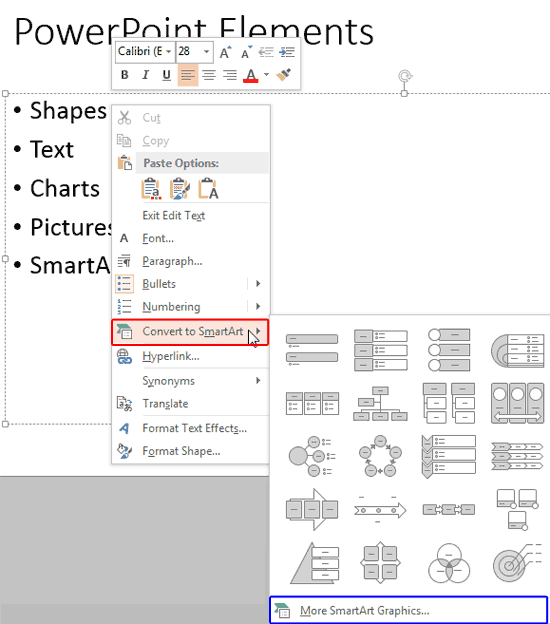
Learn how to convert bulleted text to a SmartArt graphic in PowerPoint 2013 for Windows.
Filed Under:
PowerPoint 2013
Tagged as: Microsoft Windows, Office 2013, PowerPoint 2013, SmartArt, Text, Tutorials
Comments Off on Learn PowerPoint 2013 for Windows: Convert Bulleted Text to SmartArt
SmartArt in PowerPoint allows you to replace bullet points with info-graphic content using shapes that contain text. This approach is more logical in the way that we view and present content. In this tutorial you’ll learn how to insert a SmartArt graphics within PowerPoint 2013. If you are new to this, do also take a look at the What is SmartArt? and SmartArt Samples pages.

Learn how to insert SmartArt graphics in PowerPoint 2013 for Windows.
Filed Under:
PowerPoint 2013
Tagged as: PowerPoint 2013, SmartArt, Tutorials
Comments Off on Learn PowerPoint 2013 for Windows: Inserting SmartArt
Don’t hurry with your chart slides! While this is true for almost any slide you create, it is more true for chart slides because charts do two things. First, they express figures, but those figures essentially express a thought, an idea, or a trend. To make this expression successful, you need some quality time to create a better chart. And then they inform audiences, and the result of that information may be the message you want your audience to believe in. This requires a well-crafted chart, and that again cannot be created in a hurry.

Don’t be in a hurry to create your charts – some patience can do wonders.
Filed Under:
Uncategorized
Tagged as: Charting, Design, PowerPoint, Tutorials
Comments Off on Don’t Hurry with Charts!
Similar to Shape Styles that you apply to shapes, PowerPoint provides you with Video Styles for your inserted video clips. These pre-built Video Styles add edges, shape, and effects to videos — and can be applied with just a single click. Your videos no longer need to be rectangular — some of the Video Styles change the video clip so that it plays within an oval or a rounded rectangle. Video Styles also transform the look of your inserted videos by applying borders, 3-D effects, shadows, frames, etc. around your video clip.

Learn how to apply preset Video Styles to video clips in PowerPoint 2013 for Windows.
Filed Under:
PowerPoint 2013
Tagged as: PowerPoint 2013, Tutorials, Video
Comments Off on Learn PowerPoint 2013 for Windows: Video Styles
Microsoft and the Office logo are trademarks or registered trademarks of Microsoft Corporation in the United States and/or other countries.