
This is the print version of this page. All content is copyright Indezine.com 2000-2026.
Thoughts and impressions of happenings in the world of PowerPoint and presentations, continuously updated since 2003.
See Also:
PowerPoint and Presenting Notes
PowerPoint and Presenting Glossary
Default slide background options are limited to solid or gradient fills — and yes, you can even apply a picture as a slide background. However, picture backgrounds do pose some issues, especially since a busy picture may hamper the visibility of other slide objects such as text or charts. Fortunately, PowerPoint provides options to reduce the intensity of a picture background so that any foreground elements such as text can stand apart.
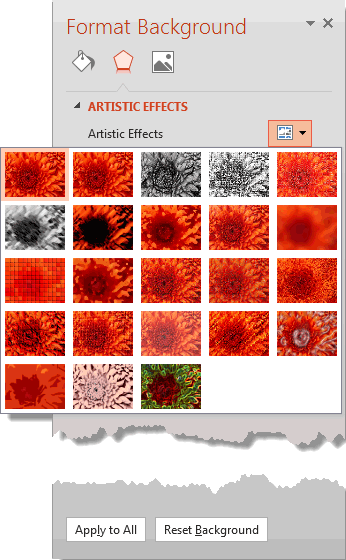
Explore various artistic effects for Picture backgrounds in PowerPoint 2013 for Windows.
Filed Under:
PowerPoint 2013
Tagged as: Background, Pictures, PowerPoint 2013, Tutorials
Comments Off on Artistic Effects for Picture Backgrounds in PowerPoint 2013 for Windows
Let’s say you have used a Fade animation for a slide object, and now you want to use a Wipe animation instead. It’s been observed that most of the time, users may remove an animation and apply another one rather than one animation into another. This may be because in PowerPoint 2013, there is no particular option within the interface that changes the animation. But there is still a very easy one-click operation to change an existing animation to another one, as you will learn in this tutorial.

Learn how to change animations for a given slide object in PowerPoint 2013 for Windows.
Filed Under:
PowerPoint 2013
Tagged as: Animation, PowerPoint 2013, Tutorials
Comments Off on Change Animations in PowerPoint 2013 for Windows
Want to create a different kind of first slide for your presentation? Or do you want some content to stand apart in any of your slides? You’ll need some text content, for sure — that you can show as an article within a newspaper! You need no other product, just an online connection to use the cool Newspaper Generator!

Learn how to create a cool newspaper clipping for your slide.
Filed Under:
Uncategorized
Tagged as: Graphics, PowerPoint, Tutorials
Comments Off on Newspaper Clippings on your PowerPoint Slides
After recording a narration and syncing the audio and animation timings, you may want to edit the recorded narration. Although there are many audio applications with which you can edit the recorded audio file, including Adobe’s Audition, you may not have to venture that far for basic edits. Adobe Presenter provided a built-in audio editor which makes your task more easier.

Explore the edit audio options within Adobe Presenter.
Filed Under:
Add-ins
Tagged as: Add-in, Adobe Presenter, PowerPoint, Tutorials
Comments Off on Edit Audio in Adobe Presenter
There’s more to text animation than just adding some movement to your selected text. By default, when you animate a text placeholder or text box, all the text contained animates at one go unless your text content is within a bulleted or numbered list — in that case, all text animates as sequenced paragraphs. Even then, the animation is sequenced to first level paragraphs (first level bullets) — and any sub-bullet levels contained in your text placeholders or text boxes animate along with the parent level.

Explore the extra options available for text animations in PowerPoint 2013 for Windows.
Filed Under:
PowerPoint 2013
Tagged as: Animation, PowerPoint 2013, Text, Tutorials
Comments Off on Learn PowerPoint 2013 for Windows: Animate Text
Microsoft and the Office logo are trademarks or registered trademarks of Microsoft Corporation in the United States and/or other countries.