
This is the print version of this page. All content is copyright Indezine.com 2000-2026.
Thoughts and impressions of happenings in the world of PowerPoint and presentations, continuously updated since 2003.
See Also:
PowerPoint and Presenting Notes
PowerPoint and Presenting Glossary
Perfect squares and rectangles everywhere, all neatly lined up! Yes, that looks clean, but also monotonous! What if you could make all these shapes curved, slanted, and natural looking – like waves in the sea? Won’t that look more organic? If you agree, then you will certainly love these new irregular shapes for PowerPoint.

Download and use these shapes in your slides.
Filed Under:
Presentation Bank
Tagged as: Graphics, PowerPoint, Presentation Samples, Shapes
Comments Off on Irregular Shapes for PowerPoint: 02
After recording narrations within Adobe Presenter, or even after importing audio files for your slides, you do not hit a road block. There’s so much more that you can do with your narrations, and Adobe Presenter lets you edit the timing of PowerPoint animations to synchronize better with audio files. For instance, let us imagine that you are working on a slide with bulleted text that has entrance animations. You can use the Sync option to adjust animation timings so that the narrative matches the text being animated.

Learn how to sync the audio and animation timings within Adobe Presenter.
Filed Under:
Add-ins
Tagged as: Add-in, Adobe Presenter, PowerPoint, Tutorials
Comments Off on Sync Audio and Animation Timings in Adobe Presenter
First of all, look at these awesome Irregular Shapes, that you can get for next to nothing. Then we explore 3 of our favorite and free stencil fonts. We then look at the Preview options in Adobe Presenter, one of the most full-featured PowerPoint add-in products. We also have an exclusive interview with Dr. James Smith about his amazing new book, Meaningful Graphs.
PowerPoint 2013 users can learn about animating tables without actually animating them! We also look at motion path animations, editing them, and the new position previews introduced in PowerPoint 2013. You will also learn about animation events, animation speed, and removing animations. We also explore switching series and categories for charts.
And finally, do not miss the new discussions and templates of this week!

Read Indezine’s PowerPoint and Presenting News.
Filed Under:
Ezine
Tagged as: Ezine, Indezine, News, PowerPoint
Comments Off on PowerPoint and Presenting News: July 29, 2014
We have already explored how you can animate any slide object, and then tweak the animation speed and animation events. Although you add animation to a chart in the same way as you animate any other object, PowerPoint provides some extra animation options that are applicable only to charts. For example, you can animate series and categories individually as required. If your example chart is a column chart, then you can individually control the animation of every single column!

Learn how to animate charts in PowerPoint 2013 for Windows.
Filed Under:
PowerPoint 2013
Tagged as: Animation, Charting, PowerPoint 2013, Tutorials
Comments Off on Learn PowerPoint 2013 for Windows: Animate Charts
Once you have installed Adobe Presenter, the first thing you possibly want to do is to open your existing PowerPoint presentation and start adding voice narrations to the slides. You could of course use PowerPoint’s built-in Record Slides option to add narrations, but Adobe Presenter has many more options, which we will explore within this tutorial.
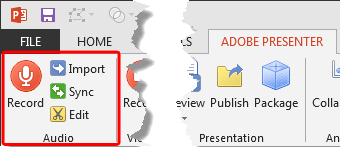
Explore the record options within Adobe Presenter.
Filed Under:
Add-ins
Tagged as: Add-in, Adobe Presenter, PowerPoint, Tutorials
Comments Off on Record Audio in Adobe Presenter
Microsoft and the Office logo are trademarks or registered trademarks of Microsoft Corporation in the United States and/or other countries.