
After inserting a SmartArt graphic in your slide, you can change the color for the entire SmartArt graphic — this applies new colors to the entire SmartArt graphic including the various shapes it contains. However there may be times when you want one of the shapes to be colored differently — in this tutorial we’ll explore the fill, line, and effect options which can be applied to individual shapes within a SmartArt graphic in PowerPoint 2013.

Related Posts
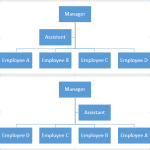 Once you have inserted an organization chart (org chart) within PowerPoint 2013, you might need to change the layout of the org chart. The "layout" me...
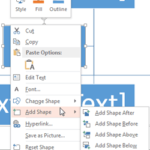 After inserting an Organization Chart (org chart) in PowerPoint 2013, you might need to add more shapes to your org chart. The default org chart that ...
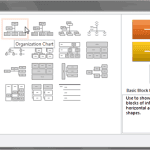 You won’t find an option to add an Organization Chart in PowerPoint 2013’s Insert tab of the Ribbon. Instead, you will find the SmartArt option in the...
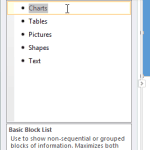 All the SmartArt layouts have text placeholders, which are basically text boxes. You can click and start typing within these placeholders to add text....