
This is the print version of this page. All content is copyright Indezine.com 2000-2026.
Thoughts and impressions of happenings in the world of PowerPoint and presentations, continuously updated since 2003.
See Also:
PowerPoint and Presenting Notes
PowerPoint and Presenting Glossary
By default, animation effects are numbered in the order in which they are applied to slide objects. You might need to re-order your animations mainly because you may have more than one animated object on a slide, and re-sequencing of animations as they happen in relation to each other may provide a better result. Or you may just want some animations to happen before the others. Also, there are logical reasons to re-order animations since typically entrance and exit animations need to be the first and last animations for any slide object. PowerPoint’s Re-Order options for animations lets you play with their sequencing.

Learn how to re-order animations on a slide in PowerPoint 2013 for Windows.
Filed Under:
PowerPoint 2013
Tagged as: Animation, PowerPoint 2013, Tutorials
Comments Off on Learn PowerPoint 2013 for Windows: Re-Order Animations
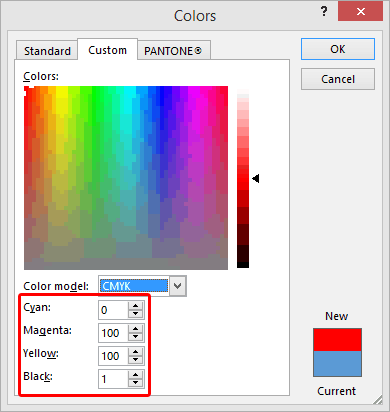
We have explored what color models are, and also looked at RGB, one of the most used color models. The second color model we are exploring is CMYK. Like RGB, where the alphabets stand for color names Red, Green, and Blue, CMYK also has one color name representing each alphabet – in this case, the colors are Cyan, Magenta, Yellow, and Black.
Filed Under:
Color
Tagged as: CMYK, Color, Color Models, PowerPoint, Tutorials
Comments Off on Color Models: CMYK
Removing an animation in PowerPoint is a simple select-and-click option, but even before you remove any animation, do ascertain why you want to remove it. Here are some obvious scenarios to explore before removing animations.
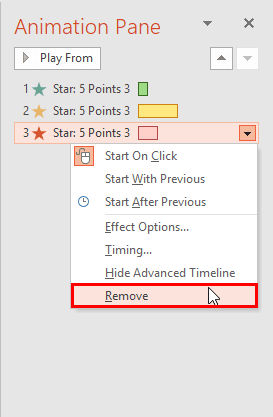
Learn how you can remove animations from slide objects in PowerPoint 2013 for Windows.
Filed Under:
PowerPoint 2013
Tagged as: Animation, PowerPoint 2013, Tutorials
Comments Off on Remove Animations in PowerPoint 2013 for Windows

Dr. James M. Smith gives lectures at facilities/colleges and conferences across the country showing healthcare staff how to analyze and present data more effectively. He shows how data presented as data are meaningless, but data presented as information are priceless.
In this conversation, James discusses his new book, Meaningful Graphs.
Geetesh: James, tell us more about what motivated you to author your Meaningful Graphs book?
 James: Although poorly drawn graphs (“charts” in Excel) appear everywhere, my own personal motivation came from my experience in healthcare settings. I had often seen remarkable improvement projects conducted by physicians, nurses, QI staff, managers, and others. The clinical or management issues they addressed were significant and the methods they used were generally good, given that the projects were conducted in an applied setting and not in the isolation of a controlled study. What was often lacking was a clear graphic presentation of the results: the wrong type of chart was selected for the data, mental gymnastics were required to interpret the chart, axes were inappropriately truncated, color was used incorrectly, or the chart was cluttered with chartjunk, to name just a few.
I truly felt badly for those who had conducted the study; in poster sessions they often spent more time explaining how their graphs were constructed than on the significance of the results. In some cases, the graph was ineffective because they had failed to identify the story in their data — that’s a fatal flaw at the outset of any graph design process. In other cases, the issue was that they didn’t know the principles of good graph design and/or how to implement these in Excel. In these cases, the graphs could have been dramatically improved if only those creating them knew a little more about general and chart-specific principles of graph design and a little more about the techniques of Excel. This isn’t rocket science. But if you don’t know it, you’ll have major problems.
Geetesh: Although your book mentions Excel within the title, almost everything applies to PowerPoint as well since Excel is the charting engine for PowerPoint — also your book is simple to understand and gets great results — just what PowerPoint users need! Can you share some thoughts?
James: The audience for my book includes many people who have only an occasional need for a chart. For them, creating the chart in PowerPoint is ideal. Once you select a chart type/variation from the menu, a split screen appears with the chart on one side and sample data on the other. All they have to do is replace the sample data with their own data, expanding or contracting the data field as necessary. There’s no worrying about how to set up and manipulate an Excel spreadsheet. Creating charts in PowerPoint is easy and intuitive.
One of the problems, of course, is that PowerPoint (Excel) has an abundance of chart types and variations from which to choose (73 in all). It’s clear that I like charts — charts are a good thing — but this is too much of a good thing. I think some people are dazzled by the possibilities and try to pick some chart type that others have not seen in order to make their presentation unique. In most instances, the uniqueness comes at a price: information confusion or loss.
3-D charts are a good example. Judging from how many I see, people really like these. Yet, nearly all design experts agree that they are not good at communicating information. Of the 73 chart types/variations available in PowerPoint (Excel), 37 are 3-D charts, either labelled as such by Microsoft or functionally so without the label (cylinder, cone, and pyramid versions of column and bar charts). Other graph types also present problems including the ubiquitous pie chart. Frankly, if you want to convey information quickly and easily using a chart, there’s more to dislike about the options available in PowerPoint (Excel) than to like — at least for my audiences.
Finally, there’s the issue of how to convey complex information with a complex chart without information overload for the audience. Here’s where PowerPoint really shines because of its ability to animate charts. You can step your audience through a complex chart and they will not be overwhelmed by it. To do this, I sometimes use the PowerPoint chart animation feature. However, more often than not I use slide transitions to animate charts (as well as other material). When I describe how to do this in my book, I refer to it as the “clunky way.” Its real strength is that it draws on a PowerPoint feature that most users already know and once I show my audiences how to do it, they don’t forget it. As you say, simple to understand and gets results.
I wrote Meaningful Graphs for those in applied settings (healthcare and other) who don’t have the time or interest to read comprehensive books on graph design and Excel software. It provides one-stop shopping for the principles of good graph design and the software techniques of Excel as they relate to charts — all the essential information needed to make charts more informative and more effective in problem-solving.
Information on James’ “largely bullet free” presentations may be found on his website.
The views and opinions expressed in this blog post or content are those of the authors or the interviewees and do not necessarily reflect the official policy or position of any other agency, organization, employer, or company.
Filed Under:
Interviews
Tagged as: Books, Charting, Excel, Interviews, James Smith, PowerPoint
Comments Off on Meaningful Graphs: Conversation with James Smith
After you add an animation to a selected slide object, you typically set an animation event. Another animation property you can set thereafter is the speed of the animation. Every animation you add within PowerPoint 2013 has a fixed, default speed. This speed essentially is a duration shown in seconds or part thereof, and differs from animation to animation. For example, the default duration of a Fade animation is half a second (00.50) whereas for the Wheel animation, it is two seconds (02.00).

Explore the concept of animation speed in PowerPoint 2013 for Windows.
Filed Under:
PowerPoint 2013
Tagged as: Animation, PowerPoint 2013, Tutorials
Comments Off on Animation Speed in PowerPoint 2013 for Windows
Microsoft and the Office logo are trademarks or registered trademarks of Microsoft Corporation in the United States and/or other countries.