
This is the print version of this page. All content is copyright Indezine.com 2000-2026.
Thoughts and impressions of happenings in the world of PowerPoint and presentations, continuously updated since 2003.
See Also:
PowerPoint and Presenting Notes
PowerPoint and Presenting Glossary
By its very nature, PowerPoint is an application that takes content of different types and arranges them all together coherently within a slide. Such content often includes text, pictures, charts, multimedia, and other types. Additionally, since many people use PowerPoint for training programs — you will find many slides that contain screenshots of computer program interfaces. Typically, you capture these screenshots in another program and then insert that screenshot like a regular picture within PowerPoint 2013. This task is made even more easy as now you can quickly and easily add a screenshot from within PowerPoint without even leaving the program you are working in.

Explore the Screenshot option within PowerPoint 2013 for Windows.
Filed Under:
PowerPoint 2013
Tagged as: Graphics, Pictures, PowerPoint 2013, Tutorials
Comments Off on Inserting Screenshots in PowerPoint 2013 for Windows
The borders for tables that you create within PowerPoint are thin lines by default. You can change the weight of these borders to make them thicker — but even before you do so, there are certain prerequisites to take care of. First of all, if you have applied any of the Table Styles, then some borders may have been set to be invisible. So, you need to set them to be visible first since there’s no sense in thickening an invisible border. Once table borders are visible, you can make changes to their appearance — you can change their color, line style, or thickness.

Learn how to set line style for table borders in PowerPoint 2013 for Windows.
Filed Under:
PowerPoint 2013
Tagged as: PowerPoint 2013, Tables, Tutorials
Comments Off on Learn PowerPoint 2013 for Windows: Set Line Style for Table Borders
It’s true that picture backgrounds add value to your presentations. Yet, one of the worst things that you can do to your PowerPoint presentation is to add a busy, multi-colored slide background. However, you get to see such bad presentations every now and then. When people do so, they compromise the subtlety and contrast of any content on their slides.

Learn how to recolor picture backgrounds in PowerPoint 2011 for Mac.
Filed Under:
PowerPoint 2011
Tagged as: Background, Office for Mac, Pictures, PowerPoint 2011, Tutorials
Comments Off on Learn PowerPoint 2011 for Mac: Recolor Picture Backgrounds
ShapeChef is a PowerPoint add-in that enables you to collect and organize PowerPoint assets (shapes, pictures, tables, charts, etc). For example, you can arrange your favorite graphics into separate categories and sub-categories. You can also use the instant search feature within ShapeChef to find shapes quickly. Additionally, ShapeChef allows to store assets online “in the cloud”, which can be thereafter accessed from any computer. Also, you can invite multiple users to join your libraries, and control their permission options. Also, ShapeChef gives you access to several ready-to-use collections of icons and symbols.

Filed Under:
Add-ins
Tagged as: Add-in, PowerPoint, Shapes
Comments Off on ShapeChef: The Indezine Review
Although PowerPoint originated as a desktop program, Microsoft has made impressive strides in porting the entire program to function as a web-based program that works inside a browser. This web version of PowerPoint called PowerPoint Online lets you create and edit PowerPoint presentations online, and can be easily accessed on OneDrive, Microsoft’s cloud platform. Even better, PowerPoint Online is completely free for anyone to use.
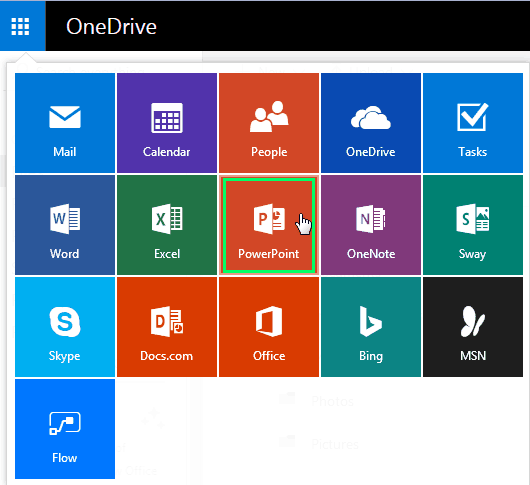
Create and edit PowerPoint presentations online with PowerPoint for the Web.
Filed Under:
PowerPoint for the Web
Tagged as: OneDrive, PowerPoint for the Web, Tutorials
Comments Off on PowerPoint for the Web Interface
Microsoft and the Office logo are trademarks or registered trademarks of Microsoft Corporation in the United States and/or other countries.