
This is the print version of this page. All content is copyright Indezine.com 2000-2026.
Thoughts and impressions of happenings in the world of PowerPoint and presentations, continuously updated since 2003.
See Also:
PowerPoint and Presenting Notes
PowerPoint and Presenting Glossary
Combine Shapes are new for PowerPoint 2011 and are a set of four tools that let you combine, unite, intersect, or subtract selected shapes in various ways, depending upon which shape overlaps the other. Unfortunately they are so well hidden that you may not even be aware that they exist! You won’t find these commands in any of the Ribbon tabs — nor will you be able to customize your toolbars to get these options. To view the Combine commands, you need to select two or more shapes. Then right-click (or Ctrl-click) the selection. In the resultant contextual menu, select the Grouping option to summon the sub-menu — you will find the four Combine Shapes commands here!
Learn about the Combine Shapes commands in PowerPoint 2011 for Mac.
Filed Under:
PowerPoint 2011
Tagged as: Office for Mac, PowerPoint 2011, Shapes, Tutorials
Comments Off on Learn PowerPoint 2011 for Mac: Combine Shapes Commands
Content on this page is not recent and has been retained for historical reasons.
In 2004, Apple introduced what was then a revolutionary technology that let you play music from iTunes on your Mac or Windows PC on speakers that could have been in the next room or anywhere else within your network. This technology was called AirTunes, and the speakers you wanted to play the music over had to be connected to an AirPort Express or Apple TV device. Yes, we are talking about the first generation Apple TVs here.
AirPlay is a natural evolution of AirTunes as it moves beyond sound to encompass video as well. It is only now with the launch of newer iPads and iPhones — and also with the new features in iOS 5 that AirPlay provides ample solutions for you to present your entire presentation. Essentially, if you want to present from your iPad 2 (or even an iPad 1), this is what you need:
That’s all you need to have in place. Also, Apple TV 2 is even smaller than an iPad, and does not hamper your portability. It is a good idea to ensure though that the venue where you will present has projectors equipped with HDMI inputs. If the projector at the venue you will present has been suspended from the ceiling or has been fitted somewhere else, then you may only get a VGA cable to attach your Apple TV 2 to; and that will not work well for you to provide a professional and predictable presentation.
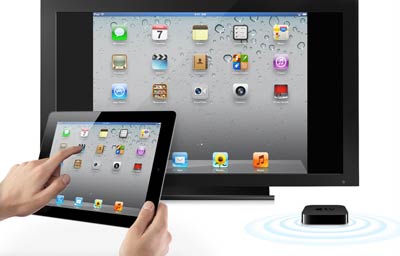
Everything we discussed so far in this post was relevant only to presenting with an iPad, and not necessarily for other AirPlay scenarios. The rest of this post will look at these other scenarios. Do feel free to ignore this section if this is not something you want to explore.
AirPlay lets you transmit data such as audio and video content wirelessly from:
Using AirPlay, you can send these audio and video signals to an AirPlay receiving device, such as:
More info on AirPlay can be found on Apple’s website. Look at these pages that discuss the iPad’s Airplay features and how you can control AirPlay output from within iTunes.
In addition, Wikipedia’s AirPlay page provides a historical look at this technology along with some discussions about AirPlay alternatives.
You May Also Like: iPad Presenting 04: Add an Apple TV | iPad Presenting 06: Connecting a TV or Projector to Apple TV
Filed Under:
iPad Presenting
Tagged as: iPad, Keynote, PowerPoint
The AutoCorrect feature is dependent on a small list of words and phrases — this list contains two columns called Replace and With — for example the Replace entry for teh will correspond to the With entry containing the word the. Although this list works for PowerPoint users, what you must know is that this AutoCorrect list is global across all Microsoft Office programs such as Word, Excel, Outlook, etc. If you add, edit, or delete entries within this AutoCorrect list, all changes will be reflected beyond PowerPoint.
Learn how to create and edit AutoCorrect entries in PowerPoint 2010 for Windows.
Filed Under:
PowerPoint 2010
Tagged as: PowerPoint 2010, Text, Tutorials
Comments Off on Learn PowerPoint 2010: Creating and Editing AutoCorrect Entries
These New Year themed clip arts for PowerPoint are all silhouettes that are ready to use within your PowerPoint presentation slides. These have been provided in both black and white colors — both variations are contained within two separate sample presentations that you can download.
Copy the graphics of your choice from the downloaded presentations, and paste them into your PowerPoint presentation slides. You can also paste them into a Word document, an Excel worksheet, or any other program.
Within PowerPoint, all these silhouette graphics can be customized with Shape Styles.


Download these free New Year clip art graphics here.
Filed Under:
Presentation Bank
Tagged as: Clip Media, Design, PowerPoint
Comments Off on New Year Clip Arts for PowerPoint
There is no dearth of sites providing royalty-free pictures that can be used in your PowerPoint presentations — but, none of these provide the breadth of choices that you can find at the Microsoft Office site (Office.com). Even better, all these pictures are free to all licensed users of Microsoft Office programs such as PowerPoint. Office.com allows you to download various types of clip media, including pictures.
Learn how to download clip media from Microsoft’s Office.com on a Mac.
Filed Under:
Clip Media
Tagged as: Clip Media, Office for Mac, PowerPoint 2011, Tutorials
Comments Off on Download Clip Media from Office.com — For Mac OS X
Microsoft and the Office logo are trademarks or registered trademarks of Microsoft Corporation in the United States and/or other countries.