
This is the print version of this page. All content is copyright Indezine.com 2000-2026.
Thoughts and impressions of happenings in the world of PowerPoint and presentations, continuously updated since 2003.
See Also:
PowerPoint and Presenting Notes
PowerPoint and Presenting Glossary

Jamie Garroch, CEO of GMARK Ltd., founded the company in 2009 to provide presentation professionals with PowerPoint software, content and training. Jamie conceived the idea for the company’s first product, ActivePrez from a non-linear presenting need and has recently added several other add-in products. His newest add-in is Slide Linker, a product born out of the need to link slides together so that all linked slides are glued to each other when copied to other presentations.
In this conversation, Jamie talks about the free Slide Linker add-in for PowerPoint, and his business of creating custom PowerPoint add-ins.
Geetesh: What exactly does Slide Linker do, and how did this free add-in evolve?
Jamie: Slide Linker is a small add-in that demonstrates the amazing extensibility of Microsoft Office applications that many readers may be unaware of. By installing an add-in, users can gain access to new functionality for PowerPoint (and other Office apps) just as they do when they download apps for their Windows Phone, Android Phone, or iPhone.
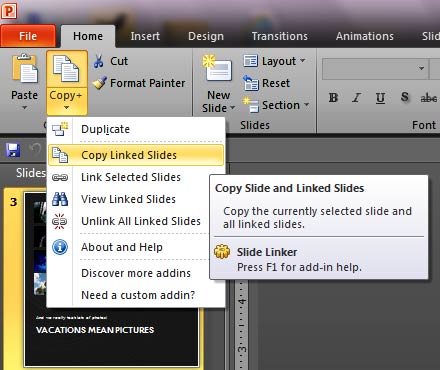
The Slide Linker add-in provides PowerPoint users with the ability to link slides in groups and keep them together when copied and pasted to another presentation. It makes a small yet significant change to the Home tab of the Ribbon by replacing the standard Copy button with a Copy+ button. This functions as expected with standard Copy operations but a new drop-down menu provides the ability to link slides, view linked slides, and delete links from slides. Once slides are linked, if anyone of them is selected and the Copy+ button is clicked, all slides in that linked group will be copied to the Windows clipboard. The idea was born from a LinkedIn PowerPoint group where a user asked if this was possible within PowerPoint. The answer is yes!
Geetesh: You also develop custom add-ins for PowerPoint users. Tell us more about some work you have done in this area?
Jamie: GMARK specializes in add-in development both for our own products and custom development for small to large enterprise clients. We’ve worked for the likes of UPS to create an automatic presentation generation tool to assist field sales personnel in building audience targeted decks.
We’re currently developing a new add-in for one of the top three Indian IT vendors to automate the process of keeping presentations on-brand and a European client to add galleries of commonly used on-brand content to the Ribbon. The exciting vision that add-ins bring is that publishers such as ourselves now have a way to extend the functionality of PowerPoint to do almost anything one can imagine. If you can’t find a way to do something with an Office app, then add-ins are a great way to get exactly what you want and need while maintaining your investment in Microsoft Office.
The views and opinions expressed in this blog post or content are those of the authors or the interviewees and do not necessarily reflect the official policy or position of any other agency, organization, employer, or company.
Filed Under:
Interviews
Tagged as: Add-in, Interviews, Jamie Garroch, PowerPoint
Comments Off on Slide Linker: Conversation with Jamie Garroch
For presentations that contain slides with too much text, or even little text — there are always chances of spelling mistakes showing up! However, you don’t necessarily have to search for these mistakes by skimming all your slides one by one since PowerPoint lets you do a spell check of the entire presentation, and make corrections as well. However there are some caveats associated with spell checking, and this does not have anything to do with PowerPoint. The main caveat is while PowerPoint is good at finding spelling mistakes, it won’t find any wrong words you have used as long as the spellings can be found in a dictionary. As far as PowerPoint is concerned, “dear” are “deer” both are valid spellings — so “Deer Dairy” is acceptable when you may have meant “Dear Diary”! So always do skim your slides even after you do a spell check.
Learn how to run a spell check on your entire presentation in PowerPoint 2010 for Windows.
Filed Under:
PowerPoint 2010
Tagged as: PowerPoint 2010, Text, Tutorials
Comments Off on Learn PowerPoint 2010: Spell Check
If you have many shapes and other slide objects placed one above the other on your PowerPoint slide, you’ll find that some shapes or slide objects may be hidden or overlapped. In this scenario, you can use the options within the Arrange gallery to bring shapes or slide objects right on top of all others, or even send them behind everything else on your slide.
Learn how to change the order of shapes and other slide objects in PowerPoint 2011 for Mac.
Filed Under:
PowerPoint 2011
Tagged as: Office for Mac, PowerPoint 2011, Shapes, Tutorials
Comments Off on Learn PowerPoint 2011 for Mac: Reorder Slide Objects
Content on this page is not recent and has been retained for historical reasons.
If you are serious about iPad presenting, then you may have already realized that it makes no sense to attach your iPad to a TV or projector with a cable. For one this means that your iPad is physically tied to a location, and you cannot really move around and navigate your content at the same time. And also the fact that you miss out on portability, the iPad’s biggest advantage.
The direction you need to explore is quite obvious as far as Apple is concerned — they would like you to look at their Apple TV device. An Apple TV connects to TVs and projectors with the requisite cables. Thereafter it creates a wireless connection with your iPad using the built-in AirPlay technology — the rest of this post will explore both Apple TV and AirPlay.
So what is an Apple TV? Actually, there are two types of Apple TVs:


Once you connect your Apple TV to a TV or projector, you can then make the TV or projector display anything on your iPad (or an iPhone or an iPod Touch) as long as you have these prerequisites in place:

In the next post in this series, we will look more at AirPlay, and what more you can do using this technology. If you want to share some feedback about this new iPad Presenting series, feel free to leave a comment below or get in touch with us through our feedback page.
You May Also Like: Air Display: Conversation with Dave Howell | iPad Presenting 05: What is AirPlay?
Filed Under:
iPad Presenting
Tagged as: iPad, Keynote, PowerPoint
Slides with interactivity work great in scenarios where the presentation in question is not linear in which slides advance one after the other at set timings. Also, the person or audience for whom these slides are intended must be aware that some interactivity has been placed on these slides so that they can go ahead and click on some slide objects to cause an action to happen. This is especially true for trigger animations in which you have to click one object to result in an action happening for another object. Taking the concept of trigger animations further, you can make a click on a PowerPoint shape (or even an Action Button) to cause the sound or video clip on the slide to play, pause, resume, or stop.
Learn how to trigger sound and movie actions in PowerPoint 2007 for Windows.
Filed Under:
PowerPoint 2007
Tagged as: Animation, Movies, PowerPoint 2007, Sounds, Tutorials
Comments Off on Learn PowerPoint 2007: Add Trigger for Sound and Movie Actions
Microsoft and the Office logo are trademarks or registered trademarks of Microsoft Corporation in the United States and/or other countries.