
This is the print version of this page. All content is copyright Indezine.com 2000-2026.
Thoughts and impressions of happenings in the world of PowerPoint and presentations, continuously updated since 2003.
See Also:
PowerPoint and Presenting Notes
PowerPoint and Presenting Glossary
Shapes are the building blocks of almost anything you do on your PowerPoint slides — and PowerPoint provides hundreds of shapes categorized into nine types. Among all the shape types, Action Buttons work a little differently. Action Buttons are essentially rectangular shapes that are used as navigation aids to move between slides — or even another presentation, document, or a web URL. You insert an Action Button in the same way as you insert any other shape.
Learn how to insert an Action button on a slide in PowerPoint 2010 for Windows.
Filed Under:
PowerPoint 2010
Tagged as: PowerPoint 2010, Shapes, Tutorials
Comments Off on Learn PowerPoint 2010 for Windows: Action Buttons
 Ralph Baddour is a Canadian engineer, scientist and former biomedical researcher who’s given talks at several international conferences. A part-time entrepreneur for the last decade, he has recently left academia and is now working on a several web startup projects, most notably polltogo as co-founder & CTO of Inspirapps Inc. You can visit his startup’s blog here.
In this conversation, Ralph discusses polltogo.
Geetesh: Tell us about polltogo, and what does a presenter need to add a QR code onto their PowerPoint slide so that it works with polltogo?
Ralph: polltogo is a new web-based platform that facilitates mobile interactions with a targeted audience. Although there are many sectors in which polltogo is being used, it is particularly well suited in the context of presentations as it can help a presenter better engage an audience.
At its simplest, polltogo lets you ask a question and poll your audience for their answers, ratings, feedback, comments, or even their own questions. The audience will be able to answer using any cell phone or mobile device with a data connection (WiFi, 4G, 3G, EDGE, GPRS, WAP) and the results compiled automatically, ready for you to display on-screen.
To add a polltogo to a presentation, you must first sign-up on polltogo.com, and create a poll! A unique QR code and short web address is generated for each poll created. The easiest way to share the poll with your audience is to include both of these on the same slide when you create your presentation. If you’ll be presenting in an auditorium, make sure to make the image of the QR code large enough to scan from the back of the room.

When giving your presentation, when you reach this slide, make sure to give your audience enough time to take out their cell phone/tablet/PDA/laptop and type the web address shown or scan the QR code, but also time for the poll to load on their device and time to answer your query. Ideally, factor in a pause of at least 90 seconds on this slide so as not to rush your audience, more if you are asking for textual responses or comments.
After submitting their vote or answer, each audience member will see the interim results of the polltogo from their device (this option can be disabled when creating the poll). To be able to present the final results on-screen, for all to see and for you to discuss, when preparing your presentation place a link somewhere on your slide (in PowerPoint, right-click on any text or object and choose “Hyperlink…”) to the results page of your poll -– it will just be your poll’s web address with a plus (+) symbol added on at the end (i.e., https://p2.gg/me+). In the example I provided, I made the question text itself be the hyperlink. When the presentation is being shown, clicking this web link in the slide will open a web browser with that URL.
When you’re done discussing the results, just close the web browser and you’ll be back where you left off in your presentation.

There are more advanced methods to directly embed web pages, such as the polltogo results page, into your presentations. If you feel adventurous and are using PowerPoint on a Windows-based machine, you can try the LiveWeb add-in available here.
Geetesh: Can you share some user experiences of using polltogo on a PowerPoint slide – just some customer reactions or responses?
Ralph: To date some of the early adopters of polltogo have been university professors. In this lecture hall setting, the typical use we’ve seen is to quiz a class to gauge how well newly introduced concepts are being understood. Professors have reported back that students enjoy this added use of technology in the classroom. What we didn’t expect to hear is that polltogo is being used in ways we hadn’t anticipated. A popular use is simply to create an open-ended “Any questions?” feedback poll to prompt students to ask questions anonymously, without fear of sounding stupid. This use of polltogo could be replicated in all presentation contexts to combat audience shyness, give presenters an honest assessment of their performance and provide topics for further discussion.
The views and opinions expressed in this blog post or content are those of the authors or the interviewees and do not necessarily reflect the official policy or position of any other agency, organization, employer, or company.
Filed Under:
Interviews
Tagged as: Interviews, PowerPoint
Comments Off on polltogo: Conversation with Ralph Baddour
You learned how to duplicate shapes by dragging them in an earlier tutorial, but while that’s a nice way to duplicate two or five shapes, it’s not the best way to create ten, twenty, or more copies. We all know that you can press Command+C to copy any shape in PowerPoint to the clipboard, and a resulting Command+V always pastes a copy from the clipboard to the slide — what many people don’t realize is PowerPoint has this almost supernatural keyboard shortcut called Command+D (yes, the D stands for duplicate), and this shortcut does more than just duplicate; in fact it creates a pattern of evenly-spaced and symmetrical shapes!
Learn how to duplicate shapes using the Command+D key combination in PowerPoint 2011 for Mac.
Filed Under:
PowerPoint 2011
Tagged as: Office for Mac, PowerPoint 2011, Shapes, Tutorials
Comments Off on Learn PowerPoint 2011 for Mac: Duplicate Shapes Using Command+D
Sound files of various types such as MP3s, WMAs, or WAVs can be used in PowerPoint 2007. As far as possible, work with a presentation that has been saved at least once; then copy any sound/music file you want to insert to the same folder as the presentation. Open your presentation and navigate to the slide where you want to add a sound.
Add audio to your slides in PowerPoint 2007 for Windows.
Filed Under:
PowerPoint 2007
Tagged as: PowerPoint 2007, Sounds, Tutorials
Comments Off on Learn PowerPoint 2007: Insert Sound
By Rikk Flohr
 A refugee from 18 years in corporate management and marketing, Rikk Flohr turned his attention inward to his 20-year love affair with photography. He founded his design firm Fleeting Glimpse Images in January 2006 and divides his days between various print and screen design projects, presentation consulting and, of course, photography. He lives in Apple Valley, Minnesota.
In this conversation, Rikk discusses using an iPad as a presenting tool.
Geetesh: Can you tell us more about how you can use the iPad as a secondary monitor in PowerPoint’s Presenter View?
Rikk: PowerPoint’s Presenter View is a great feature, especially to those of us who do more presenting than designing. Basically, it allows you, when attached to a second monitor, to port your live presentation to your audience while retaining a more robust view for the presenter. This robust view includes a view of the current audience view, a clock, your speaker’s notes, and a preview of the upcoming slides. There are additional tools available which are traditionally the domain of presentation remotes. I use it both as a rehearsal tool to tighten timing and delivery as well as a teleprompter when speaking.
The bane of the feature is that it requires a second monitor in order to become active. For us road-warrior presenters that means, without an additional monitor or a projector handy, we cannot use it. If I want to rehearse in my hotel room at night, I likely won’t have a second display with me. This all changed with Apple’s introduction of the iPad. The iPad, in conjunction with an app from Apple’s App Store suddenly makes Presenter View available to the road warrior without a huge equipment premium.
The app in question is called Air Display and made by a company named Avatron. Installing the paid app in conjunction with a free download (both Mac and PC are available) gives your computer access to the iPad as a secondary display. The entire operation works over WiFi. As long as the iPad and the computer are on the same network, you can stream your screen content directly to the iPad. If no WiFi is available, you can make your computer and iPad communicate over an ad-hoc wireless network. Configuration is pretty easy and the connection is robust. Just don’t expect your video refresh rate to be great over the iPad. It is simply a remote touch screen to allow you to use the Presenter’s View function in a rehearsal environment.
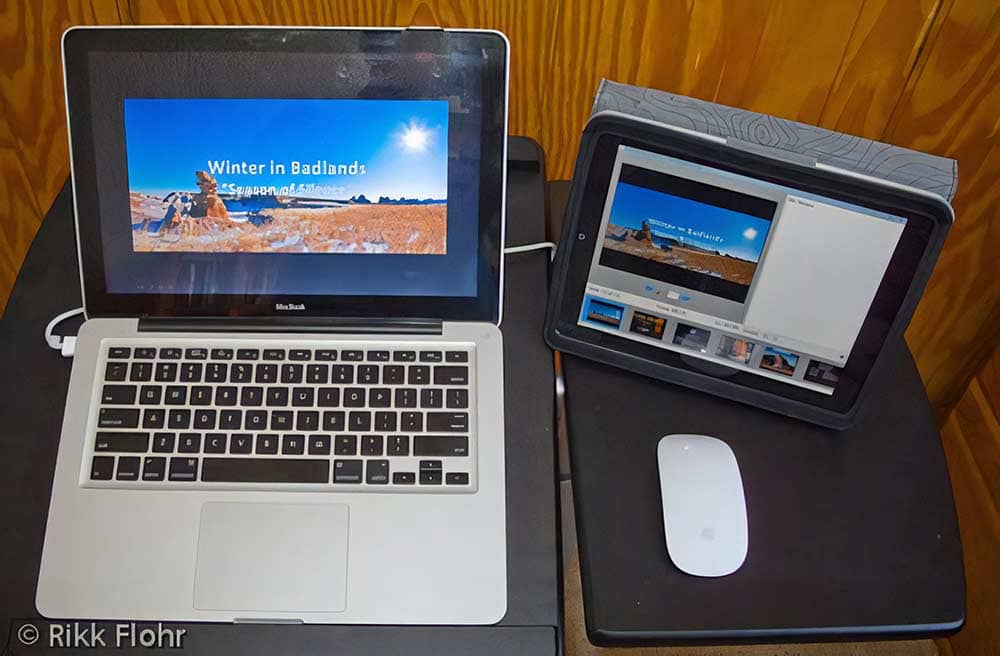
Geetesh: What are the benefits of using the iPad as a secondary monitor for both Windows and Mac users?
Rikk: The benefits are two-fold:
Caveats: If you like, you can roam with your iPad within the realm of the WiFi’s signal. Please remember a couple of items however. The iPad demands attention and attracts attention. Don’t lose track of your audience by your being seduced by the bright attractive screen. It is easy to become engrossed in your presentation in Presenter View and lose your audience in the process. The iPad also likes to rotate its screen based upon its orientation. Turning an iPad which is being ported from a laptop which is also connected to a projector into portrait orientation can do some funky things to video so be aware.
All in all, the iPad can enrich the speaker’s ability to effectively rehearse and deliver a presentation augmented with Presenter View if used wisely. Just don’t let that shiny tablet come between you and your audience.
You May Also Like: iPad Presenting 01: First Questions First | Air Display: Conversation with Dave Howell
The views and opinions expressed in this blog post or content are those of the authors or the interviewees and do not necessarily reflect the official policy or position of any other agency, organization, employer, or company.
Filed Under:
Interviews
Tagged as: Interviews, iPad, PowerPoint, Presentation Skills, Rikk Flohr
Microsoft and the Office logo are trademarks or registered trademarks of Microsoft Corporation in the United States and/or other countries.