
This is the print version of this page. All content is copyright Indezine.com 2000-2026.
Thoughts and impressions of happenings in the world of PowerPoint and presentations, continuously updated since 2003.
See Also:
PowerPoint and Presenting Notes
PowerPoint and Presenting Glossary
Since you already know how to change the color of lines and to change their thickness, it is time to move on and learn about another option that lets you play with how lines look. In this tutorial, you will learn to apply a dashed style to any line (or shape outline). A dashed style in PowerPoint 2011 can have plenty of variations from fewer dashes to ones with longer or smaller dashes, or even alternating small and long dashes.
Learn how to apply dashed styles to lines (shape outlines) in PowerPoint 2011 for Mac.
Filed Under:
PowerPoint 2011
Tagged as: Lines, Office 2010, PowerPoint 2011, Tutorials
Is your Mini Toolbar in PowerPoint 2010 missing altogether? Well, the Mini Toolbar is a great interface option that lets you quickly choose text formatting options, and since it shows up right next to the selected text, it is certainly very convenient — and there’s no reason why you should not have this Mini Toolbar at your beck and call whenever you need it!
Learn how to get back your missing Mini Toolbar in PowerPoint 2010 for Windows.
Filed Under:
PowerPoint 2010
Tagged as: PowerPoint 2010, Tutorials

Jamie Garroch, CEO of GMARK Ltd., founded the company in 2009 to provide presentation professionals with PowerPoint software, content and training. Jamie conceived the idea for the company’s first product, ActivePrez from a non-linear presenting need and has recently added several other add-in products; MapPrez, SwiftPrez, Circlify and interactive maps. Jamie uses PowerPoint for most of his graphic needs, for everything from designing logos to creating web banners and even printed marketing collaterals.
In this conversation, Jamie discusses PowerPoint’s graphic prowess.
Geetesh: It is very interesting to know that you use PowerPoint for so much graphic stuff, such as designing this logo or even creating ads for websites. What makes PowerPoint such an attractive proposition as a graphics program.
Jamie: There are several things that make PowerPoint so well suited to this type of work. Firstly, the graphics engine has really come a long way. There’s not much you can’t do if you set your imagination free.
Secondly, as a daily PowerPoint user, I have become very familiar with the tools. Knowing them inside out and using them effectively instead of having to half learn how to use multiple applications is a real benefit.
Thirdly, when you design content that has to be on-brand, the design themes used in Microsoft Office mean it’s easier and quicker to design in the same environment rather than switch apps (which also consumes computer resources).
Finally, the content is very easily transportable and editable as almost everyone in business has PowerPoint but they often do not have dedicated graphics or illustration applications. Clients love this ‘open source’ concept.
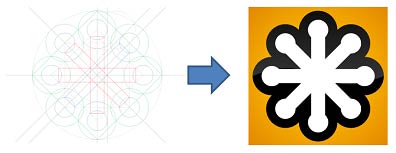
Geetesh: Most business and home users these days have Microsoft Office installed, and yet – a very miniscule percentage of them is aware that PowerPoint is a full functioned graphic program that they already know how to use! What is your advice to them so that they can create graphics in PowerPoint?
Jamie: The first thing I would say is ‘empty your mind and think paper’. That means you need to have an idea of what it is that you want to create and that is actually best conceived on a piece of paper. When you do eventually open PowerPoint, create a new blank (plain white) document and set the layout to blank to get your piece of ‘e-paper’.
The next part is about getting the tools you need for the job in hand. Customize your QAT (Quick Access Toolbar) so that illustration tools are close at hand. These are the essentials I recommend: Layer Controls (Bring/Send – Forward/Back), Alignment (Center, Middle, Top, Bottom, Left, Right, To Slide), Group & Ungroup, Distribute (Vertical, Horizontal), Rotate and the best one of all, the new Combine Shapes tool. An essential skill that is needed is the use of Ctrl, Shift and Alt key combinations to adjust the various properties of shapes.
With all of this in hand, it’s just a case of ‘practice makes perfect’.
You May Also Like: Building an Interactive Public Transport Map Application in PowerPoint, by Jamie Garroch
Filed Under:
Interviews
Tagged as: Design, Graphics, Interviews, Jamie Garroch, PowerPoint
You have already learned the basics of formatting shape outlines in PowerPoint 2011. Now you can go a step further to explore more advanced options for all line formatting characteristics like weight, dash style, arrow style, gradient lines, etc. You will learn about each of these aspects in individual tutorials — this particular page explores how you can change line weight to make the outlines thinner and thicker, and also how you can use line styles that encompass double or triple lines.
Learn how to change the weight attribute of lines (shape outlines) in PowerPoint 2011 for Mac.
Filed Under:
PowerPoint 2011
Tagged as: Lines, Office for Mac, PowerPoint 2011, Tutorials
Although PowerPoint does include options to use pictures, SmartArt, charts, sounds, and even video clips, I yet have to see a presentation that had no text at all. Nothing conveys a message better than text, and even pictures do need captions in the form of text. In PowerPoint, several slide objects can include text — these include text placeholders, text boxes, shapes, tables, SmartArt, charts, etc. In this tutorial though, we are only exploring selecting and editing text within text placeholders, text boxes, and shapes.
Filed Under:
PowerPoint 2010
Tagged as: PowerPoint 2010, Text, Tutorials
Microsoft and the Office logo are trademarks or registered trademarks of Microsoft Corporation in the United States and/or other countries.