
This is the print version of this page. All content is copyright Indezine.com 2000-2026.
Thoughts and impressions of happenings in the world of PowerPoint and presentations, continuously updated since 2003.
See Also:
PowerPoint and Presenting Notes
PowerPoint and Presenting Glossary
PowerPoint provides different types of shapes, which can be formatted by resizing, rotating, etc. When you select most shapes, you get eight resizing handles and a single rotation handle. In addition, some shapes also have one or more yellow diamonds — these enable you to change some facets of the selected shape, or in some cases, you can change the entire shape.

You May Also Like:
Format Painter in PowerPoint 2010 for Windows
Flip and Rotate Picture Fills for Shapes in PowerPoint 2010 for Windows
Working with Pie Shapes in PowerPoint 2010 for Windows
Drawing Arcs in PowerPoint 2010 for Windows
Filed Under:
PowerPoint 2010
Tagged as: PowerPoint 2010, Shapes, Tutorials
Comments Off on Manipulating Shapes by Dragging Diamonds in PowerPoint 2010 for Windows
You have already seen how to apply Themes in different applications of Office 2008 for Mac. Now let us see how to repeat the same process in Office 2011. Here also you will find plenty of built-in Themes which you can choose from. These Themes can be found under Themes tab of the Ribbon.
Learn how to apply Themes in PowerPoint, Word, and Excel 2011 for Mac.
Filed Under:
PowerPoint 2011
Tagged as: Office for Mac, PowerPoint 2011, Themes, Tutorials
Comments Off on Learn PowerPoint 2011: Applying Themes in PowerPoint, Word, and Excel
Applying Themes in different applications under Office 2007 and Office 2010 for Windows has already been discussed in our previous tutorials. To do the same in Office 2008 for Mac, the procedure is little different. Here also you will find plenty of built-in Themes which you can choose from. These Themes can be found under Slide Themes tab in the Elements Gallery.
Learn how to apply Themes in PowerPoint, Word, and Excel 2008 for Mac.
Filed Under:
PowerPoint 2008
Tagged as: Office for Mac, PowerPoint 2008, Themes, Tutorials
Comments Off on Learn PowerPoint 2008: Applying Themes in PowerPoint, Word, and Excel
After inserting a SmartArt graphic within PowerPoint (or converting some bulleted text to SmartArt), you might need to add more shapes to your SmartArt graphics. Fortunately, SmartArt allows you to make these additions and edits with just a click or two. You can add more shape(s) to your existing SmartArt graphics either from within the SmartArt graphic itself, or through the Text Pane. Whether you can add a new shape to a SmartArt graphic depends entirely on the SmartArt variant that you are using — some variants offer more options than the others.
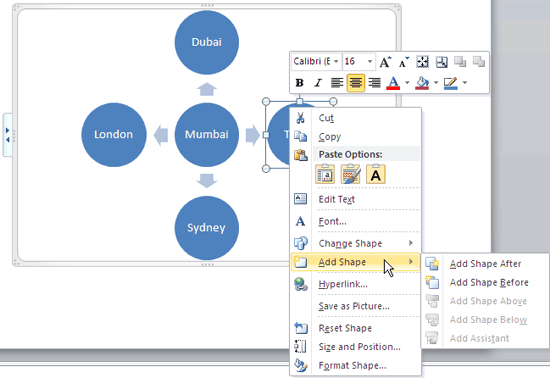
Learn how to add more shape(s) to an existing SmartArt graphics in PowerPoint 2010 for Windows
Filed Under:
PowerPoint 2010
Tagged as: PowerPoint 2010, SmartArt, Tutorials
Comments Off on Adding Shapes to Existing SmartArt Graphics in PowerPoint 2010 for Windows
In a previous tutorial, I showed how you can convert your normal bulleted text to a SmartArt graphic with just a click or two. However, you’ll soon discover that it is neither easy nor intuitive to edit, add, or delete text within a shape inside a SmartArt graphic. Fortunately, all the text edits can be easily performed within the convenient Text Pane of the SmartArt graphic. In this tutorial, I’ll help you explore options for working within the Text Pane for SmartArt graphics in PowerPoint 2010 for Windows.
Filed Under:
PowerPoint 2010
Tagged as: PowerPoint 2010, SmartArt, Tutorials
Comments Off on Learn PowerPoint 2010 for Windows: Text Pane For SmartArt Graphics
Microsoft and the Office logo are trademarks or registered trademarks of Microsoft Corporation in the United States and/or other countries.