
This is the print version of this page. All content is copyright Indezine.com 2000-2026.
Thoughts and impressions of happenings in the world of PowerPoint and presentations, continuously updated since 2003.
See Also:
PowerPoint and Presenting Notes
PowerPoint and Presenting Glossary
PowerPoint 2010 provides all the basic chart types such as column, bar, line, pie, etc. and also some advanced charts like radar, surface, bubble, doughnut, etc. Together, all these chart types cater for almost every kind of graphical data representation. Sometimes you may want to experiment with different chart types to see what works best with your data — fortunately changing chart types in PowerPoint 2010 is very easy.
Learn how you can change chart types in PowerPoint 2010 for Windows.
Filed Under:
PowerPoint 2010
Tagged as: Charting, PowerPoint 2010, Tutorials
Comments Off on Learn PowerPoint 2010 for Windows: Changing Chart Types in PowerPoint 2010

Andy Zimmerman is the vice president and general manager for myBrainshark – Brainshark’s free site for creating, sharing and tracking multimedia presentations. He oversees myBrainshark strategy, marketing, partnerships and sales.
In this conversation, Andy discusses myBrainshark’s newly announced availability in the Google Apps Marketplace.
Geetesh: What does the availability of myBrainshark on the Google Apps Marketplace signify to you, and what does it mean for end users?
Andy: We’re pleased to have myBrainshark available through the Google Apps Marketplace, a site that makes it easy to find and deploy applications that integrate with Google Apps – the Web-based office tools hosted by Google. With more than 3 million businesses running Google Apps, this is a great forum for us to showcase our platform and provide users with a service that helps them do their jobs better.
So many people prepare presentations every day, and myBrainshark gives them a way to really invigorate their content – adding voice narration, background music, video clips, surveys, polls, attachments and more to slide decks and other documents. Our service is frequently used to engage in high-impact online video marketing; create trackable sales pitches and presentations; deliver eLearning courses for employees, customers and partners; and promote thought leadership and expertise. As Google Apps users look to improve the efficiency and results of their business communications, we’re glad to provide access to myBrainshark in a convenient, intuitive way.
Geetesh: Users of Google Apps now have a convenient way to work with voice-over led slide content which is seamlessly integrated within their existing environment – how simple will it be for them to work with myBrainshark within that environment?
Andy: Google Apps domain administrators can instantly add the myBrainshark app for free so that any of their users can use the service. Each user will then have the benefit of single sign-on convenience, with hassle-free access to myBrainshark through the universal navigation bar in their Google Apps interface. From there, Google Apps users can immediately get to work with myBrainshark, using our platform to create, narrate, share and track online video presentations. It’s as easy as that! And if they decide to upgrade to myBrainshark Pro or myBrainshark Pro Trainer, any of the users in the organization can take advantage of the advanced features in those offerings as well.
The views and opinions expressed in this blog post or content are those of the authors or the interviewees and do not necessarily reflect the official policy or position of any other agency, organization, employer, or company.
Filed Under:
Interviews
Tagged as: Andy Zimmerman, Brainshark, Google, Interviews, Online Presentations
Comments Off on myBrainshark on Google Apps Marketplace: Conversation with Andy Zimmerman

Reusing slides that you already have is a good idea as long as you make sure you don’t end up using outdated content! I always suggest you to first create and import an outline so that you have a structured presentation in place — thereafter do use the option that lets you import slides to add more slides or even replace existing ones. Finally you can add any new slides that you need to create from scratch. PowerPoint provides a quick command that locates specific slides, and enables you to add it to the active presentation. While this process works the same way in all versions of PowerPoint, there are small interface changes — in this tutorial, I’ll show you how to reuse slides in PowerPoint 2008 for Mac.
Learn how to reuse existing slides in PowerPoint 2008 for Mac.
Categories: powerpoint_2008, tutorials
Filed Under:
Uncategorized
Tagged as: PowerPoint 2008, Tutorials
Comments Off on Learn PowerPoint 2008 for Mac: Reuse Slides in PowerPoint
Reusing your existing slides can be a great help: first you need not recreate stuff you already have and secondly you are saving so much time that you can use more effectively to practice your presentation! Having said that, always start by creating an outline of your presentation — thereafter reuse any existing slides. PowerPoint provides a quick command that locates specific slides, and enables you to add it to the active presentation. While this process works the same way in all versions of PowerPoint, there are small interface changes — in this tutorial, I’ll show you how to reuse slides in PowerPoint 2010 for Windows.
Learn how you can reuse your existing slides in PowerPoint 2010 for Windows.
Filed Under:
PowerPoint 2010
Tagged as: PowerPoint 2010, Tutorials
Comments Off on Learn PowerPoint 2010 for Windows: Reuse Slides in PowerPoint
 Chris Witt is a coach, consultant, and trainer who works with executives and technical experts who want to communicate what they know more effectively. His clients include IBM, Intuit, Booz Allen Hamilton, Northrop Grumman, Sony, Biogen Idec, Pfizer, the San Diego Zoo, and the School of Medicine at Yale University.
In this interview, Chris talks about his book, Real Leaders Don’t Do PowerPoint: How to Sell Yourself and Your Ideas.
Geetesh: Please tell us more about your book, Real Leaders Don’t Do PowerPoint, and what inspired you to author this title.
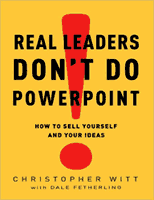
Chris: As an executive speech coach, I found that leaders speak not primarily to communicate information, but to make a difference, promote a vision, and change the way people think and feel and act. I wrote Real Leaders Don’t Do PowerPoint to show readers how to speak in a way that advances a leader’s primary goals:
In order to accomplish those three goals, leaders appeal less to people’s critical thinking and to their need for more information than to their imaginations and to their emotions. Leaders know that telling stories is a more effective way of motivating people than showing slides.
Geetesh: In a series of mediocre PowerPoint led presentations, a single speaker who shuts down the projector and speaks without her slides comes across as an amazing success (an anecdote from your book) — and that scenario is very real indeed. On the other hand cleverly designed slides that work as visual aids have worked very well for leaders such as Al Gore or Steve Jobs. I observe that you do not use a completely anti-PowerPoint tone in your book, but it borders on “you can be a great leader even without PowerPoint”. Please share your thoughts.
Chris: Half my clients are engineers, and I wouldn’t think of suggesting that they swear off PowerPoint. Whether they’re giving a project update, a technical briefing, or an oral proposal, their primary goal is to communicate information in a way that other people can understand and put to use. And communicating information is what PowerPoint is good for. So I work with them to use PowerPoint as effectively as possible.
I’ve slowly begun introducing some of the principles I set forth in Real Leaders Don’t Do PowerPoint into my work with them.
So, for example, I have them use as few slides as possible. I suggest using one only when it’s the best way to demonstrate what they’re talking about. Andrew Lightheart, a presentations coach I respect, put it this way, “You only need a slide in a presentation if you’d need one in conversation.”
I also urge them to approach a presentation as if it’s a conversation—an intelligent, well thought-out, and clear conversation, but a conversation nonetheless. When they dim the lights and stand off to the side of a screen in darkness, they lose one of the most effective ways of connecting with their audience and establishing credibility: eye contact.
But mostly I ask them to establish a goal for each presentation that goes beyond simply communicating information. What do they want people to do with the information they’re presenting? They can learn from leaders—like Gore and Jobs—the value of moving people to action.
The views and opinions expressed in this blog post or content are those of the authors or the interviewees and do not necessarily reflect the official policy or position of any other agency, organization, employer, or company.
Filed Under:
Interviews
Tagged as: Books, Interviews, Opinion, PowerPoint
Microsoft and the Office logo are trademarks or registered trademarks of Microsoft Corporation in the United States and/or other countries.