
This is the print version of this page. All content is copyright Indezine.com 2000-2026.
Thoughts and impressions of happenings in the world of PowerPoint and presentations, continuously updated since 2003.
See Also:
PowerPoint and Presenting Notes
PowerPoint and Presenting Glossary
We already showed how you can create outlines for PowerPoint presentations in Word 2003. There are other applications like Notepad (on Microsoft Windows) and TextEdit (on Mac OS X) in which you can create the outlines. In this tutorial, we’ll explore the procedure of creating an outline for your next presentation using Microsoft Word 2007.

Filed Under:
PowerPoint All Versions
Tagged as: Outline, PowerPoint, Tutorials, Word
Comments Off on Creating PowerPoint Outlines in Microsoft Word 2007
The Task Pane is a docked window within the PowerPoint 2010 interface that provides more options than normal dialog boxes — also unlike most dialog boxes, you can view both the active slide(s) and the Task Pane at the same time — thus the task panes provide a more streamlined workflow. Task Panes made their debut with PowerPoint 2002 (XP) — and for most of the time, they work in exactly the same way in PowerPoint 2010 except for one big difference — you can now have more than one Task Pane visible at the same time.
Learn more about the Task Pane in PowerPoint 2010 for Windows.
Filed Under:
PowerPoint 2010
Tagged as: PowerPoint 2010, Tutorials
Comments Off on Learn PowerPoint 2010 for Windows: Task Panes
 As the creator of the Opazity add-in for PowerPoint and Sales Director for the company that produces the Perspector add-in, Steve Hards has been interested for a long time in the additional resources for PowerPoint that are available. He recently launched some free software, called the Encyclopedia of Free Resources for PowerPoint, which he discusses in this conversation.
Geetesh: Why are free resources for PowerPoint important, and do tell us about some of these resources.
Steve: One of my favourite quotes about presenting is from Jim Endicott, who says “Bad PowerPoint can wreck otherwise good presenters.” It highlights that good slide design is a make-or-break issue. Above all this is true if you want to stand out from other presenters. So, for most people, who are not ‘designers’, there is the question of how to improve.
The way I look at this whole issue is that there is PowerPoint, which is a feature-rich program in its own right, and there are paid add-ins and other resources that take PowerPoint to a much higher level. But many people do not take the journey from one level to the other. Maybe they do not want to start on an unknown learning curve but it is frequently rationalized on the basis of time, cost, and of PowerPoint being ‘good enough’. Which is a pity.
However, ‘free resources ‘ are important because they knock down the cost argument. Then, once people start to see the benefits of using external resources, the ‘good enough’ and ‘learning curve’ excuses tend to evaporate.
When you start digging into it, there are masses of free resources to enhance PowerPoint scattered across the internet. I have grouped the ones I have found, and that I think are good, into several categories.
A major one is templates and backgrounds. Every provider of professional templates has some giveaways because they want you to experience their quality, as you know well, Geetesh, being one of those providers!
Another big section is on sources of free photos. I really worry about people who grab often poor quality photos from Google images, ignoring Google’s warning about copyright infringement. Never mind being sued, it only takes one awkward audience member to challenge you on a copyright issue to derail your presentation. My Encyclopedia software has links to sources where you automatically have permission to use them in any way you want. It’s much more relaxing to work with material when you know you have the right to use it.
The same goes for music. I’m frequently surprised at people’s naivety. Just because it is on the internet doesn’t mean that you can use it freely! Like the situation with templates, providers of free images and music often do so in the hope that some users of the free material will become paying customers.
In addition to those types of resources, there are a number of people who are consistently giving away very good advice on how to become a better presenter. There really is no excuse on cost grounds not to start to get better at it. I’m still learning all the time.
Geetesh: Tell us about your Free PowerPoint Resources list, and how it evolved.
Steve: The Encyclopedia software is the third incarnation of a list which started out about five years ago for my own use. I then produced it as a PDF and gave it away as a bonus to people who bought Perspector. However, such a document is not just impossible to update but it’s not very inspiring to use or pass on.
My next attempt was to list the resources on a website, However, it didn’t get many visitors, so it never took off.
Now I have taken the step of putting it inside the free Encyclopedia software where users will get updates of the free resources automatically and immediately. I’m hoping that this will achieve several things. The first is that it will give users a concentrated experience in their mission to find the resources they want. The second is that it will be more handy, as someone said, than trying to keep all those resource sites bookmarked. Thirdly, I hope that it will inspire people to pass it on to their friends, as in ‘Look at the cool free software I found!” If they do, it will fulfill my ambition to help lots more people get started on developing their PowerPoint and presenting skills.
Go to the Encyclopedia of Free Resources for PowerPoint
The views and opinions expressed in this blog are those of the authors and do not necessarily reflect the official policy or position of any other agency, organization, employer, or company.
Filed Under:
Interviews
Tagged as: Clip Media, Interviews, PowerPoint, Templates
Comments Off on Free PowerPoint Resources: Conversation with Steve Hards
The interface options in PowerPoint 2007 and 2010 are almost the same, yet very different from the earlier versions such as PowerPoint 2003. Apart from the Ribbon with its tabs, the Backstage view, and the Quick Access Toolbar, PowerPoint 2010 also includes the Mini Toolbar, a semitransparent floating toolbar that spawns right next to the cursor — and it is also available instantly with a right-click.
Learn more about the Mini Toolbar in PowerPoint 2010 for Windows.
Filed Under:
PowerPoint 2010
Tagged as: PowerPoint 2010, Tutorials
Comments Off on Learn PowerPoint 2010 for Windows: Mini Toolbar
 Avi Benita is an industrial engineer and statistician with a special expertise in design and analysis of organizational surveys and development of KPI’s (Key Performance Indicators). He owns Metrics Institute, a consultation company working with leading Israeli firms. As a byproduct of its expertise, Avi develops Excel based utilities, as EzPaste-xl2anywhere, for improving work productivity. EzPaste has been originally developed for PowerPoint only. The last version is able to deal with other applications as well.
In this conversation, Avi discusses EzPaste-xl2anywhere.
Geetesh: What exactly does EzPaste-xl2anywhere do, and how can it be helpful to PowerPoint users?
Avi: Copying data and charts from Excel to other applications such as PowerPoint are very common activities performed by people involved in preparing presentations. You build the tables and the charts in Excel, and present them to your audience in PowerPoint, Word or other programs.
Usually, this basic operation is accomplished by quite tediously copying each data/chart from Excel to the clipboard separately, and then pasting it to the application. Have you ever asked yourself, why isn’t this operation automatic and more efficient? We have, and EzPaste-xl2anywhere is definitely our answer!
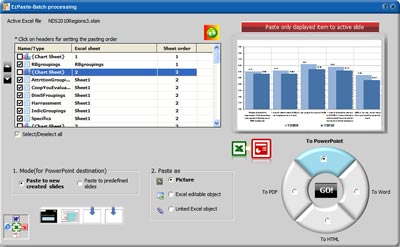
EzPaste is a truly unique productivity tool intended for copying at once hundreds of charts or tables from Excel to PowerPoint, Word, HTML, or PDF. It has been engineered with the end users’ needs in mind allowing them full control over the process.
EzPaste automatically identifies all charts and tables in the active Excel workbook, and pastes them to the selected application active file as pictures, Excel editable objects, or linked objects. But even for performing an isolated copy/paste of the current Excel selection (chart or data), EzPaste replaces the 4-5 steps usually involved with one swift click!
Geetesh: How can EzPaste-xl2anywhere help in a quicker workflowws where content from Excel is automatically updated on PowerPoint slides.
Avi: EzPaste’s advantages are obvious when you have to prepare the same presentation again and again based on the same Excel file where only the data changes. With a click of a button, all the work is done!
Suppose that you have to prepare a monthly PowerPoint presentation from an Excel master file where only the values of the different cells change every month and that some 50 charts and tables are to be included in the presentation.
You prepare a master PowerPoint file and link it to the Excel master file with EzPaste. Now, EzPaste knows exactly to which slide in the presentation to paste every chart or table from Excel. Once a month, with a click of a button, EzPaste will update the master PowerPoint file with the updated Excel charts and tables.
Moreover EzPaste has the ability to paste Excel objects as linked objects, meaning that every change in Excel will be reflected automatically in PowerPoint, assuming both files are open.
The views and opinions expressed in this blog post or content are those of the authors or the interviewees and do not necessarily reflect the official policy or position of any other agency, organization, employer, or company.
Filed Under:
Interviews
Tagged as: Add-in, Avi Benita, Excel, Interviews, PowerPoint
Comments Off on EzPaste-xl2anywhere: Conversation with Avi Benita
Microsoft and the Office logo are trademarks or registered trademarks of Microsoft Corporation in the United States and/or other countries.