
This is the print version of this page. All content is copyright Indezine.com 2000-2026.
Thoughts and impressions of happenings in the world of PowerPoint and presentations, continuously updated since 2003.
See Also:
PowerPoint and Presenting Notes
PowerPoint and Presenting Glossary

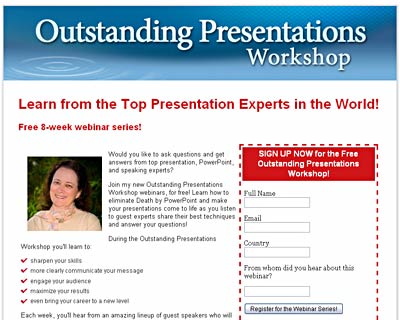
Ellen Finkelstein is a Microsoft PowerPoint MVP and author of several PowerPoint, Flash, and AutoCAD books — she has just launched a new free webinar series called the Outstanding Presentations Workshop.
In this conversation, Ellen talks more about this webinar series.
Geetesh: How did the idea for the Outstanding Presentations Workshop webinar series come about? Who would want to attend the workshops, and how can they sign up?
Ellen: For a long time, I’ve been “beating the drum” about effective presenting and how to avoid Death by PowerPoint. Specifically, I’ve been trying to find ways to reach a larger number of people, those who present regularly, but don’t read books or blogs about presentations. So, I came up with the idea of a series of free webinars, presented by top presentation experts. It’s called Outstanding Presentations Workshop. It will start Wednesday, September 15th at 1 PM Pacific Time /4 PM Eastern Time (in the United States).
Anyone who presents and wants to present well will benefit by attending. It’s not only ideal for individuals, but Training Managers may want to organize groups of employees to view the webinars in a group.
Sign up at Outstanding Presentations Workshop. This is such a great opportunity so we expect a large crowd. The webinar service limits participation to 1000, so we recommend signing up early!
Geetesh: Who are the presenters?
Ellen: I’m so excited at the caliber of our 8 speakers. They are well-known authors, speakers, trainers, and bloggers. Here’s the list, in order of speaking:
The views and opinions expressed in this blog post or content are those of the authors or the interviewees and do not necessarily reflect the official policy or position of any other agency, organization, employer, or company.
Filed Under:
Interviews
Tagged as: Interviews, PowerPoint, Training
Comments Off on Outstanding Presentations Workshop: Conversation with Ellen Finkelstein
 This is a guest article by Jamie Garroch.
Here’s a convention challenging thought. PowerPoint isn’t here to create presentations! At least not exclusively anyway. I read a lot of articles talking about the best way to create presentations yet PowerPoint can be used to do so many things, even create applications.
To improve your skills and knowledge of PowerPoint, it’s often a great idea to give yourself a seemingly impossible task. In this project, I decided to recreate the London Underground (tube/metro) system map entirely in PowerPoint, make it interactive and then link it to an Internet real-time update service.
Filed Under:
Microsoft Office
Tagged as: Microsoft Office, PowerPoint, Techniques
Comments Off on Building an Interactive Public Transport Map Application in PowerPoint
Yesterday, we put up a tutorial on how you can mark a presentation as finalized in PowerPoint 2010. Today we add three more similar tutorials so that you can reverse the finalization and also do these tasks in PowerPoint 2007:
Learn how to apply Mark as Final to a presentation in PowerPoint 2007.
Learn how to remove Mark as Final from a presentation in PowerPoint 2010.
Learn how to remove Mark as Final from a presentation in PowerPoint 2007.
Filed Under:
PowerPoint 2010
Tagged as: Distribution, PowerPoint 2007, PowerPoint 2010, Tutorials
Once you create a presentation, you may need to share it. PowerPoint 2010 (and PowerPoint 2007) provide the Mark as Final option that makes your file read-only. I need to add that this is just a deterrent and nothing as restrictive as password protecting a PowerPoint presentation. Mark as Final tries to prevent users from typing, editing commands, and proofing — all editing options are disabled or turned off. However, do remember that Mark as Final is not a security feature and it can be easily reversed.
Learn how to apply Mark as Final to a presentation in PowerPoint 2010 for Windows.
Filed Under:
PowerPoint 2010
Tagged as: Distribution, PowerPoint 2010, Tutorials
Comments Off on Learn PowerPoint 2010 for Windows: Mark as Final
 Emanuel Zügeris one of the founders of VIOSO GmbH and one of the managing directors together with Benjamin Fritsch. VIOSO offers solutions for projections, enabling an easy way to create stunning projections on complex surfaces as well as dealing with common projector issues.
In this conversation, Emanuel discusses VIOSO Presenter, one of the products that VIOSO creates.
Geetesh: Is Vioso Presenter a playlist application that lets you combine PowerPoint presentations and other file formats? Also, what else does it do.
Emanuel: Yes, it is. You can combine images, videos and even PowerPoint slides to one seamless presentation. PowerPoint-slides get converted into still images automatically as long as there is PowerPoint 2007 installed on the system as well.
General speaking, VIOSO Presenter is a presentation and projection solution for all Windows based systems. It combines different features to support every scenario from business presentation to home cinema evening. Everybody knows common problems such as: blank screen; projector remote missing; no audio; distorted image on the wall; no playback of a video; discoloration and so on. For all these all day presentation situations, VIOSO Presenter comes up with a feature. Starting with an easy to handle user interface you don’t need to get used to, you see a dropbox working like a playlist to combine nearly any file you can imagine. Directly from your PC you are able to fit the image via movable control points to the background or simply create an even image with an uneven placed projector. Optimize color and contrast via sliders and view your content in a 3D visual effect with a self made background image. Feel secure and benefit from a trouble-free presentation.

Geetesh: You have both a free and Pro version of Vioso Presenter – how do they differ?
Emanuel: Actually we have three versions:

Geetesh: Can you tell us more about your support infrastructure.
Emanuel: VIOSO currently has a team of 10 people itself and a wide spread partner network to give support in almost any language. Partners are situated not only all over Germany, but also in Europe, Asia and the US. Also the software is self-explanatory and comes in 5 different languages inclusive of an extensive manual. Customers are always welcome to call or send an email which get exhaustive answers free of charge.
Since we are selling software online, the licensing is no problem. Customers receive a license code automatically after ordering that turns any free or demo version into a fully licensed copy at once.
The views and opinions expressed in this blog post or content are those of the authors or the interviewees and do not necessarily reflect the official policy or position of any other agency, organization, employer, or company.
Filed Under:
Interviews
Tagged as: Emanuel Züger, Interviews, PowerPoint, Vioso
Comments Off on VIOSO Presenter: Conversation with Emanuel Züger
Microsoft and the Office logo are trademarks or registered trademarks of Microsoft Corporation in the United States and/or other countries.