
Someone asked this question today:
When you put in the auto number thing so that you can see what slide number you are on, can you start that at any number?
Yes, you can! Let us start by showing how you can put in the slide number first. These instructions are for PowerPoint 2003 but should work in previous versions, although things work a little differently in PowerPoint 2007.
- Choose the View | Header and Footer option to summon the dialog box, as shown in Figure 1, below.
- Check the option that says Slide number and click the Apply to All button to view slide numbers on all slides.

Figure 1: Opt to show slide numbers
Now, let us assume you want the slide number to start from 31 instead of 1. Why would you want to do so? There are several reasons, but most of the time, you might want to break up your presentation into 2 or more smaller presentations, and you then want the slide numbers to start from a number other than 1.
Follow these steps to do so:
- Choose the File | Page Setup option.
- You will see the resulting dialog box, as shown in Figure 2, below. Now, choose the Number slides from “n” option, where “n” is your starting slide number.
- Click the OK button.

Figure 2: Renumber your slides from a number other than 1
Start Slide Count from Zero
You can also renumber your slides from “0”, this means your second slide will be numbered “1”.
Related Posts
 In the PowerPoint 2003 Interface page, we already showed you the different parts of the program interface, in this page, we'll focus on one particular...
 Aren't text boxes and text placeholders the same? Are they really different? And why should I bother even if they are different? All these are valid q...
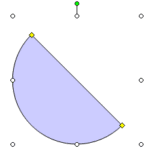 Since there is no easy, intuitive way to create semi-circles in PowerPoint 2003, we already showed you three ways to create them! ! And now here's one...
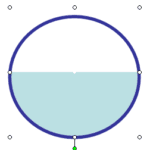 An Indezine reader asked me if he could create three circles next to each other, and make sure that they looked like this: The first circle should be ...
Hi,
Thanks for this tip. Would you be able to tell me if there is a way to be able to give different slide number for different sections of one massive powerpoint deck?
Thanks,
Kunwar
Not really although you can fake that by linking presentations.
Thanks for this tip – it was clear and concise. Could you add this additional information for those using PowerPoint 2007:
The "Number slides from" option is found by selecting Design | Page Set Up – this launches the options box that looks the same as pictured here. (The Design tab is third from left at the top of the screen.)
Thanks for the tips,
Can you please tell me a way to reverse order slide numbers in 2013(eg total slides in presentation 40.? on slide 3 i want the number to be 37 so i know how many slides are left to cover. Thanks and regards
sathya