
When you launch Keynote and choose a theme for your new presentation, or apply a new theme to an existing presentation, you can change the Slide Size of the presentation.
Now the Slide Size is actually almost the same as the resolution of your presentation and is related to the resolution capabilities of your monitor display and projector. This is not as geeky as it sounds. Just remember that the most common and safe resolution for all new projectors is 1024 x 768 pixels, so, if you never bother changing the slide size, Keynote will continue creating your presentations in this resolution. In fact, Keynote defaults to 1024 x 768 pixels. Just stay with the defaults until you get a little more Keynote-savvy.
Older projectors worked at only 800 x 600 pixels, and most of the higher-end projectors can support much higher resolutions. Of course, if you want to choose a Slide Size that’s different than 1024 x 768, you must have a compelling reason to do so. Maybe, you want to use a wide-screen aspect, or you have been asked to use a different slide size.
You can choose your Slide Size in the drop-down list of the same name, as shown in Figure 1, below.

Figure 1: Slide Size in Keynote
As you can see in Figure 1, above, Keynote provides you with five slide sizes for this particular theme (Harmony). On the other hand, look at Figure 2, below, and you’ll find that this theme (Blackboard) has only two slide sizes. This makes it obvious that all themes don’t have all slide sizes.
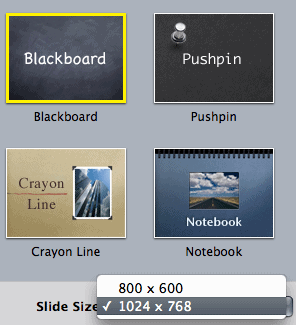
Figure 2: Slide Size in Keynote
You’ll find a more detailed explanation of slide sizes in Keynote on the Apple site.
Related Posts
 Apple announced the release of iWork '09, including Keynote '09, the presentation component of the iWork suite. iWork '09 also includes Pages '09 and ...
 By default, the iWork installation creates shortcuts for all the programs within the iWork suite such as Keynote, Pages, and Numbers within the Mac OS...
 We remember the first version of Keynote had a nice manual. Also, the second one, which came as part of iWork 05, had a substantial paper manual in th...
 We already showed you the Slide Navigator and Outline views in Apple Keynote in an earlier post. Keynote provides two more views that we will explore ...