
Once you insert a picture in your slide, there is so much you can do it to make it appear consistent with the look of your slides — you can make corrections to brightness, sharpness, and contrast values. You can also play with recolor options, and apply Photoshop style filters. However, even before you play with all these options, you must ponder and decide whether you want to use PowerPoint’s Crop options. Cropping an area removes unrequired areas, and lets you add focus to the areas of the picture that are relevant to the topic of your presentation. Cropping also lets you remove some unwanted areas.
Learn how to work with simple crop options for pictures in PowerPoint 2011 for Mac.
Related Posts
 PowerPoint's, Slide Layouts are a very useful feature because they let you use a boilerplate arrangement of placeholders repeatedly, resulting in slid...
 You may know how easy it is to flip or rotate a picture on your slide. But do this same flipping when you use a Picture fill within a shape -- and do ...
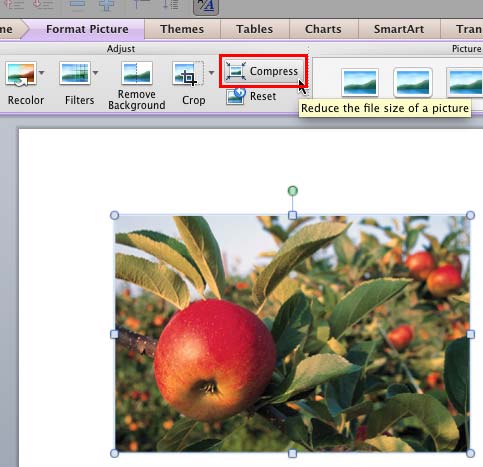 Although using pictures enhances the look of your presentation, it can also phenomenally increase the size of your presentation file. By default, Powe...
 Any manipulations you make to inserted pictures in PowerPoint are strictly only on the surface. The appearance of the picture changes on the slide, bu...