
There are times when you want a different picture on each slide — yet although the pictures need to be different, their position, formatting, and size may be required to be the same in successive slides. While you can achieve this manually, you will spend an inordinate amount of time making sure that the pictures look consistent slide after slide — and even then, you may not be too happy with the results or the time it takes to make changes. You can get over this problem by using a new slide layout with a picture placeholder. As we learnt in previous tutorials, a placeholder is a boilerplate container that you can use to fill in with all sorts of content types such as text, pictures, charts, SmartArt graphics, etc. In this tutorial we’ll explore how to work with a picture placeholder you add to a new slide layout.
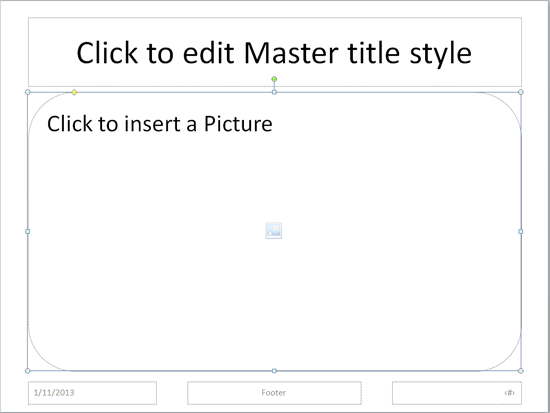
Learn how to format picture placeholder in PowerPoint 2010 for Windows.
Related Posts
 In PowerPoint Slide Layouts are a very useful feature because they let you use a boilerplate arrangement of placeholders repeatedly, resulting in slid...
 Insert Slide Numbers on your slides, and you may discover that the location of the Slide Number changes depending upon the active Theme of your slides...
 We already showed you how you can add a new Slide Master to your presentation -- and yes, you can make that task even easier by possibly duplicating t...
 Duplicating a Slide Master is a little different than adding a new Slide Master from scratch. And it's a smart option because you don't have to make t...