
Once you insert an audio clip into your presentation, you may find that it is too long, or there may be parts in the clip that you don’t want the audiences to hear. Or maybe you just need a small bit to play — like the sound of that trumpet blowing! Although you can scrub the clip using the Player Controls bar to ascertain where you want the clip to begin and end, that option may become monotonous and inaccurate — and it also looks very unprofessional if you try scrubbing an audio clip right in front of your audience. Fortunately, PowerPoint’s trim audio options can make this easy for you — follow these steps to explore how you can trim an audio clip right inside PowerPoint 2010 for Windows.

Learn how to trim audio clips in PowerPoint 2010 for Windows.
Related Posts
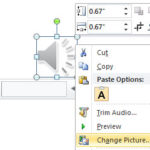 When you insert an audio clip on your slide, PowerPoint represents the clip by a sound icon. You can change the sound icon to any other picture you wa...
 When you insert an audio clip into a PowerPoint slide, you can control its volume, set it to play looped, or even hide the audio icon. These are some ...
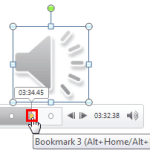 After adding a Bookmark to an audio clip, you may want to edit or remove the Bookmark altogether. In PowerPoint you can't edit a Bookmark -- for examp...
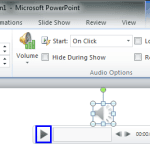 One of the very important, new abilities in PowerPoint 2010 relates to you being able to play your audio files from a certain point within the clip. T...