

Joey Dudley is a Senior design consultant and lead Google Slides trainer at BrightCarbon, the specialist presentation and eLearning agency. He creates beautiful graphics and design layouts for use in presentations, infographics, animations, and eLearning to ensure that they are both professional and communicate effectively. He’s a dab hand at building dynamic, visual content in Google Slides and loves to share amazing things that you can do with it, including plenty of blogs and tutorials at the BrightCarbon site.
Geetesh: When we explore presentation design, many of us assume that PowerPoint is being used. But that’s not necessarily true all the time because Google Slides is being used more and more often. Can you share your thoughts about this topic, and what motivated you folks at BrightCarbon to create content in Google Slides for your clients.

Joey: Microsoft Office has naturally become the default digital workspace choice for an enterprise environment. Couple that with its heavyweight arsenal of powerful features and it makes sense that PowerPoint has long been the industry standard in the world of presentation creation software. However, Google understands that pitting Google Slides toe-to-toe against PowerPoint in a battle of the features, is one they’ll lose every time. So, they’ve instead created a totally separate, highly collaborative, cloud-based working environment in which Google Slides, with its admittedly lighter list of features, lives very happily.
This attractive environment requires much less initial admin to access and install, allows people to collaborate seamlessly in real-time and relies on a very stripped back interface with the intention of not overwhelming new users. I think however, what really encourages people to consider Google Workspace as an option, is that its standard model is free.

When it comes down to which tool or Workspace, we’d opt for using, it simply comes down to what our client would like to use and what they’re looking for in the end result. We understand that PowerPoint and Google Slides are both excellent choices for particular use cases. After some heavy-duty animation and interactivity or the use of bespoke fonts? We’re reaching for PowerPoint. Need to work in a highly collaborative workspace, creating presentations that can be shared to anyone in an instant across any device with an internet connection? Google Slides is the clear choice. We’re happy to advise our clients on which direction to move in but mostly they already know, and honestly as a design agency you strive to delight clients within their preferred environment.
Geetesh: Broadly speaking, what are the similarities and differences between Microsoft PowerPoint and Google Slides? Also, is there something significant that PowerPoint users who are venturing into Google Slides should be aware about?
Joey: I can’t overstate the collaboration functionality. There’s a feature through the view menu called Live Pointers which allows you to see users’ cursors in real time. Handy if you need to jump on a quick phone call and are unable to share screens but this really showcases how Google Slides can keep up with the actions of its users. The ability to iterate quickly with both clients and colleagues is a well-valued one and is something you really miss when working within any other presentation tool which can feel sluggish in comparison.
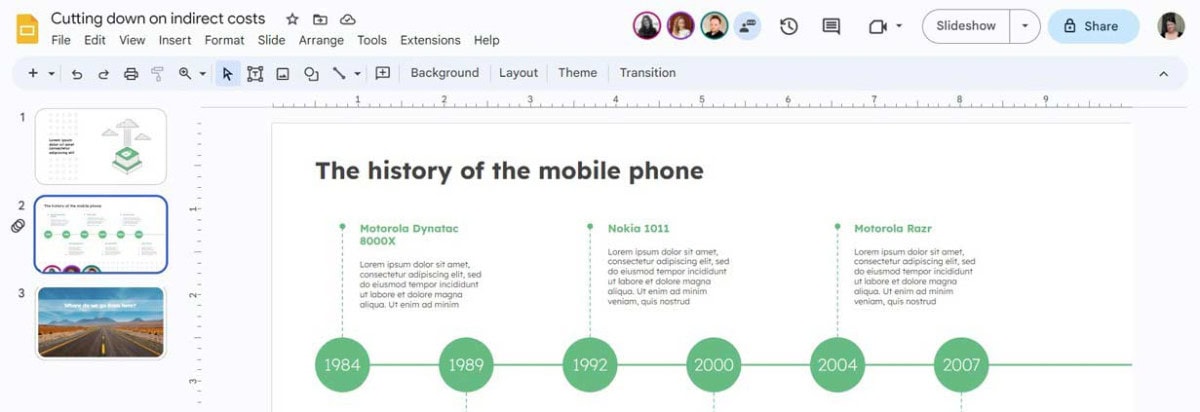
Obviously one of the major comparisons is collaboration, there are other differences in functionality that Slides does a little differently, which can feel a little jarring if you’re unfamiliar using it.
While holding the shift key down to straighten wonky lines out sounds dull, but when blasting through a deck and time is not your friend, it’s a game changer.
Google Slides also has really handy keyboard shortcuts for organising layers, allowing you to move objects forwards and backwards using Ctrl and the up and down arrow keys. You can also use Ctrl + Shift + arrow to move things instantly to the front or back. Google Slides doesn’t have a quick access toolbar that you might be used to in PowerPoint, so using keyboard shortcuts like this can really boost productivity rather than right-clicking and selecting the appropriate command.
Another powerful function is the ability to replace an image by simply dragging the new image from its source onto the old one. It’ll swap out the old image and crop it to the same size and position as the original in a way that feels more seamless compared to PowerPoint.
While the meaningful difference is the stability of collaboration, but these kinds of smaller differences make you wish they were in PowerPoint too. PowerPoint is obviously a really powerful tool in its own right and ultimately the ease of using either simply comes down to familiarity or lack thereof. If you do want/have to move from PowerPoint to Google Slides we’ve written more about the things to consider. But both are a blank canvas. The primary aim is to communicate clearly and get your audience to do something. The best tool is the one that helps you do that most easily and effectively.
With that in mind, when it comes to sharing your presentation, Google Slides has another advantage over PowerPoint. It’s a URL, so you don’t need to worry about file sizes, which is often a pain when sharing and collaborating. But also, you can modify a Google Slides URL by replacing everything from the editslide=id…. with any of the following:
/present – View the presentation slide show.
/preview – Similar to above but with navigation buttons in a bar at the bottom of the screen.
/copy – Creates a new copy of the presentation each time.
/htmlpresent – Creates a scrolling view of all slides as HTML.
/export/pdf – Creates a PDF version of the deck.
/export/pptx – Allows you to download the presentation as a PowerPoint file.
These make it so convenient to share your presentation or have things ready to go when you want to present. Just make sure that you always use lowercase!
If you’re new to using Google Slides or considering switching, we have an extensive guide all about it, or check one of our weekly free webinar masterclasses about presentation design and Google Slides.
The views and opinions expressed in this blog post or content are those of the authors or the interviewees and do not necessarily reflect the official policy or position of any other agency, organization, employer, or company.
Related Posts
 Richard Goring is a Director at BrightCarbon, a presentation and eLearning agency. He enjoys helping people create engaging co...
 Richard Goring is a Director at BrightCarbon, a presentation and eLearning agency. He enjoys helping people create engaging co...
 Anand R Krishnan is a presentation expert and the founder of SlideKit, a Google Slides add-on and SlideBazaar, a presentation ...
 Jamie Garroch is a Technical Consultant at BrightCarbon, the specialist presentation and eLearning agency. He develops PowerPoint automati...