
Many shapes look like each other. And that’s why you may work with one shape and then realize that you used the wrong one. For example, you may create a 5-pointed star when you needed a star with 4 or 8 points. Let’s explore another scenario: you worked on a shape and applied effects, animations, and fills to this shape. Later you realize that you used the wrong shape, or perhaps the client wants you to change the shape but retain all the effects, animations, and fills. You may want to delete the existing shape and start over again, and that is a long-drawn process. Luckily, there is an easier option.

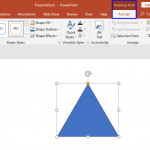
Learn how to change one shape to another in PowerPoint 2016 for Windows.
Related Posts
 When you insert a new shape on a slide in PowerPoint 2016 (or in any previous version), by default it is filled with a solid color and an outline (or ...
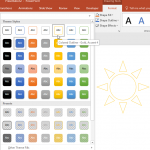 PowerPoint's fill, line, and effect attributes enable you to customize the look of shapes and other slide objects in your presentation. However, it ma...
 When you insert a video clip within a PowerPoint slide, you'll find it placed as a traditional rectangular shape. And while that's what most users exp...
 Once you insert a SmartArt graphic within PowerPoint (or convert some bulleted text to SmartArt), you may want to add more shapes to your SmartArt gra...