
 (No Ratings Yet)
 Loading...
Do you want to add a picture that fills not one but many shapes? And do you want the picture fill to span across multiple shapes? Is that doable? Yes, it is—and there are several ways to achieve these results. We will look at two approaches.

Create shape segments with a unified picture fill in PowerPoint.
Related Posts
 Many times, you may want to add an image within a star shaped container, or any other container shape, such as a diamond, a teardrop, or even a triang...
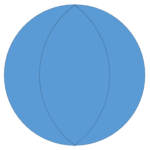 Do you want to create a flower diagram, or just draw a normal flower? You will soon realize that PowerPoint’s Shape Gallery offers no Petal shape or e...
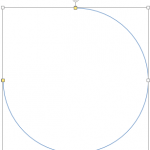 PowerPoint offers so many shapes, from simple rectangles and ovals to playful options like pies and smiley faces. While you can use these shapes as-is...
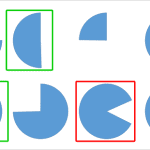 Sometimes you may wonder why PowerPoint does not provide options for the shapes that you want to use! The other day someone wanted to create a shape r...