
This is the print version of this page. All content is copyright Indezine.com 2000-2026.
Thoughts and impressions of happenings in the world of PowerPoint and presentations, continuously updated since 2003.
See Also:
PowerPoint and Presenting Notes
PowerPoint and Presenting Glossary
In today’s post, I’m sharing a video I created that shows how you can add a picture fill to your text in PowerPoint. This trick works in almost all versions of PowerPoint, although I am using PowerPoint 2016 for Windows in this demo video.
The best part about this trick is that you can use any picture, including a picture from the same slide to fill up the text. This gives the entire slide a unified and understated look.
Do use this trick in your slides, and share your thoughts in the Comments area.
Filed Under:
PowerPoint All Versions
Tagged as: Fills, PowerPoint, Tutorials, Video Tutorial
Comments Off on Text Fill from Picture in PowerPoint
In PowerPoint, when you type text within a text or Content placeholder, the default result is that you end up creating a bulleted list. Also, when you import an outline, all the content other than the slide titles ends up becoming bulleted text. While this may work in some situations, at other times you may want to either remove the bullets altogether, or convert it to a numbered list.

Learn how to change a bulleted list to a numbered list in PowerPoint 2016 for Windows.
Filed Under:
PowerPoint 2016
Tagged as: Bulleted List, Bullets, Microsoft Windows, Numbered List, Office 2016, PowerPoint 2016, Tutorials
Comments Off on Change Bulleted List to Numbered List in PowerPoint 2016 for Windows
Before you change or format something, PowerPoint expects you to first to make a selection, and then the do something such as clicking a button to perform an action for the selected slide objects. If you cannot select an object, then you cannot modify it at all. Although this tutorial explains how you can select shapes on a slide, the process works the same way for any other slide object.

Learn how to select and deselect single and multiple shapes in PowerPoint 2016 for Mac.
Filed Under:
PowerPoint 2016
Tagged as: Mac, Office 2016, Office for Mac, PowerPoint 2016, PowerPoint for Mac, Selection, Shapes, Tutorials
Comments Off on Select and Deselect Shapes in PowerPoint 2016 for Mac
We first bring you ten ideas for presentations that you can use in a Pecha Kucha presentation. You can use these same ideas in other presentations too. We also feature Jerry Weissman who talks about Six Ways to Win With Words.
PowerPoint 2016 for Windows users can learn about Comparing Presentations Manually, and Creating Your Own Picture Bullets. PowerPoint 2016 for Mac users can find out more about the Shape Subtract command that let you create new shapes from existing PowerPoint shapes. We also cover No Fill for Shapes and the Presentation Gallery. And if that wasn’t enough for this week, make sure you do not miss the quotes, press releases, and templates released in the last week.

Stay informed about updated tutorials and happenings related to PowerPoint and presenting.
Filed Under:
Ezine
Tagged as: Ezine, Indezine, News, PowerPoint
Comments Off on PowerPoint and Presenting News: August 7, 2018
Backstage view is not akin to other PowerPoint views such as Slide Sorter view or Normal view that relate to working with slides. In fact, Backstage view is not a view in those terms, because you can be using Normal view (to work with slides) and Backstage view (to work with options) at the same time. Consider Backstage view as an over-sized menu that gives you access to many options. In PowerPoint 2016 for Mac, Backstage view and Presentation Gallery are one and the same for most purposes, except the way they are accessed. Let us explore existing features within Backstage view.
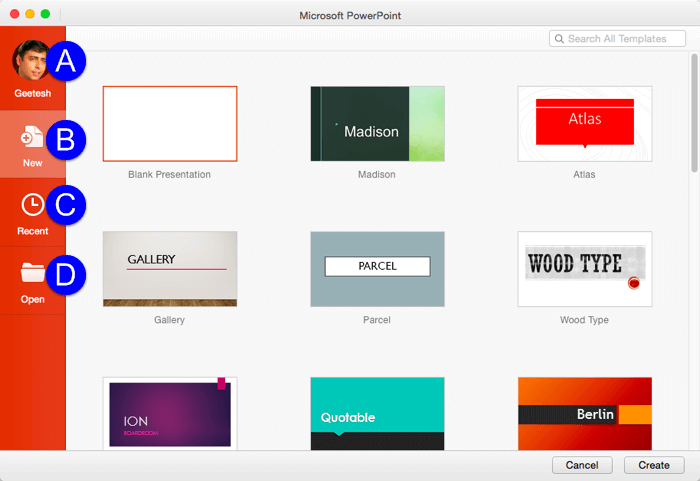
Explore Backstage view in PowerPoint 2016 for Mac.
Filed Under:
PowerPoint 2016
Tagged as: Backstage, Interface, Mac, Office 2016, Office for Mac, PowerPoint 2016, PowerPoint for Mac, Tutorials
Comments Off on File Menu and Backstage View in PowerPoint 2016 for Mac
Microsoft and the Office logo are trademarks or registered trademarks of Microsoft Corporation in the United States and/or other countries.