
This is the print version of this page. All content is copyright Indezine.com 2000-2026.
Thoughts and impressions of happenings in the world of PowerPoint and presentations, continuously updated since 2003.
See Also:
PowerPoint and Presenting Notes
PowerPoint and Presenting Glossary
When you type too much text into a smaller text box, you might have seen that PowerPoint automatically reduces the size of your text so that everything can fit in—or the text container itself increases in size. Does this automatic hand-holding by PowerPoint interrupt your work? Well, you really don’t have to worry because you can control this default behavior of PowerPoint.

Learn about Text Box autofit options in PowerPoint 2016 for Mac.
Filed Under:
PowerPoint 2016
Tagged as: Mac, Office 2016, Office for Mac, PowerPoint 2016, PowerPoint for Mac, Text Boxes
Comments Off on Text Box Autofit Options in PowerPoint 2016 for Mac
We first bring you an exclusive interview with Mitch Grasso of Beautiful.AI, who talks about their amazing, intelligent presentation platform. We then bring you Carmine Gallo in another exclusive feature, where the celebrated author discusses his new book, Five Stars: The Communication Secrets to Get from Good to Great. Jerry Weissman brings us another thought-provoking post, where he puts forth five questions that will make your meetings more productive. And in yet another exclusive, Brian Washburn talks about his new book, PowerPoint: Your Co-Facilitator, that is published by Association for Talent Development.
We have updated our Bing Image Search series tutorials, and this week we explore Bing’s Search by Image Size option. PowerPoint 2016 for Windows users will learn so much from our Reordering Sections and Viewing Sections tutorials. PowerPoint 2016 for Mac users will benefit from our Insert Pictures tutorial. And if that wasn’t enough for this week, make sure you do not miss the quotes, press releases, and templates released in the last week.

Stay informed about updated tutorials and happenings related to PowerPoint and presenting.
Filed Under:
Ezine
Tagged as: Ezine, Indezine, News, PowerPoint
Comments Off on PowerPoint and Presenting News: June 12, 2018
When you insert a picture on your PowerPoint slide, you are doing a task that is frequent and commonplace. And to you, this may look like an activity that’s simple, but behind this simple task, there are options you may not be aware of. You can link to a picture rather than insert one. This means that if you make changes to your original picture, PowerPoint will update its copy on the slide!

Learn about the options available for inserting and/or linking pictures in PowerPoint 2016 for Mac.
Filed Under:
PowerPoint 2016
Tagged as: Graphics, Insert, Mac, Office 2016, Office for Mac, Pictures, PowerPoint 2016, PowerPoint for Mac, Tutorials
Comments Off on Insert and/or Link Pictures in PowerPoint 2016 for Mac
Unlike in Windows versions of PowerPoint, there is no option in PowerPoint 2016 for Mac to insert online pictures. If you must use online pictures, you could use two workarounds, and both of them are not perfect but can help in some cases.
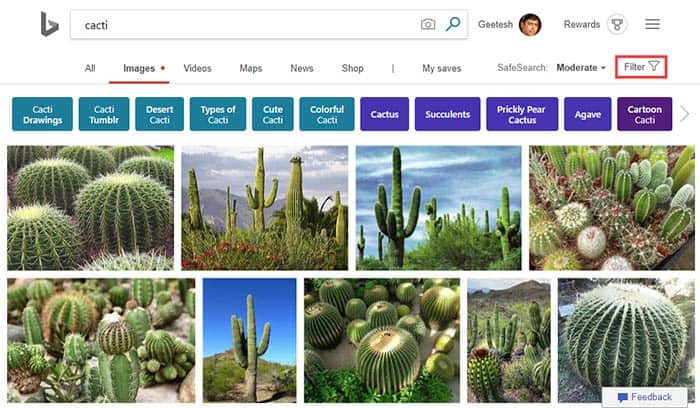
Explore options for inserting online pictures in PowerPoint 2016 for Mac.
Filed Under:
PowerPoint 2016
Tagged as: Insert, Mac, Office 2016, Office for Mac, Pictures, PowerPoint 2016, PowerPoint for Mac, Tutorials
Comments Off on Insert Online Pictures in PowerPoint 2016 for Mac

Brian Washburn is the co-founder and CEO of Endurance Learning, a boutique instructional design firm whose vision is that every presentation can be engaging and lead to change. His goal in life is to rid the world of the scourge of poor learning experiences. In this interview, Brian discusses his book, PowerPoint: Your Co-Facilitator, published by ATD.
Filed Under:
Interviews
Tagged as: Books, Death by PowerPoint, Interviews
Comments Off on PowerPoint, Your Co-Facilitator: Conversation with Brian Washburn
Microsoft and the Office logo are trademarks or registered trademarks of Microsoft Corporation in the United States and/or other countries.