
This is the print version of this page. All content is copyright Indezine.com 2000-2026.
Thoughts and impressions of happenings in the world of PowerPoint and presentations, continuously updated since 2003.
See Also:
PowerPoint and Presenting Notes
PowerPoint and Presenting Glossary
To begin, let’s start with the basics. What are Guides in PowerPoint? Consider Guides as individual lines from a grid on your slide that you create. Every single Guide can be moved, added, or deleted. Guides also have snap options that are always on. Once the Guides are made visible on the slide, all objects that venture close enough to them just snap. Along with Rulers, Guides help you position your slide objects with more precision, and you can make them work for you using techniques explained on this page.
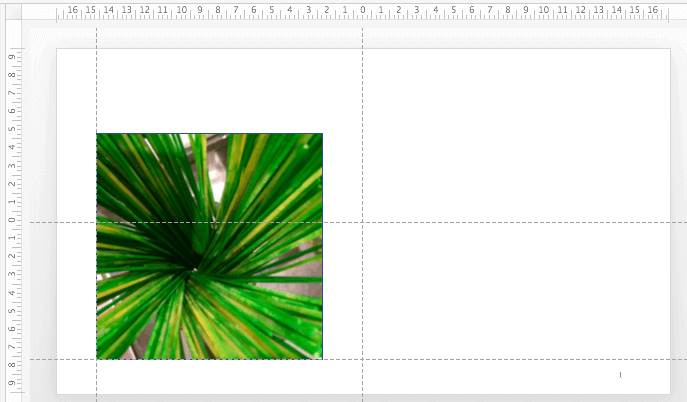
Learn how to work with Guides in PowerPoint 2016 for Mac.
Filed Under:
PowerPoint 2016
Tagged as: Guides, Mac, Office 2016, Office for Mac, PowerPoint 2016, PowerPoint for Mac, Tutorials
Comments Off on Working with Guides in PowerPoint 2016 for Mac
We begin with an exclusive conversation with Kurt Dupont of PresentationPoint, who talks about PowerPoint dashboards. We also feature Jamie Garroch, who talks about his new PowerPoint add-in, PPT2GIFa Lite, that lets you create animated GIFs from within PowerPoint. We then explore how you can sign out and switch Accounts in PowerPoint 2013 on Windows 10 and 8.
PowerPoint 2016 for Windows users can learn about drawing custom Motion Paths for animations, signing out and switching Accounts, and the Account option in Backstage view. You can also explore reversing the path for Motion Path animations. PowerPoint 2013 for Windows users can learn about the Explore option in Backstage view and signing in, signing out, and switching Accounts. PowerPoint 2016 for Mac users will find useful information about changing Background Styles in the Slide Master. And if that wasn’t enough for this week, make sure you do not miss the quotes, press releases, and templates released in the last seven days.

Stay informed about updated tutorials and happenings related to PowerPoint and presenting.
Filed Under:
Ezine
Tagged as: Ezine, Indezine, News, PowerPoint
Comments Off on PowerPoint and Presenting News: April 3, 2018
Once you have made Guides visible on your PowerPoint slides, they show up in the same position on all other slides within the presentation. You’ll find that only two Guides, one horizontal and one vertical Guide are visible at first, and these two Guides intersect at the center of the slide. Most of the time, this might work for you, but you can actually add more Guides since these can help in positioning slide objects better across successive slides.

Learn how to add more Guides in PowerPoint 2016 for Mac.
You May Also Like:
Guides in PowerPoint 2016 for Mac
Rulers in PowerPoint 2016 for Mac
Duplicate Slides in PowerPoint 2016 for Mac
Filed Under:
PowerPoint 2016
Tagged as: Guides, Mac, Office 2016, Office for Mac, PowerPoint 2016, PowerPoint for Mac, Tutorials
Comments Off on Adding More Guides in PowerPoint 2016 for Mac

Rick Altman has been hired by hundreds of companies, listened to by tens of thousands of professionals, and read by millions of people, all of whom seek better results with their presentation content and delivery. He covers the whole of the industry, from message crafting, through presentation design, slide creation, software technique, and delivery. He is the host of the Presentation Summit, now in its 16th season as the most prominent learning event for the presentation community.
In this conversation, Rick talks about the upcoming Presentation Summit conference, being held in San Diego from September 23rd to 26th, 2018.
Filed Under:
Events
Tagged as: Events, Interviews, Presentation Summit, Rick Altman
Comments Off on Presentation Summit 2018: Conversation with Rick Altman
Motion paths are paths (or lines) through which slide objects animate. These motion paths are like any other line with curves, points, etc. If you are familiar with the Line, Curve, Scribble, and Freeform drawing tools in PowerPoint, you know that paths can be either open or closed. A circle is a good example of a closed path, whereas an arc is an open path. So, how is the concept of open and closed paths relevant to Motion Path animations in PowerPoint?
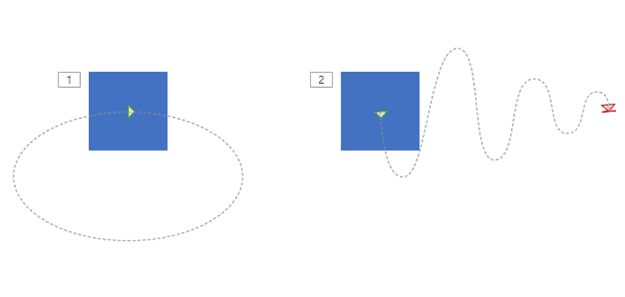
Learn about open and closed paths for Motion Path animations in PowerPoint 2016 for Windows.
Filed Under:
PowerPoint 2016
Tagged as: Animation, Microsoft Windows, Motion Path, Office 2016, PowerPoint 2016, Tutorials
Comments Off on Open and Closed Motion Paths in PowerPoint 2016 for Windows
Microsoft and the Office logo are trademarks or registered trademarks of Microsoft Corporation in the United States and/or other countries.