
This is the print version of this page. All content is copyright Indezine.com 2000-2026.
Thoughts and impressions of happenings in the world of PowerPoint and presentations, continuously updated since 2003.
See Also:
PowerPoint and Presenting Notes
PowerPoint and Presenting Glossary
Applying a preset motion path or even drawing your own custom motion path are not the only high-end tricks you can master. There are several other tricks that can help you become a better PowerPoint animator. The simplest Motion Path trick is to reverse them! This option is very helpful if you want an object to animate using a Motion Path, and then animate it again from the end of the motion path to the beginning!

Learn to reverse paths for Motion Path animations in PowerPoint 2016 for Windows.
Filed Under:
PowerPoint 2016
Tagged as: Animation, Microsoft Windows, Motion Path, Office 2016, PowerPoint 2016, Tutorials
Comments Off on Reversing Paths of Motion Path Animations in PowerPoint 2016 for Windows
In PowerPoint, the Slide Master influences the layout and look of all slides in your presentation. Make changes to the Slide Master and those changes reflect on your presentation slides. For example, you can apply another Background Style so that all Slide Layouts and slides in your presentation use the updated slide background. In this tutorial, we will explore how you can choose from any of the 12 available Background Styles to apply to the Slide Master in PowerPoint 2016 for Mac.
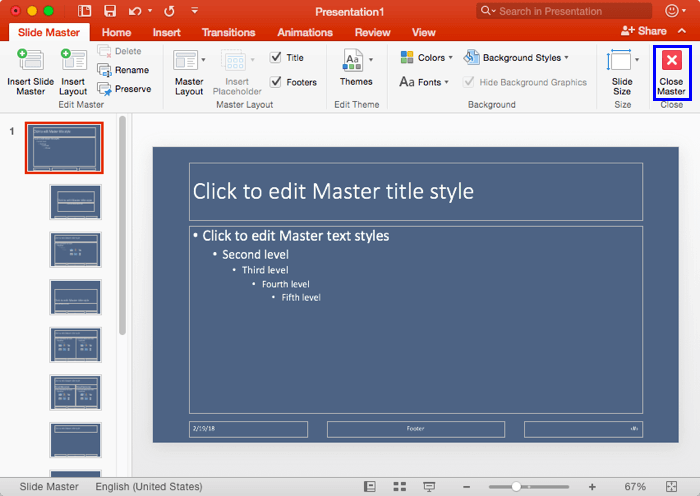
Learn how you can apply Background Styles within the Slide Master in PowerPoint 2016 for Mac.
You May Also Like:
Filed Under:
PowerPoint 2016
Tagged as: Background Styles, Mac, Office 2016, Office for Mac, PowerPoint 2016, PowerPoint for Mac, Slide Masters, Tutorials
Comments Off on Change Background Styles in the Slide Master in PowerPoint 2016 for Mac

Jamie Garroch is the founder of YOUpresent, a PowerPoint add-in and presentation design agency. YOUpresent provides a suite of off-the-shelf add-ins plus a custom add-in design service for organizations wishing to extend the functionality of PowerPoint or other Office apps. That can be anything from adding a single button to apply a corporate style, to a fully loaded ribbon with custom tools tuned to the organization’s workflow. Known as “extensibility,” Jamie is a passionate evangelist of this relatively unknown productivity feature of Microsoft Office.
In this conversation, Jamie talks about his new PPT2GIFa Lite add-in for PowerPoint.
Filed Under:
Interviews
Tagged as: Add-in, Animated GIFs, Animation, Export, Interviews, Jamie Garroch
Comments Off on PPT2GIFa Lite: Conversation with Jamie Garroch
In PowerPoint, and in other Office 2016 programs you typically need to sign in to a Microsoft Account so that you can access saved settings, customizations, and even some files off the cloud. You typically do this by managing your Account, right inside PowerPoint or another Office 2013 program such as Word and Excel. The Account tab in Backstage view allows you to sign in to your Microsoft Account, and automatically connect to your OneDrive account. In this tutorial, you’ll learn how to access PowerPoint 2016’s Account options.

Learn about the Account option in Backstage view in PowerPoint 2016 for Windows.
You May Also Like:
Filed Under:
PowerPoint 2016
Tagged as: Backstage, Microsoft Account, Microsoft Windows, Office 2016, PowerPoint 2016, Tutorials
Comments Off on Account Option in Backstage View in PowerPoint 2016 for Windows
We bring you an amazing giveaway for Wonderfox’s HD Video Converter Factory Pro product that lets you convert normal and HD video to over 150+ formats. Do you want to know how President Obama gave stellar, inspirational speeches? Read more in a guest post by Yousef Abu Ghaidah. We also look at creating slides with countdown timers in PowerPoint 2016 and 2013 for Windows. Plus, Nancy Duarte speaks about her book, Illuminate. And Nancy Ancowitz talks about her book, Self-Promotion for Introverts.
PowerPoint 2016 for Windows users can learn about Motion Path animations, and the basics of getting started. We also explore the Export option in Backstage view. PowerPoint 2013 for Windows users can learn about the Account option in Backstage view, plus you can learn about changing Slide Layouts in PowerPoint 2016 for Mac. And if that wasn’t enough for this week, make sure you do not miss the quotes, press releases, and templates released in the last seven days.

Stay informed about updated tutorials and happenings related to PowerPoint and presenting.
Filed Under:
Ezine
Tagged as: Ezine, Indezine, News, PowerPoint
Comments Off on PowerPoint and Presenting News: March 27, 2018
Microsoft and the Office logo are trademarks or registered trademarks of Microsoft Corporation in the United States and/or other countries.