
This is the print version of this page. All content is copyright Indezine.com 2000-2026.
Thoughts and impressions of happenings in the world of PowerPoint and presentations, continuously updated since 2003.
See Also:
PowerPoint and Presenting Notes
PowerPoint and Presenting Glossary
By Kurt Dupont
PowerPoint makes amazing slides, but it is more than a program to create slides for presentations. Did you know that you can create some amazing dashboards in PowerPoint?
PowerPoint’s familiar interface and intuitive tools make it an easy task to create your own dashboards quickly. Being so accessible and omnipresent, PowerPoint does provide so many benefits compared to other tools:
To be effective, dashboards you create in PowerPoint need to possess at least two interactive elements such as buttons that will:
Beyond connecting to other PowerPoint slides, these elements can be connected with content from other Microsoft Office programs, letting you easily import and thereafter update information with a few clicks, or even some right-click options!
Let us now look at some steps that will lead you to create a dashboard in PowerPoint:
First, create a new presentation in PowerPoint. Typically, your new presentation will have just one slide. Access the Home tab of the Ribbon, choose the Layout button to bring up a dropdown gallery, and choose the Blank layout option, as shown in Figure 1, below.

Figure 1: Start with a blank slide
The easiest way to populate your dashboard is to access the Insert tab of the Ribbon, and then click the SmartArt button. This will open a gallery of templates, flowcharts, timelines and shapes that you can use to summarize your data so that it is more interesting for your viewers. There are many options that you can pick from. To add one to your slide, you will need to select it by clicking on it, and then click the OK button, as shown in Figure 2, below.

Figure 2: Add some SmartArt graphics
In the Insert tab of the Ribbon, you will find many more options. You can also add your own images by clicking on the Pictures button. This opens a selection box, so you can browse and choose images you want to use in your dashboard.
Who doesn’t want free images? If you are part of the free club, look at our Free Images & Textures page.
When you are adding images, SmartArt, or even charts on your PowerPoint-based dashboard, you will have the option to move them around the slide, or even resize as needed. You may end up with something similar to what you can see in Figure 3, below.

Figure 3: Add images or SmartArt to your dashboard
Text is important due to more than one reason.
To add text, revisit the Insert tab of the Ribbon, and click on the Text Box button. The text box you create can be any size you want.
Other than the text box, you can also choose the font you want. You can also resize and recolor fonts. If your dashboard needs to be distributed, ensure that you use common fonts that are typically available on most systems.
If you want to import information from other Microsoft Office Programs, the fastest way of doing this is by opening the file that you would like to copy from and selecting the information to copy and paste into PowerPoint.
You can thereafter link to the original file by selecting the pasted content, and then clicking on the Hyperlink button found again in the Insert tab of the Ribbon. Windows users can use the Ctrl + K keyboard shortcut (Mac users can press Cmd + K) to summon the Hyperlink options.
Have you ever used keyboard shortcuts and sequences in PowerPoint? Or are you a complete keyboard aficionado? Do you want to learn about some new shortcuts? Or do you want to know if your favorite keyboard shortcuts are documented?
Go and get a copy of our PowerPoint Keyboard Shortcuts and Sequences ebook.
You can also link to websites and other slides using this method. The Hyperlink tool is very helpful when you need to link between your dashboard slides.
Most importantly, you can use tools such as DataPoint to access content from Excel and other data sources to show up in PowerPoint.
Once your first dashboard slide is done, you will need to create more slides to provide more information on a subject. You can use the New Slide button on the Home tab of the Ribbon, or press the Ctrl + M keyboard shortcut (Mac users choose Cmd + M). Figure 4, below, shows a dashboard slide created entirely in PowerPoint.

Figure 4: A dashboard slide
Designing more slides that you can use to create your dashboard in PowerPoint needs both time and patience, but the results can be rewarding.
You can use the same ideas that you used to create your first slide. You can connect this slide with other slides using the Hyperlink options. Each slide created should be linked back to the original slide, and other important slides, so as to make using the finished dashboard easy and intuitive.
Once you have created all slides and you have double-checked that all hyperlinks are working correctly, you will need to turn your PowerPoint deck to behave like dashboard software. To do so, access the Slide Show tab of the Ribbon, and click the Set Up Show button. Make sure that you choose these options, as shown in Figure 5, below.

Figure 5: Choose options to make your deck behave like a dashboard
You will now need to click on the From Beginning option in the Slide Show tab of the Ribbon to view your completed dashboard.
You should make sure that everything is working correctly when it is being viewed in full-screen mode, so all the clickable areas should link to the right page. To return to the editing screen, you need to click the Esc key.
If there are mistakes or issues that you had noticed during the testing, you should fix them before saving the PowerPoint as just a presentation. The issues that you run into will depend on your presentation. One of the most common issues that people run into is that their Hyperlinks are not taking them to the right areas of their presentation. If this is happening, you should check the link by selecting the text or image and clicking on the Hyperlink option in the toolbar. This will show you where the link is taking you and you can fix it by adjusting the file, link, or slide and then clicking OK.
When your dashboard is working correctly, and all the information is on the slides, you can save it as dashboard software. This is done by saving the file as a presentation only. The file type will depend on the version of PowerPoint that you are using. Figure 6, below, shows a sample PowerPoint dashboard.

Figure 6: Sample PowerPoint dashboard
PowerPoint is one of the best options for when you want to create dashboard software quickly. It is a very user-friendly software that most people use, so you may already have a good idea of how to create dashboard software. Most viewers will already know how to use PowerPoint slides, so they can easily use the software that you create.
As already suggested, you can use DataPoint to link your PowerPoint shapes directly to data sources. The advantage of using DataPoint, or of linking slides to your databases, is that the information on your slides is updated automatically when you open the presentation. There are no more delays for manual updating of the old presentations.
Other than the update of the data when the presentation is opened, Datapoint provides another great feature; you can create up-to-date snapshot presentations for distribution.
And finally, you can run your presentation as a slide show and all its content is updated in real-time. You can hang a television screen in your factory or meeting room, or even the reception or lobby area, and display your dashboard data, graphically and in real-time.

Kurt Dupont, based out of Belgium heads PresentationPoint, a company that creates several amazing PowerPoint add-ins. After his Computer Science studies, Kurt started with Andersen Consulting (Accenture nowadays) in Brussels. After three years he moved to the Brussels Airport Terminal Company that runs the Brussels airport – this last placement inspired the start-up of Take-off (now known as PresentationPoint) in 1998.
This post is based on an original post that was published earlier on the PresentationPoint site.
The views and opinions expressed in this blog are those of the authors and do not necessarily reflect the official policy or position of any other agency, organization, employer, or company.
Filed Under:
Guest Posts
Tagged as: Dashboards, DataPoint, Guest Post, Kurt Dupont, PresentationPoint
Comments Off on How to Create Dashboard Software Using PowerPoint
Presenter View in PowerPoint 2016 for Mac is a purpose-built view that accompanies Slide Show view. This view is beneficial in an environment that has at least two displays such as a laptop and a projector. The projector then shows the actual slides, commonly called Slide Show view. However, you see the Presenter view on the laptop. Notice that you get to see much more than just the slide. Rest assured that the audience viewing the projector output see only the slide!

Learn about Presenter View in PowerPoint 2016 for Mac.
You May Also Like:
Views in PowerPoint 2016 for Mac
Normal View in PowerPoint 2016 for Mac
Outline View in PowerPoint 2016 for Mac
Filed Under:
PowerPoint 2016
Tagged as: Mac, Office for Mac, PowerPoint 2016, PowerPoint for Mac, Presenter View, Tutorials, View
Comments Off on Presenter View in PowerPoint 2016 for Mac
 David Edri is a leading ad-tech and social media entrepreneur and executive with over 20+ years of industry experience. David is currently the CEO of Emaze, an online content creation software with patented automatic design technology. David was a founding team member of RadiumOne, an online marketing platform, where he led RadiumOne Engage, their marketplace for advertisers to engage with gamers and drive high value branded experiences with Fortune 500 advertisers. David was founder and CEO of Formove.com, an online marketplace, and previously the founder and CEO of 123Out.com, a social network that connected communities with entertainment venues.
In this conversation, David talks about the new features introduced for Emaze in the beginning of 2018.
Filed Under:
Interviews
Tagged as: David Edri, Emaze, Interviews, Online Presentations, Presentations
Comments Off on Emaze New Features in 2018: Conversation with David Edri
Have you created all your slides in PowerPoint for the Web, and now you want to show it in front of an audience? Or you just want to use this slide deck in a webinar, or even see them yourself to understand how they look in full-screen view? In that case, the view that plays your presentation in full-screen mode is Slide Show view.
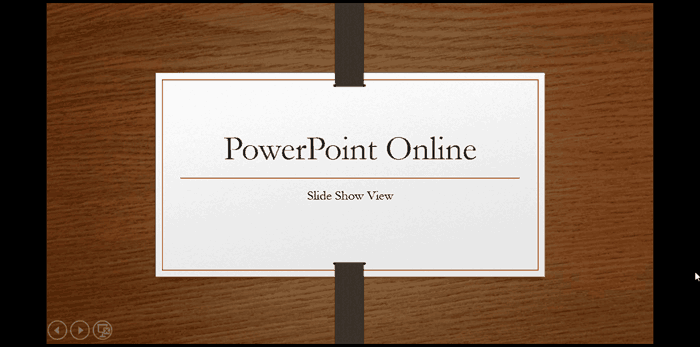
Learn about Slide Show view in PowerPoint for the Web.
You May Also Like:
Interface in PowerPoint for the Web
Views in PowerPoint for the Web
Editing View (Normal View) in PowerPoint for the Web
Filed Under:
PowerPoint for the Web
Tagged as: Interface, PowerPoint for the Web, Slide Show View, Tutorials, View
Comments Off on Slide Show View in PowerPoint for the Web
We bring you Tom Kuhlmann from Articulate, who talks about Articulate 360, a subscription offering from Articulate that contains their software applications. These include several PowerPoint add-ins such as Presenter, Engage, and Quizmaker as part of Articulate Studio, plus other apps such as Storyline, Rise, and more. Yousef Abu Ghaidah, who is based out of Qatar talks about why you should never (ever) memorize your presentation. Paul Hellman consults and speaks internationally on how to make your point fast and in this exclusive interview, he talks about his new book, You’ve Got 8 Seconds.
PowerPoint 2016 for Windows users can learn about identifying whether you are running a 32-Bit or 64-Bit version of PowerPoint. PowerPoint 2013 for Windows users can learn about Share options in Backstage View. PowerPoint 2016 for Mac users can learn about Slide Show view. PowerPoint Online users can explore Reading view. We also explore how you can edit captions within the STAMP add-in in PowerPoint 2016, 2013, and 2010 for Windows And if that wasn’t enough for this week, make sure you do not miss the quotes, press releases, and templates released in the last seven days.
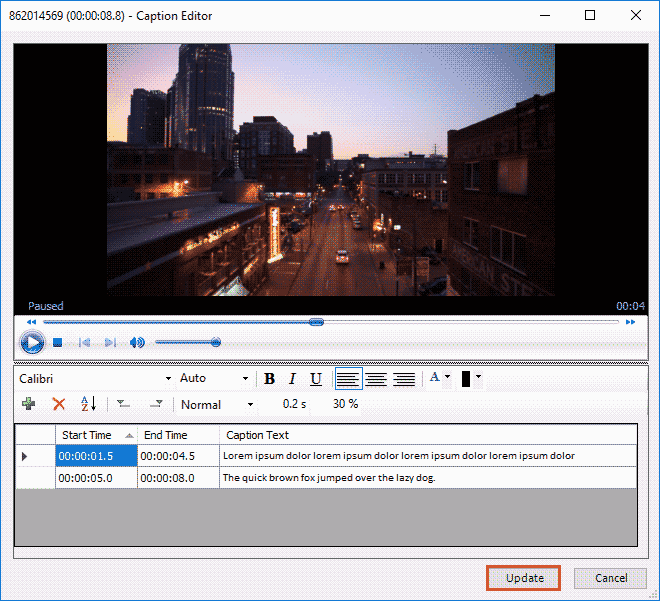
Stay informed about updated tutorials and happenings related to PowerPoint and presenting.
Filed Under:
Ezine
Tagged as: Ezine, Indezine, News, PowerPoint
Comments Off on PowerPoint and Presenting News: January 23, 2018
Microsoft and the Office logo are trademarks or registered trademarks of Microsoft Corporation in the United States and/or other countries.