
This is the print version of this page. All content is copyright Indezine.com 2000-2026.
Thoughts and impressions of happenings in the world of PowerPoint and presentations, continuously updated since 2003.
See Also:
PowerPoint and Presenting Notes
PowerPoint and Presenting Glossary

Kurt Dupont, based out of Belgium heads PresentationPoint, a company that creates several amazing PowerPoint add-ins. After his Computer Science studies, Kurt started with Andersen Consulting (Accenture nowadays) in Brussels. After three years he moved to the Brussels Airport Terminal Company that runs the Brussels airport – this last placement inspired the start-up of Take-off (now known as PresentationPoint) in 1998.
In this conversation, Kurt discusses VideoPoint, a PowerPoint add-in that displays your webcam output directly on a slide.
Filed Under:
Interviews
Tagged as: Add-in, Interviews, Kurt Dupont, PowerPoint, PresentationPoint
Comments Off on PresentationPoint VideoPoint: Conversation with Kurt Dupont

Jake Pechtel is the Strategy Lead for TechSmith’s popular screen recording and video editing desktop software, Camtasia. He has an extensive background in marketing and branding, as well as mobile games and applications. In this conversation, Jake discusses the new Camtasia 9.
Geetesh: Camtasia 9 seems like a big release with several new features. Can you briefly tell about the new features, and then talk about your favorite, new feature?
Jake: Camtasia 9 is definitely a big release for both TechSmith and our customers. Our team has really taken the time to improve everything from the user interface, the feel, and performance of the editor and adding new assets such as music tracks, icons and motion graphics to make videos look even more polished.
Camtasia is now a 64-bit application as well, which means fans of Camtasia 8 will notice quicker render times and a boost in stability—even on more complex projects that feature a lot of effects and edits.
We hear from customers in many industries that a big challenge is getting viewers to pay attention to their recorded presentations or videos. Solving that problem includes making your content visually engaging and interesting. To help address this challenge, we’ve added a new feature to Camtasia called Behaviors. These are eye-catching effects and movements that creators can apply to text, images, icons, and other media in your video.
To keep with Camtasia’s mission of making amazing videos easy to create, we’ve made the Behaviors feature drag-and-drop–either directly into the preview window or onto any object on the timeline. We want everyone, of any skill level to be able to create remarkable videos that make their audience take notice and say ‘wow!’
To add even more interest and engagement to videos created with the new Camtasia, we’ve also completely refreshed the assets included with Camtasia. This includes stunning animated backgrounds and motion graphics, new music tracks, and modern icons that really add a lot of visual appeal to any project. All of these elements are drag-and-drop, and simple to customize.

Our Camtasia users who have both a Mac and Windows machine will be happy to know that with this release, they can now share projects cross-platform thanks to our new common file format.
It’s hard to have a favorite new feature, and I’m probably not supposed to have one anyway, but I am really impressed with the remarkable content that can be created by combining Behaviors and the new asset library. I can’t wait to see what our users create once they start diving into these features.
Geetesh: Jake, is there some unlearning needed for users of Camtasia 8 and previous versions? And are there any guidelines for successfully upgrading to version 9?
Jake: We’ve worked to make Camtasia even more accessible to non-video professionals. So, placing callouts or icons directly on the preview window at the exact time you want, presents our users with a new way to work, but for those already experienced with our timeline editor, that is still completely available to them.
The learning curve for the new editing interface will be brief for users of Camtasia 8, as we’ve more effectively arranged the tools to put them at the user’s fingertips.
Camtasia 9 offers a lot more capability in terms of the types of recordings and videos a creator can produce – but we haven’t sacrificed the accessibility for new or novice users.
Like most modern video editors, Camtasia has moved to 64-bit. This means that some older machines will not be able to run Camtasia 9. Those users should stick to Camtasia 8 – which is still a great option for recording presentations – and consider stepping up to Camtasia 9 when they upgrade their personal or work computer.
The views and opinions expressed in this blog post or content are those of the authors or the interviewees and do not necessarily reflect the official policy or position of any other agency, organization, employer, or company.
You May Also Like: Recording Live Presentations with Camtasia: Conversation with Jake Pechtel | Snagit 13: Conversation with Chris Larson
Filed Under:
Interviews
Tagged as: Camtasia, Interviews, Jake Pechtel, Techsmith
Comments Off on Techsmith Camtasia 9: Conversation with Jake Pechtel
It’s always been possible to add pictures from an online source within PowerPoint. For more than a decade, this online source has been the pictures available online at Office.com. Now with a recent update, this option is no longer available in PowerPoint 2013. Instead, you can use the Online Pictures option. This feature is very helpful as you are not limited to just the pictures available on your system. You get other picture sources, some of which also include Creative Commons pictures. And all this happens within PowerPoint — there’s no need to open your web browser.

Learn how to insert online pictures on a slide in PowerPoint 2013 for Windows.
Filed Under:
PowerPoint 2013
Tagged as: Insert, Microsoft Windows, Office 2013, Pictures, PowerPoint 2013, Tutorials
Comments Off on Insert Online Pictures in PowerPoint 2013 for Windows
Many shapes look like each other. And that’s why you may work with one shape and then realize that you used the wrong one. For example, you may create a 5-pointed star when you needed a star with 4 or 8 points. Let’s explore another scenario: you worked on a shape and applied effects, animations, and fills to this shape. Later you realize that you used the wrong shape, or perhaps the client wants you to change the shape but retain all the effects, animations, and fills. You may want to delete the existing shape and start over again, and that is a long-drawn process. Luckily, there is an easier option.

Learn how to change one shape to another in PowerPoint 2016 for Windows.
Filed Under:
PowerPoint 2016
Tagged as: Microsoft Windows, Office 2016, PowerPoint 2016, Shapes, Tutorials
Comments Off on Change One Shape to Another in PowerPoint 2016 for Windows
Don’t you want to save time with keyboard shortcuts? We updated our PowerPoint Keyboard Shortcuts and Sequences ebook for PowerPoint 2016. We also revisit our article that talks about updates to Office 365 applications.
In the Tutorials section, PowerPoint 2013 users can learn about inserting pictures. PowerPoint 2010 users can learn about Advanced Program Options, adding and renaming Ribbon tabs, the Quick Access Toolbar, and its customization. Finally, do not miss the new press releases and templates of this week.
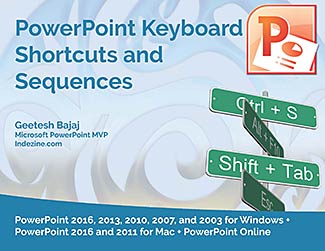
Read Indezine’s PowerPoint and Presenting News.
Filed Under:
Ezine
Tagged as: Ezine, Indezine, News, PowerPoint
Comments Off on PowerPoint and Presenting News: November 1, 2016
Microsoft and the Office logo are trademarks or registered trademarks of Microsoft Corporation in the United States and/or other countries.