
This is the print version of this page. All content is copyright Indezine.com 2000-2026.
Thoughts and impressions of happenings in the world of PowerPoint and presentations, continuously updated since 2003.
See Also:
PowerPoint and Presenting Notes
PowerPoint and Presenting Glossary
PowerPoint 2013 for Windows enables you to insert online pictures in more than one way, and explored these various options in our Insert Online Pictures in PowerPoint 2013 tutorial. This is the last tutorial of this series, and you will learn how you can use the Facebook option to insert pictures which are uploaded within your Facebook account, straight into PowerPoint 2013 for Windows.
Learn how to insert pictures from your Facebook account in PowerPoint 2013 for Windows.
Filed Under:
PowerPoint 2013
Tagged as: Facebook, Images, Microsoft Windows, Office 2013, Pictures, PowerPoint 2013, Tutorials
Comments Off on Insert Picture from Facebook in PowerPoint 2013 for Windows
Techsmith’s new Camtasia 9 is an amazing upgrade, and who can explain the new features better than the people who create this program. Jake Pechtel is the Strategy Lead for Camtasia, and he explains how these features can make a huge difference. We also feature Kurt Dupont of PresentationPoint. He talks about VideoPoint, their new add-in that lets you show videocam content within your PowerPoint slides.
In the Tutorials section, PowerPoint 2016 for Windows users can learn about changing shapes. PowerPoint 2013 users can learn about the difference between inserting and linking pictures, online pictures, and adding pictures from Bing and Flickr. Finally, do not miss the new press releases and templates of this week.
Read Indezine’s PowerPoint and Presenting News.
Filed Under:
Ezine
Tagged as: Ezine, Indezine, News, PowerPoint
Comments Off on PowerPoint and Presenting News: November 8, 2016
Our next option within the Insert Online Pictures in PowerPoint 2013 for Windows series of tutorials is exploring how you can insert pictures from your OneDrive account. Note that you must have some pictures already uploaded to your OneDrive folders for working with this tutorial. Luckily with OneDrive’s camera upload options for all phone platforms, most of us possibly already have tons of pictures in our OneDrive folders. In addition, you will also have to first sign in with your Microsoft account into OneDrive.

Learn how to insert pictures from your OneDrive account in PowerPoint 2013 for Windows.
Filed Under:
PowerPoint 2013
Tagged as: Images, Office 2013, OneDrive, Pictures, PowerPoint 2013, Tutorials
Comments Off on Insert Pictures from OneDrive in PowerPoint 2013 for Windows
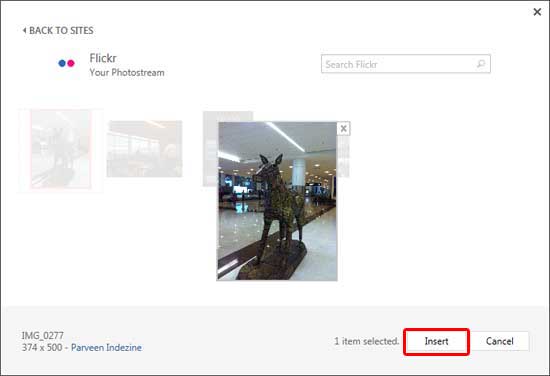
There are many, many options as far as inserting pictures from online sources within PowerPoint are concerned. Other than the Bing Image Search options, you can also access Flickr. Flickr is probably the greatest online resource for pictures uploaded by photographers and enthusiasts all over the world. However, unlike with the Bing option, PowerPoint does not allow you to insert Creative Commons licensed pictures from Flickr. You are only allowed to download and insert pictures from your own Flickr photostream. Needless to add, you will need to have an active Flickr account with photos available to use this feature.
Learn how to insert pictures from Flickr in PowerPoint 2013 for Windows.
Filed Under:
PowerPoint 2013
Tagged as: Flickr, Microsoft Windows, Office 2013, Pictures, PowerPoint 2013, Tutorials
Comments Off on Insert Picture from Flickr in PowerPoint 2013 for Windows
Now that inserting a picture from Office.com Clip Art is no longer an option, you can opt for the Bing option, which does provide Creative Common pictures. The Bing option shows picture search results directly within PowerPoint.

Learn how to insert pictures from Bing in PowerPoint 2013 for Windows.
Filed Under:
PowerPoint 2013
Tagged as: Bing, Images, Microsoft Windows, Office 2013, Pictures, PowerPoint 2013, Tutorials
Comments Off on Insert Picture from Bing in PowerPoint 2013 for Windows
Microsoft and the Office logo are trademarks or registered trademarks of Microsoft Corporation in the United States and/or other countries.