
This is the print version of this page. All content is copyright Indezine.com 2000-2026.
Thoughts and impressions of happenings in the world of PowerPoint and presentations, continuously updated since 2003.
See Also:
PowerPoint and Presenting Notes
PowerPoint and Presenting Glossary

Jake Pechtel is the Strategy Lead for TechSmith’s popular screen recording and video editing desktop software, Camtasia. He has an extensive background in marketing and branding, as well as mobile games and applications.
In this conversation, Jake discusses how you can record live presentations using Camtasia.
Geetesh: Presenters always want a way to record their presentations—at least the slides and their narrative if not their body language. How can Camtasia help them achieve this objective?
Jake: Camtasia can help people record their presentations in several ways. Many people record a pre-existing presentation, front to end; while talking their viewers through the slides. Camtasia’s core capabilities help presenters quickly and easily accomplish this. For PowerPoint specifically, Camtasia can operate as a plug-in, allowing presenters to initiate their recordings from within the PowerPoint application.
Camtasia also allows you can select any portion of your screen, your entire screen (or even a secondary screen connected to your presenting machine), and start recording it with just a few clicks. In addition to recording the screen, Camtasia can use the system microphone to capture narration.
We think it’s important to be able to make a human connection with your audience when creating a presentation or knowledge transfer recording. Camtasia can use your webcam to capture the presenter during the recording. That webcam video can be overlaid onto a part of a recorded presentation for a picture-in-picture effect. The webcam is recorded as a completely separate track for use in the Camtasia editor, so it can be removed for parts of a presentation. This allows you to keep body language, facial expressions, and personality in your video, which is often important for viewer engagement.
Camtasia includes a video editor, built for people who need to create the video but aren’t video professionals. So, it’s very accessible for presenters who have little to no video editing experience. Removing errors, trimming dead space, removing ‘ums’, adding callouts, highlighting specific content… it’s all there. Camtasia removes the pressure of the perfect one-take recording and gives presenters tools to help draw their viewers’ attention to key information in the recording.

Geetesh: Jake, are there any specific hardware issues that this approach for recording presentations with Camtasia would entail, and can you share recommendations and tips?
Jake: For most recordings – especially for presentations to be shared internally with a team, or a small group of viewers, the microphone and camera on most laptops are perfectly suitable (some devices are better than others of course). If you are planning to record a lot of presentations, or high-stakes presentations that go to a large audience, picking up a decent USB microphone is a wise investment. You might have a great presentation with plenty of relevant content, but if the audio is poor quality or hard to understand… viewers will flee almost immediately.
Overall, creating a basic presentation recording can be easily accomplished without an additional investment by almost any current generation system. Of course, the more you dive into Camtasia – adding tracks, effects, imported videos, or annotations, the more complex the project becomes, and the more system resources it requires to keep the experience smooth. However, presenters will be able to create some excellent videos with the machine they are using today.
The views and opinions expressed in this blog post or content are those of the authors or the interviewees and do not necessarily reflect the official policy or position of any other agency, organization, employer, or company.
You May Also Like: Snagit 13: Conversation with Chris Larson
Filed Under:
Interviews
Tagged as: Camtasia, Interviews, Jake Pechtel, PowerPoint, Presentations, Techsmith, Video Recording
Comments Off on Recording Live Presentations with Camtasia: Conversation with Jake Pechtel
All the SmartArt layouts have text placeholders, which are basically text boxes. You can click and start typing within these placeholders to add text. In the previous tutorial, we showed you how to insert a SmartArt graphic within PowerPoint (or convert some bulleted text to SmartArt), and how the SmartArt Text Pane works. There are several ways to format the SmartArt graphic text; follow these steps to learn more.

Learn how to format text attributes of SmartArt graphics in PowerPoint 2013 for Windows.
Filed Under:
PowerPoint 2013
Tagged as: Diagrams, Graphics, Microsoft Windows, Office 2013, PowerPoint 2013, SmartArt, Tutorials
Comments Off on Format SmartArt Graphics Text Attributes in PowerPoint 2013 for Windows
Do you know that you can export all your presentation slides into a WMV video clip using nothing other than PowerPoint 2010? This is probably the easiest way to create quick videos from your slides, and is best suited for converting photo slides to video clips. You can also use this technique to create video clips from PowerPoint that can be uploaded to YouTube or other video sharing sites.

Learn how to export a presentation as a video clip in PowerPoint 2010 for Windows.
Filed Under:
PowerPoint 2010
Tagged as: Microsoft Windows, Office 2010, PowerPoint 2010, Tutorials, Video, WMV
Comments Off on Export a Presentation to a Video Clip in PowerPoint 2010 for Windows
SmartArt is a great new feature that Microsoft added in PowerPoint — yet many users want to convert their SmartArt graphic to bulleted text, or even to individually editable shapes that can be manipulated further. Yes, you can convert SmartArt to individual shapes, but do remember that this is a one-way process, and you lose any editability for the SmartArt graphic from that point of time. However, converting to shapes does mean that you have complete control over moving, resizing, deleting, or formatting individual shapes. Follow these steps to convert a SmartArt graphic into shapes in PowerPoint 2013 for Windows.
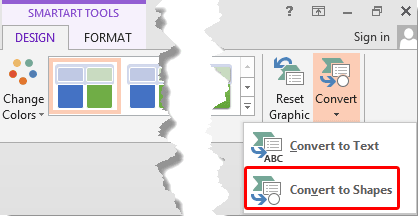
Learn how to convert a SmartArt graphic to shapes in PowerPoint 2013 for Windows.
Filed Under:
PowerPoint 2013
Tagged as: Diagrams, Graphics, Office 2013, PowerPoint 2013, SmartArt, Tutorials
Comments Off on Convert SmartArt Graphic into Shapes in PowerPoint 2013 for Windows
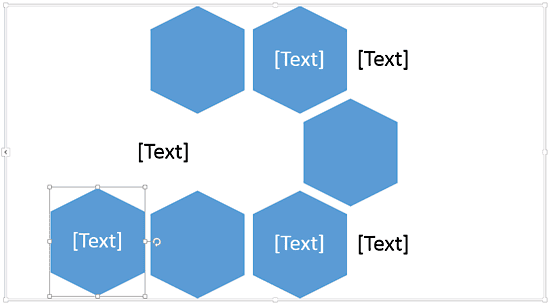
SmartArt graphics are easily inserted infographics that typically place common PowerPoint shapes in relation to each other to create a strong message. You can, of course, change those individual shapes within SmartArt, as in changing a square to a circle or anything else — but what many users don’t realize is that you can do much more. You can actually move some shapes around within the SmartArt graphic if you want — this sort of creative freedom lets you adapt existing SmartArt layouts to your liking to create something new. In this tutorial, we’ll explore how to move shapes within any SmartArt graphic in PowerPoint 2013.
Filed Under:
PowerPoint 2013
Tagged as: Diagrams, Graphics, Microsoft Windows, Office 2013, PowerPoint 2013, SmartArt, Tutorials
Comments Off on Move Shapes within a SmartArt Graphic in PowerPoint 2013 for Windows
Microsoft and the Office logo are trademarks or registered trademarks of Microsoft Corporation in the United States and/or other countries.