
This is the print version of this page. All content is copyright Indezine.com 2000-2026.
Thoughts and impressions of happenings in the world of PowerPoint and presentations, continuously updated since 2003.
See Also:
PowerPoint and Presenting Notes
PowerPoint and Presenting Glossary
At some point in time, we all need dummy text to add quickly to our slides so that we can ascertain how a body of text looks or fits within an individual text box or placeholder. There is an undocumented feature in PowerPoint that enables you to add dummy text with just a few keystrokes!

Learn how to insert dummy text on a slide in PowerPoint 2016 for Windows.
Filed Under:
PowerPoint 2016
Tagged as: Dummy Text, Microsoft Windows, Office 2016, PowerPoint 2016, Text, Tutorials
Comments Off on Inserting Dummy Text in PowerPoint 2016 for Windows
In PowerPoint, there are some differences between text placeholders and text boxes. As far as formatting for text placeholders and text boxes is concerned, almost everything else does work in the same way. However, there is one more vital difference between a text placeholder and a text box.

Learn how to insert a text box in PowerPoint 2016 for Windows.
Filed Under:
PowerPoint 2016
Tagged as: Microsoft Windows, Office 2016, PowerPoint 2016, Text, Text Boxes, Tutorials
Comments Off on Inserting a Text Box in PowerPoint 2016 for Windows
Did you want to zoom in and out of slides to hyperlink and navigate? The new PowerPoint Zoom feature may be what you wanted. We also explore with Dave Barnett and Anneliese Wirth of Microsoft how Office 365 updates are rolled out to subscribers. We then have some knowledge about how you should buy stock photos from clients, from Nancy Duarte.
PowerPoint 2016 users can find out how they can locate where PowerPoint is installed on their system, and also change defaults if multiple versions of PowerPoint are found on the same system. We also explore features for PowerPoint 2013 such as Recovering New Presentations, Recovering Unsaved Presentations, AutoRecover and AutoSave Options, and Presentation Properties. Finally, do not miss the new press releases and templates of this week.

Read Indezine’s PowerPoint and Presenting News.
Filed Under:
Ezine
Tagged as: Ezine, Indezine, News, PowerPoint
Comments Off on PowerPoint and Presenting News: August 2, 2016

Chris Larson is the Technical Product Manager of Snagit. He joined the TechSmith in 2007 as a User Experience Designer and brings that focus on users to his role on Snagit. He works with a very talented and passionate team that is dedicated to making our customers lives easier with by helping them communicate visually. Chris is a graduate of Michigan State University with a background in Digital Media Arts and Computer Science.
In this conversation, Chris discusses the new Snagit 13.
Geetesh: Snagit 13 is considered to be a major upgrade with a cleaner interface, video captures, and so much more. Chris, what are your favorite new features?
Chris: GIF creation definitely takes the cake for the new feature that I use the most in Snagit. A regular part of my day is helping out customers and getting feedback from our beta users, user test participants, or customers from our forums. And when I show someone how to do something in Snagit or need to communicate a usability issue or bug to our team, I want to quickly and succinctly demonstrate it. Video has been great for that in previous versions, but sometimes it’s just too much for a couple simple steps. So, I’ll start by taking a quick video, trim and cut out the parts that aren’t relevant, and then make it into a GIF. I personally need to be efficient, but I also don’t want to waste the time of our customers or our team. With GIFs, I can make my content easier to absorb and view.
Panoramic capture is pretty amazing as well. I use it occasionally for those hard to capture apps like Excel and grabbing a page or two of a chat history. It’s been great for capturing maps as well when you want to capture a map that’s larger than your screen.
Another thing we’ve done in this release is make is easier to customize Snagit. Everyone works a little different, so we encourage users to make Snagit work for their needs. In my role, the name of the game is being efficient, so I enjoy the time savings I get from customizing Snagit. My main workflow is to capture an image, add some arrows and text to get my point across, and then send it to where it needs to be. I’ve created a couple presets to help me. This isn’t necessarily a new feature, but it’s definitely been exposed in a new way.

I use the Print Screen button when I just want to do a capture that I’ll copy and paste into a document or web app. But I’ll use Ctrl Shift 2 or 3 when I want to sent directly to Screencast.com and paste the link into a team chat. That way I have a stored version of it up on the web that I can easily reference anywhere.
Geetesh: There are plenty of features to do with the Animated GIF. How has this old format made a comeback, and what tricks does Snagit perform with Animated GIFs?
Chris: We’ve definitely seen a dramatic resurgence of GIFs. A lot of it has been fueled by fun applications in social media obviously. But it’s also has a place in your work. They auto-play, auto-repeat, and they are short enough to get a couple steps across without the need for too much text in an image or a long voiceover in a video.
Pro-tip: When I have to communicate multiple issues in a certain area of Snagit, I’ll also take a longer video and then use the play-head selection to create multiple GIFs from sections of that single video. Pretty nice time saver.
We have supplied you with several presets to adjust the file size and look of your GIF. But you can also tweak the settings as much as you’d like.

The views and opinions expressed in this blog post or content are those of the authors or the interviewees and do not necessarily reflect the official policy or position of any other agency, organization, employer, or company.
Filed Under:
Interviews
Tagged as: Animated GIFs, Interviews, Snagit, Techsmith
Comments Off on Snagit 13: Conversation with Chris Larson
In PowerPoint, all the property fields are saved as metadata. This metadata can be very useful in the cataloging and search of presentations and individual slides. In addition to editing or adding the Property content in Backstage view, you can also bring up the same Properties with the Document Panel, as an interface element within PowerPoint 2013 for Windows which directly appears above the active slide, and below the Ribbon. Additionally, you can use the Advanced Properties option.
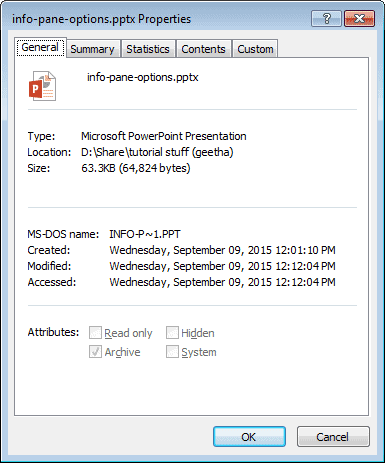
Learn how to view and edit advanced presentation properties in PowerPoint 2013 for Windows.
Filed Under:
PowerPoint 2013
Tagged as: Microsoft Windows, Office 2013, PowerPoint 2013, Properties, Tutorials
Comments Off on Advanced Presentation Properties in PowerPoint 2013 for Windows
Microsoft and the Office logo are trademarks or registered trademarks of Microsoft Corporation in the United States and/or other countries.