
This is the print version of this page. All content is copyright Indezine.com 2000-2026.
Thoughts and impressions of happenings in the world of PowerPoint and presentations, continuously updated since 2003.
See Also:
PowerPoint and Presenting Notes
PowerPoint and Presenting Glossary
Once in a while, or even somewhat frequently, you may discover a surprising new feature such as the Morph transition effect in PowerPoint. Maybe your colleague, George had the same Morph transition effect available months ago? And Cally, your friend is complaining because she has no Morph transition effect although she seems to be running the same version of PowerPoint!

Is this normal? And if yes, why does this happen? The answers to all these questions can be found by understanding how Microsoft updates Office applications.
I asked some of these questions to my friends, Dave Barnett and Anneliese Wirth at Microsoft, and they answered all my queries patiently. Thank you so much to both of you, Dave and Anneliese!
The intention is to look at this topic with a wide perspective now, and in future posts, we will get to other detailed aspects as we narrow the subject further.
Let’s first look at Cally’s question:
The reason why Cally sees no Morph transition effect or any other new feature in PowerPoint or the rest of her Microsoft Office 2016 suite is that she has purchased a perpetual license for Microsoft Office 2016. She will not get any new features that Microsoft develops and releases for Office 2016. However, she will continue to get updates (such as security updates, bug fixes, stability improvements, etc.) and any Service Packs, if and when released.
To get any new features, Cally will have to either:
You May Also Like: Version and License of Microsoft PowerPoint and Office
A perpetual license is something you buy only once, and you can then use the product as long as you want. If you have been using computer software for a long time, you know that is exactly how software was bought all these years until the subscription model changed everything upside down!
To paraphrase again, a perpetual license is a “one-time purchase”. To use an analogy, think of subscription vs. perpetual as similar to the rent vs. buy example.
Now let us look at my question:
The reason you got the Morph transition feature later than George is that you did nothing at all, and were also in no hurry!
When you install Microsoft Office as part of an active Office 365 subscription, you typically will get new features after they have been thoroughly tested and implemented widely (at least that is the intention). This ensures that you experience no glitches or teething problems, as testing by initial users will result in a fairly smooth implementation.
About your second question, you will eventually get the new feature as long as you have an Office 365 subscription.
Well, you could but that would mean opting out of all updates that get you the new features. That would essentially turn your Office 365 subscription into the perpetual version that Cally has. The updates are the distinguishing feature of Office 365.
And before we end this post, here is a question from George:
You don’t have to be opting for any quicker updates on your own. If you work in a large company, your system administrator may have turned on this option for you.
Typically, all updates are delivered via the Current and Deferred channels to Office 365 subscribers. As the names themselves suggest, the Current channel delivers updates quicker than the Deferred channel. Having said so, there are several subsets within both the channels, and we can discuss these differences in a future post!
Note: Is your Office 365 subscription managed by a System Administrator? In that case, your System Administrator decides when to update you to the newest release. Although you may see that your Office programs are updated, that may mean that you are updated to the extent that your System Administrator has allowed!
Filed Under:
Microsoft Office
Tagged as: Anneliese Wirth, Dave Barnett, Microsoft, Microsoft Office, Office 365, Updates
Are you unable to locate PowerPoint 2016 on your computer? Sometimes, such a question can be embarrassing! Or are there other versions of PowerPoint on your computer — maybe older versions? Yes, we know that this can happen, although it does sound a little strange. However, there are perfectly valid excuses for you to be unable to locate PowerPoint, mainly in scenarios such as these.

Filed Under:
PowerPoint 2016
Tagged as: Locate, Microsoft Windows, Office 2016, PowerPoint 2016, Tutorials
Comments Off on Locate PowerPoint 2016 for Windows
If you are part of the Office Insiders program, you will notice a new feature in PowerPoint 2016 for Windows. This new feature, named PowerPoint Zoom lets you easily create interactive, non-linear presentations with smooth hyperlinking between slides and sections. Plus, you can create slide thumbnails with hyperlinks on the fly!

Microsoft put up a video showcasing the PowerPoint Zoom feature, shown below.
You access the Zoom feature in the Insert tab of the Ribbon in the Links group (see figure below).

If you use Zoom on an older or unsupported version of PowerPoint, you will find that it has been substituted with a Dissolve transition effect.
Filed Under:
PowerPoint 365
Tagged as: Office 2016, Office 365, PowerPoint 2016, PowerPoint 365, Zoom
Comments Off on New PowerPoint Zoom Feature for Office 365 Users
Presentation properties are details about a presentation such as titles, author name, subject, and keywords that identify the document. It’s important to specify relevant values for the presentation’s Property attributes, because they help to identify the presentation. Populating the fields for various Properties also helps you search for slides more efficiently later.
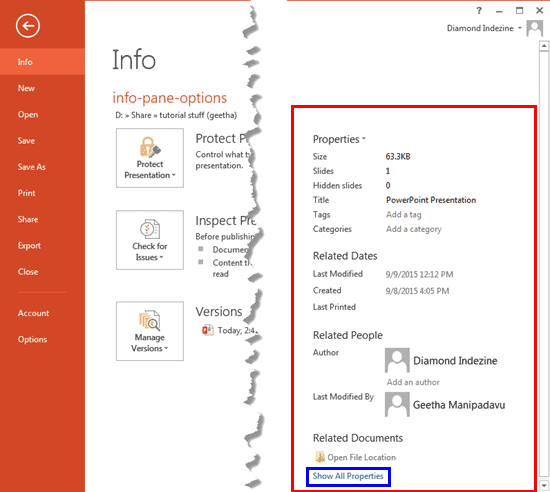
Learn how to view and edit file properties in PowerPoint 2013 for Windows.
Filed Under:
PowerPoint 2013
Tagged as: Microsoft Windows, Office 2013, PowerPoint 2013, Properties, Tutorials
Comments Off on Properties of a Presentation in PowerPoint 2013 for Windows
Just like many other users of PowerPoint, you might have also faced this situation: you have been working on a presentation for hours and suddenly PowerPoint or even the computer crashes? This may happen due to a power outage, instability of the system, or even PowerPoint itself may crash. You realize that you had not saved the presentation for a long time and you may have lost most of your work! Although you can keep your programs updated, system secure, and even save your file often, there is no guarantee that you will never see a crash again and lose all or some of your work.

Learn how to work with AutoRecover and AutoSave options in PowerPoint 2013 for Windows.
Filed Under:
PowerPoint 2013
Tagged as: Microsoft Windows, Office 2013, PowerPoint 2013, Recovery, Tutorials
Comments Off on AutoRecover and AutoSave Options in PowerPoint 2013 for Windows
Microsoft and the Office logo are trademarks or registered trademarks of Microsoft Corporation in the United States and/or other countries.