
This is the print version of this page. All content is copyright Indezine.com 2000-2026.
Thoughts and impressions of happenings in the world of PowerPoint and presentations, continuously updated since 2003.
See Also:
PowerPoint and Presenting Notes
PowerPoint and Presenting Glossary
PowerPoint 2016 for Windows enables you to use its repertoire of Shapes to create some amazing artwork. Its Merge Shape commands allow you to create complex shapes by merging several simple shapes. Additionally, these options also let you convert your text to shapes so that you can see the text even on a computer that does not have a particular font installed. We already showed you how you can convert an entire text box to one shape using the Intersect command. Let’s now discover using the Fragment command instead.

Filed Under:
PowerPoint 2016
Tagged as: Fragment, Merge Shapes, Microsoft Windows, Office 2016, PowerPoint 2016, Shapes, Tutorials
Comments Off on Convert Text to Shapes by Fragmenting in PowerPoint 2016 for Windows
Kurt Dupont of PresentationPoint explains how their Dynamic PICTURES add-in for PowerPoint lets you display multiple pictures in the same picture placeholder/box. PowerPoint MVP, Ellen Finkelstein shares her tips on getting great pictures for PowerPoint slides. Henrik Bergqvist of Pickit talks about their new PowerPoint plug-in that brings back free images to PowerPoint. And David Grupper discusses the upcoming Presenters Network event he is organizing in New York next month.
PowerPoint 2016 for Windows users can learn about merging shapes to create new shapes. We explore the Combine, Union, Fragment, Intersect, and Subtract options. Finally, do not miss the new press releases and templates of this week!

Read Indezine’s PowerPoint and Presenting News.
Filed Under:
Ezine
Tagged as: Ezine, Indezine, News, PowerPoint
Comments Off on PowerPoint and Presenting News: June 14, 2016
PowerPoint has several features that may amaze you, but there’s nothing quite like what we will explore on this page—an option to convert regular text into a shape. First of all, this is an undocumented feature. And then, this is such an utterly useful option—people find all sorts of excuses to use this feature. For example, you can now easily create logos in PowerPoint without using any other application. Or use a fancy font and then share that presentation with others in the knowledge that recipients can see the font exactly as intended, even if it’s not installed on their computers.

Filed Under:
PowerPoint 2016
Tagged as: Merge Shapes, Microsoft Windows, Office 2016, PowerPoint 2016, Shapes, Text, Tutorials
Comments Off on Convert Text to Shapes by Intersecting in PowerPoint 2016 for Windows
Nudging a shape or any other slide object is essentially moving it just a wee bit, preferably using the arrow keys on your keyboard rather than the mouse. Now, nudging is also moving, but the larger Move option is different from a nudge. While nudging involves moving in increments, non-nudge options result in more creative freedom in moving. We will understand these concepts better in this tutorial. PowerPoint 2016 for Windows provides more than one way to nudge or move any selected shape or slide object.

Learn how to nudge or move shapes in PowerPoint 2016 for Windows.
Filed Under:
PowerPoint 2016
Tagged as: Microsoft Windows, Move, Nudge, Office 2016, PowerPoint 2016, Shapes, Tutorials
Comments Off on Nudge and Move Shapes in PowerPoint 2016 for Windows

Nova Fisher has worked within communications with Xara for over 15 years. She has previously founded and managed some successful early-to-market businesses including an internet service provider (ISP) which was founded in 1994, and the creation of one of the earliest online web authoring solutions in 1996, that enabled anyone to create a professional website without the need for any design or technical skills.
In this interview, Nova talks about the new Xara Photo & Graphic Designer 365 product.
Geetesh: Nova, can you tell us more about the new Xara Photo & Graphic Designer product—and what is your favorite feature?
Nova: I’ve thought long about this, and I can’t isolate one favorite feature. However, I can narrow it down to my two favorite features which are the Photo Editor and the SmartShapes.
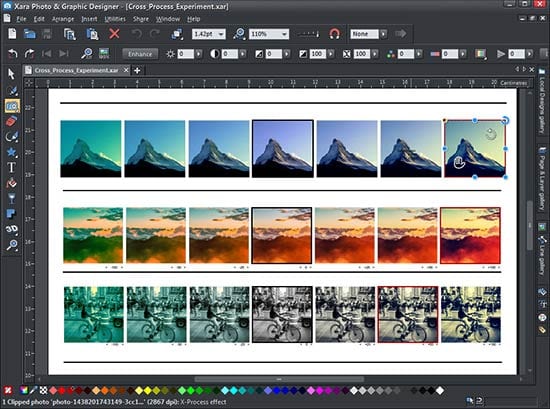
I have produced a quarterly 12-page magazine and many newsletters and leaflets using Xara Photo & Graphic Designer. I’m often given poor photos to work with and I just love the integrated, fast, non-destructive Photo Editor that enables me to do an automatic real-time photo enhance or adjust the photos manually (brightness, contrast, sharpen, blur, saturation, temperature, etc) plus real-time scaling and rotation. The magic erase makes it quick and easy to seamlessly erase unwanted objects from photos, such as telegraph poles, wires, and even people! I love the new Magnetic Lasso for quick and easy cutting out of any object in my photos. In my profile picture, I used this feature to cut out my face and then I was able to quickly adjust the brightness and transparency of the background to make it lighter. The panorama maker is impressive too – just drop a series of photos on the page and click one button to get a perfect, seamlessly joined panorama.
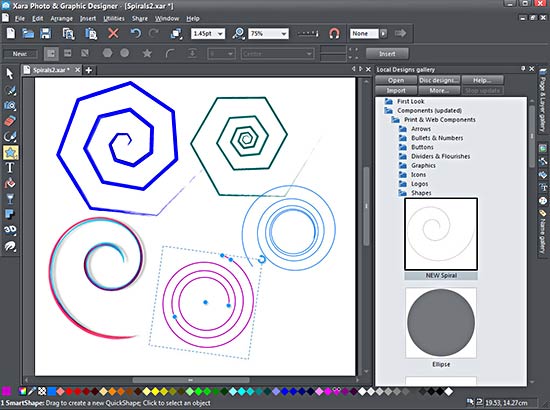
I find the SmartShapes extremely useful, in particular, the Text Panels and Photo Panels that contain text and photos. I just enter my text/photo, and the panel adjusts accordingly, or I can select one of the side or corner handles and stretch or reduce or change the shape and rotate it as required. The Speech Bubbles are really useful when annotating a document or drawing.
Geetesh: Unlike other graphic programs, Xara Photo & Graphic Designer 365 is a combined vector and bitmap editing solution. What is the advantage of using a combined solution?
Nova: Almost every modern creative document be it a website, poster, brochure, or a corporate report, consists of a combination of vector graphic design, that is illustration, and photos. It is very inefficient and far less productive to be required to use two separate programs to create one document.
At its heart, Xara Photo & Graphic Designer is a vector-based program and unusually uses vector graphics even for editing photos. This has significant benefits in that all the edits are retained, and everything is resolution-independent, and it is object-orientated editing.
Geetesh: Xara Photo & Graphic Designer seems to be a popular choice for illustrators. Why is that so?
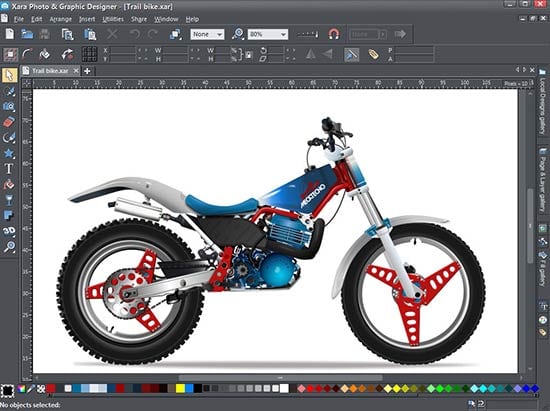
Nova: Xara Photo & Graphic Designer started its life primarily as a vector illustration product. Although it has grown into something that encompasses all aspects of graphic design both vector and bitmap, as well as photo editing, it still retains a fan base of amazingly talented illustrators. It’s always inspiring to see their work, especially their love of cartoons.
The views and opinions expressed in this blog post or content are those of the authors or the interviewees and do not necessarily reflect the official policy or position of any other agency, organization, employer, or company.
See Also: Xara Product Reviews on Indezine
Filed Under:
Interviews
Tagged as: Interviews, Nova Fisher, Xara
Comments Off on Xara Photo & Graphic Designer 365: Conversation with Nova Fisher
Microsoft and the Office logo are trademarks or registered trademarks of Microsoft Corporation in the United States and/or other countries.