
This is the print version of this page. All content is copyright Indezine.com 2000-2026.
Thoughts and impressions of happenings in the world of PowerPoint and presentations, continuously updated since 2003.
See Also:
PowerPoint and Presenting Notes
PowerPoint and Presenting Glossary
Most presentations contain pictures. A picture in PowerPoint can be used in many ways — as a picture you insert, as a picture you place within a shape, or even as something that covers the entire slide as a background. In this tutorial, we will look at the last option — that lets you use a picture as a slide background. Before you begin, you need to put in plenty of thought into whether the picture you are using will work as a slide background or not? So how do you determine if a picture will work as a background or not?

Learn how to use Pictures as fills for Slide Backgrounds in PowerPoint 2016 for Windows.
Filed Under:
PowerPoint 2016
Tagged as: Background, Microsoft Windows, Office 2016, Pictures, PowerPoint 2016, Tutorials
Comments Off on Picture Fills for Slide Backgrounds in PowerPoint 2016 for Windows
Patterns in PowerPoint are two-color designs comprising lines, dots, dashes, checks, etc. PowerPoint includes 48 such patterns with names like Plaid, Weaves, Shingle, and Zigzag. This tutorial builds upon what you have already learned in the Format Slide Background tutorial and shows how you can use a Pattern fill for your slide background.

Learn how to apply Pattern fills as Slide Backgrounds in PowerPoint 2016 for Windows.
Filed Under:
PowerPoint 2016
Tagged as: Background, Fills, Microsoft Windows, Office 2016, Pattern, PowerPoint 2016, Tutorials
Comments Off on Pattern Fills for Slide Backgrounds in PowerPoint 2016 for Windows

Richard Michaels is an expert at applying critical thinking to address large-scale business challenges and has been responsible for the implementation of training initiatives for organizations including Bristol-Myers Squibb, IBM, Novartis, PricewaterhouseCoopers, Schering-Plough, Sanofi-Aventis, FDA, U.S. Army Training Command, and the Singapore Institute of Management. In addition to expertise in instructional design, writing, and education, Richard is also an expert software developer and a Microsoft Office for the Mac MVP.
In this conversation, Richard discusses Zapps Pro, his add-in for Microsoft Word that also integrates with PowerPoint.
Geetesh: Richard, tell us more about your Zapps Pro add-in for Microsoft Word, and also how PowerPoint users can benefit from this add-in?
Richard: Zapps Pro is targeted to Word users who want to build media-rich documents, and to writers and copy editors who work with manuscripts that need editing and some level of media manipulation within the confines of Word. Earlier this year, a client who specializes in teaching people how to run and build materials for webinars asked about a better way to script PowerPoint notes from Word. He also wanted to script separate notes for the Presenter and the Producer. After brainstorming with him, I came up with Script PPT, a new function and added it to our Zapps Pro product.

For people who are more PowerPoint-centric, we have our George product. George started out just as a product for producing Handouts and Presenter Notes, but has evolved into a more robust product that includes other features such as the ability to add batches of images, control their insertion method (linked, embedded, or linked and embedded), an accessibility feature for making sure all images and shapes on the PowerPoint slides contain Alternative Text so that screen readers can accessing them for the visually impaired users, and finally, we totally revised the handout creation routine so that users can pick their handouts orientation and then choose from 18 different layouts to put their handout into.
The really cool thing though, is they can mix the layout among the slides… they are not locked into only one layout. As part of this effort, we also built in the ability to look at the slide deck and determine if Zapps Pro was used to create the notes. If it was, then we can use the data Zapps Pro added and decide if the notes are targeted to the Presenter or the Participant, and build the handout or speaker notes document using the correct set of notes.
Zapps Pro and George are two separate programs, targeted to audiences with different interests for application use. The products do however, complement each other, and for some users, having both products is essential.
The views and opinions expressed in this blog post or content are those of the authors or the interviewees and do not necessarily reflect the official policy or position of any other agency, organization, employer, or company.
Filed Under:
Interviews
Tagged as: Add-in, Interviews, PowerPoint, Richard Michaels, Zapps Pro
Comments Off on Zapps Pro: Conversation with Richard Michaels
We start with an exclusive interview with Mark Schwartz of Articulate, and he talks about the amazing Articulate Studio ’13 product that lets you use PowerPoint as a platform to create e-Learning content. Renowned author and presenter Jim Endicott then speaks about Standing Out in a Sea of Voices, his ebook that’s being given away gratis. Microsoft Office MVP, Heather Ackmann has also authored a new ebook called Conversational Office 2016. Find out more about her book, and get a free copy. Heather explains everything in this exclusive interview. Has another attendee monopolised your time at an event? How do you move on? Fred Miller shares his amazing tips in this guest column. Do you also use Photoshop or do some image editing? Then you will want to read our review on AKVIS ArtWork 9.
PowerPoint 2016 for Windows users can learn more about resizing text boxes accurately. You will also learn about repositioning objects on a slide, and about Slide Background Styles, Formatting Slide Backgrounds, and Solid Fills. Finally, do not miss the new templates of this week!

Read Indezine’s PowerPoint and Presenting News.
Filed Under:
Ezine
Tagged as: Ezine, Indezine, News, PowerPoint
Comments Off on PowerPoint and Presenting News: May 3, 2016
Whenever you insert a new shape into a PowerPoint slide, you can see that it is filled with a solid color and has an outline by default (this may differ depending on the Theme applied to your presentation). You can remove the fill of the shape as well as the outline. In this tutorial, we’ll learn how to remove an outline from a shape so that it only includes a fill without any outline. Whatever you do, make sure that you either remove the fill or the outline because if you remove both, then your shape will no longer be visible.
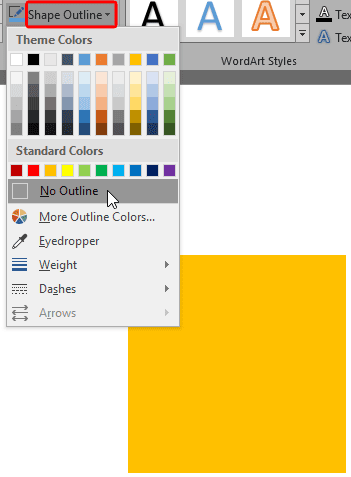
Learn how you can eliminate an outline from a shape in PowerPoint 2016 for Windows.
Filed Under:
PowerPoint 2016
Tagged as: Microsoft Windows, Office 2016, Outline, PowerPoint 2016, Shapes, Tutorials
Comments Off on No Shape Outline in PowerPoint 2016 for Windows
Microsoft and the Office logo are trademarks or registered trademarks of Microsoft Corporation in the United States and/or other countries.