
This is the print version of this page. All content is copyright Indezine.com 2000-2026.
Thoughts and impressions of happenings in the world of PowerPoint and presentations, continuously updated since 2003.
See Also:
PowerPoint and Presenting Notes
PowerPoint and Presenting Glossary
Gradient fills are typically blended fills between two or more colors that graduate and merge from one color to another — they are sometimes also called fountain fills or blended fills in other programs. Other than applying gradients as shape fill, you can also apply Gradient fills to your Slide Background. However, make sure that the two or more colors that you use for your Gradient work well with text and other foreground elements on all your slides.

Learn how to apply gradient fills as Slide Backgrounds in PowerPoint 2016 for Windows.
Filed Under:
PowerPoint 2016
Tagged as: Background, Fills, Gradients, Microsoft Windows, Office 2016, PowerPoint 2016, Templates, Themes, Tutorials
Comments Off on Gradient Fills for Slide Backgrounds in PowerPoint 2016 for Windows
I want to engage my audience, is what over half of the presenters I coach tell me. Here’s what I tell them. First, many people in your audience are tired—probably at least a third of them just don’t get enough sleep. They’re sitting there hoping they won’t embarrass themselves by nodding off. Part of your job is to help them stay awake, to actually pay attention and consider what you are saying.

Image: Pixabay
Next time you practice a presentation, note how many of the following strategies you actually use. Then add a couple more. You don’t want your audience to look like this.
What are three things worth paying attention to and remembering? One of my talks starts with: “When you leave after the two-hour workshop, you will know how to (1) organize a talk and save hours of time; (2) use my professionally designed slides to categorize information on your slides and keep your audience engaged; and (3) feel more confident and excited about giving a presentation.
When you begin, say, “I know I have 30 minutes. I will only talk for 15, and then let’s discuss what I’ve said.” Your audience will think to themselves, “OK, I can listen for 15 minutes.” Plus, they will be happy not to have to listen as long as they expected.
When you are playing catch and you throw the ball to someone, you find yourself waiting—will the other player catch it, and how? You don’t throw ball after ball without looking to see if the person caught one of them. When you make a statement, it’s like playing ball—you have to wait in silence to see how people receive it. Don’t keep throwing more and more words without giving your audience the chance to catch each sentence.
Silence not only gives your audience a chance to digest your information—it also gives them permission to participate. When you pause, you non-verbally tell your audience that they can interrupt you. Your pause makes people feel comfortable—that you are encouraging them to jump in and speak. If you talk nonstop, you will never engage your audience.
If you speak in the same voice tone throughout the entire presentation, no one knows what is really important. Make it obvious to your audience what they really need to pay attention to.
A person can pay attention better when you say, “There are three strategies to solve this situation. Number 1 is… Number 2 is… Number 3 is…” Every time you say a number, it re-engages your audience’s attention and helps their brains to listen.
I frequently say something like, “By using these professionally designed slides you will feel more confident when speaking, and you’ll be able to make eye contact with your audience because you won’t be reading the slides.”
People can only sit and listen to someone spouting facts at them for so long. You have to engage the “child” part of your audience by using emotional words. “I’m excited today to be here to tell you some good news.” Or “The TEAM did some hard grueling work and came up with this amazing new way to visualize the product.”
We all love stories—especially ones that have some emotion connected to them. Tell a story within 5 to 8 minutes of starting your talk.
When starting say, “I am delighted to see all of you here.” Later on say, “As you know, we have this situation. First, you will hear some ideas and then please give your opinions about how we can change this situation.”
One of my clients stopped talking in the middle of his presentation, blanked out the screen, and said, “OK, you’ve heard enough of the possibilities of using this new program, let’s discuss your views so far.” The energy changed in the room. People started talking and came to some understanding before he went on. Another presenter passed out several products and asked people to talk about them.
Literally, give them food, and I don’t mean donuts. Here are some ideas: almonds, walnuts, cashews, small cups of bananas and blueberries, dark chocolate, small turkey sandwiches, yogurt (without sugar), and green tea. These foods will help them concentrate, which means they will be more engaged with you.
One last word: If you yourself aren’t engaged, then you might as well forget it. Find some way to motivate yourself to be excited about your talk—you can’t expect your audience to carry you or motivate you. You are the one in front of the group, so it’s up to you to bring interest and curiosity into the room. You don’t have to be an over-the-top enthused presenter. By using these strategies, you can exude quiet engagement.
Which ones will you start with?
PS: You may think you do these things already, but until you record yourself and watch, or ask someone else to critique you, you may just be fooling yourself.

Claudyne Wilder coaches executives, managers, and salespeople on how to deliver presentations that get to the message. Her clients give compelling, passionate presentations. Her company has an ongoing contract to give her Get to the Message: Present with a Purpose workshop at a Fortune 100 Global Pharmaceutical Company. Claudyne brings a unique and invigorating perspective to her work from her years of studying the Argentine Tango. Do visit Claudyne’s site at Wilder Presentations to sign up for her blog, her tweets or to download some free presenting tools.
Try for free TorchMetrics, your customized speaking coach. TorchMetrics is an innovative online presentation coaching feedback system. Now you can find out what your audience is thinking.
The views and opinions expressed in this blog post or content are those of the authors or the interviewees and do not necessarily reflect the official policy or position of any other agency, organization, employer, or company.
Filed Under:
Guest Posts
Tagged as: Claudyne Wilder, Guest Post, Opinion, Presentation Skills
Comments Off on 12 Engaging Presenter Behaviors to Keep Your Audience Awake
PowerPoint’s Slide Backgrounds can be filled with a solid color, a gradient, a texture or a picture, or even one of PowerPoint’s built-in patterns. We explored a generic walkthrough on changing the Slide Background in our Format Slide Background in PowerPoint 2016 tutorial. This tutorial explores how you can use a solid color as the fill for your Slide Background — solid color fills have the advantage of showing a large expanse in just one color. This does keep the slide uncluttered and draws the audience’s attention away from the background to the foreground elements — and that’s a good thing! Unless you use a bright orange, a fluorescent yellow or some other striking color as a background for your slide! So do choose your colors with caution – neutral colors such as white, grey, black, blue, and green always work better.
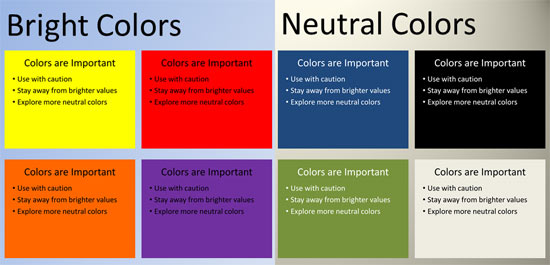
Learn how to apply solid fills to Slide Backgrounds in PowerPoint 2016 for Windows.
Filed Under:
PowerPoint 2016
Tagged as: Background, Fills, Microsoft Windows, Office 2016, PowerPoint 2016, Templates, Themes, Tutorials
Comments Off on Solid Fills for Slide Backgrounds in PowerPoint 2016 for Windows

Heather Ackmann is a Microsoft MVP and full-time author and trainer for AHA Learning Solutions, specializing in Microsoft Office, business professional, and soft skills training videos and educational materials. In her spare time, she enjoys blogging at Heather Ackmann and crocheting hats and scarves for her children who refuse to wear hats and scarves.
In this interview, Heather talks about her new book, Conversational Office 2016.
Geetesh: Heather, can you tell us more about your new book, Conversational Office 2016. What is this book about, and why does it have the word “conversational” in the title?
Heather: Well, before we get into Conversational Office 2016, I think you first need to understand the publisher, Conversational Geek. This book, or rather “minibook,” is part of a larger series of minibooks published by Conversational Geek created by another Microsoft MVP, J. Peter Bruzzese and Nick Cavalancia.
I remember when Peter first came up with the idea (he’s always coming up with ideas and sometimes they are hard to keep track of), we were working together at TrainSignal. He was always reading and writing, both professional and some creative stuff, and I being a former literary magazine editor, we had a lot to talk about when we got together. When he told me about the idea for Conversational Geek, I think I told him he would never make any money off of it. I am so glad I was wrong.
 Peter’s vision for the series of books was born out of a larger frustration with technical books and whitepapers. As an author, he was well-acquainted with the hard long hours it would take to write 1,000-page mega-books that nobody reads, and as an IT professional he found it annoying that industry white papers would lure in people, dangling the promise of new information and a solution to his IT woes, only to find himself reading a 10-page fluff piece put out by a desperate marketing department. Basically, he was tired of lecturing and being lectured to. He wanted…no, he needed something more conversational and fun, something with humor and cartoons, something that he could pull up on an airplane ride and ingest and give him an expert perspective on a technology, industry, and piece of culture that would normally take years of work to absorb and fully appreciate its contribution and dent in the larger space of things.
And that is what Conversational Office 2016 attempts to do. It’s meant to be the start of a conversation, me talking to you, about how I see Office 2016 shaping the application space and business world as it stands. It is not a how-to book; there are plenty of those books out there collecting dust. Sure, the book does cover and introduce the newest features of Office 2016. But it also explains a lot of terminology, concepts (like the “cloud”), and common points of confusion amongst Office consumers—but in a fun and honest way.
Geetesh: In your opinion, what is the major takeaway for a reader of Conversational Office 2016?
Heather: Perhaps the most valuable thing this book does, as far as I am concerned, is to give a thorough explanation of the difference between the Office 2016 applications you get from an Office 365 subscription vs. the traditional out-of-the-box installs of Office 2016.
Being completely honest, I’m supposed to be an “expert”—I spend all day and sometimes all night thinking about Microsoft Office—and some of the stuff, the marketing and support articles from Microsoft, has even me confused. I can only imagine how much more confusing it would be to someone who only casually follows the buzz, or not at all.
And that confusion is really quite tragic, because Office 2016 is the most exciting version of Office in a while, and not for any single new feature or set of features, but because of where Microsoft Office is heading. We are in for some major changes with how we as end-users interact and consume productivity software. And if you just heard/read that last sentence, and have no idea what I am talking about, then this book is for you—it’s design is to take a complete newbie to a technology and make them capable of understanding and holding their own informed conversation at a party about a given piece of tech.
Conversational Office 2016 is completely free to download here.
The views and opinions expressed in this blog are those of the authors and do not necessarily reflect the official policy or position of any other agency, organization, employer, or company.
Filed Under:
Interviews
Tagged as: Books, Heather Ackmann, Interviews, Microsoft Office, PowerPoint
Comments Off on Conversational Office 2016: Conversation with Heather Ackmann
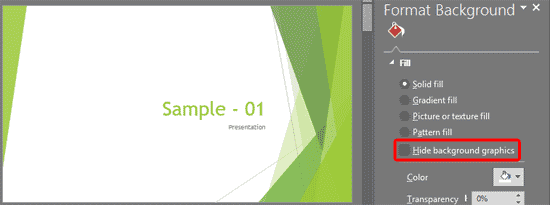
PowerPoint 2016 provides twelve default Slide Background Styles, much like the previous two versions. Apart from these Styles, you can continue changing the default Slide Background to something else such as a solid color or gradient, a pattern or a texture, or, even a picture. In this tutorial, we’ll explore these options that can be accessed within the Format Background Task Pane.
Filed Under:
PowerPoint 2016
Tagged as: Background, Microsoft Windows, Office 2016, PowerPoint 2016, Templates, Themes, Tutorials
Comments Off on Format Slide Background in PowerPoint 2016 for Windows
Microsoft and the Office logo are trademarks or registered trademarks of Microsoft Corporation in the United States and/or other countries.