
This is the print version of this page. All content is copyright Indezine.com 2000-2026.
Thoughts and impressions of happenings in the world of PowerPoint and presentations, continuously updated since 2003.
See Also:
PowerPoint and Presenting Notes
PowerPoint and Presenting Glossary
Sway is a fantastic tool to create presentations, but let’s face the fact—no Sway file sits on your computer or backup device that you can revert to if you make a mistake! At other times, it is easy to get carried away with Sway’s Remix option, where an action that resembles rolling the dice gets you immediate results—and you just go on playing with Remix! You may then long to go back to a state that was 25 Remixes ago, or you may not even remember how far you want to go back!

Explore how to duplicate a presentation in Microsoft Sway.
Filed Under:
Sway
Tagged as: Duplicate, Microsoft, Online Presentations, Sway, Tutorials
Comments Off on Duplicating a Presentation in Microsoft Sway
Yes, you can link to a Word document from a PowerPoint slide object. We have already explained this process in an earlier tutorial. However, that process only links to the Word document. Most of the time, this will open the Word document with the first-page active. However, what if you wanted to link to page 33 of a 50 page Word document? This is doable, but it must be one of the least well-known secrets ever known!

Learn how you can link to specific locations in Word documents from PowerPoint 2013 for Windows.
Filed Under:
PowerPoint 2013
Tagged as: Bookmark, Hyperlinking, Linking, Office 2013, PowerPoint 2013, Tutorials, Word
Comments Off on Link to Word Bookmarks from PowerPoint 2013 for Windows
 Ben Ravilious is CEO of ParticiPoll and also a web and app development agency, UltimateWeb. Ben helped establish the flourishing tech startup community in his hometown of Leicester, UK.
In this conversation, Ben discusses ParticiPoll.
Geetesh: Ben, can you tell us more about ParticiPoll? What motivated you to create this product?
Ben: We wanted to create a tool that made it incredibly easy to find out what a presentation audience knows or think. Everybody knows that presentations are more fun and engaging when the presenter interacts with the audience, and audience polling is one of the best ways to do this.
We wanted to create something that approaches the simplicity of a “show of hands” but with the ability to collect and display results live in PowerPoint. ParticiPoll avoids the technical headache of hardware-based polling systems and is also one of the simplest software ones too—you just drop polls histogram into any existing PowerPoint presentations and collect votes via a presenter’s voting URL.
ParticiPoll was prototyped in an educational setting, but we’ve found traction in many different corporate sectors too.

Geetesh: What does one need to get started with ParticiPoll? Also, are there levels in pricing—can you explain?
Ben: Anyone can download and use the free trial version at ParticiPoll which lets you do the live polling but without any of the Pro features. This version is also supported by sponsored adverts on the voting screen.
For the Pro version, we’ve tried to keep our pricing really simple: $99 USD/year gives you an unlimited number of polls, votes, presentations, or audience members. The Pro features include access to historical poll data, access to audience comments, and the ability to add your logo to the voting screen.
We also offer a $399 USD/ year Volume license which provides five individual licenses, and we can also offer “whole organization” license on request (price dependent on to the number of presenting staff.)
The views and opinions expressed in this blog are those of the authors and do not necessarily reflect the official policy or position of any other agency, organization, employer, or company.
Filed Under:
Interviews
Tagged as: Add-in, Ben Ravilious, Interviews, ParticiPoll, PowerPoint
Comments Off on ParticiPoll: Conversation with Ben Ravilious
 Ari Leviatan is the co-creator of Presentation Font Embedder, a PowerPoint font embedding app for Mac. Ari has over 14 years of experience creating presentations, speaking, and guiding others on presenting. He gained his experience while presenting in front of executives, investors, entrepreneurs, and students, at Disney, Dell, Techstars, the University of Michigan, and others. Ari holds a Masters of Business Administration degree from the University of Michigan Ross School of Business.
In this conversation, Ari talks about Presentation Font Embedder.
Geetesh: Ari, why did you find a need to create Presentation Font Embedder? Can you tell us more about how this evolved?
Ari: Let’s face it, unique fonts are the easiest way to quickly upgrade your presentation with a professional look. Even on a solid-color background with no design elements – a special font will stand out immediately. With this kind of potency, I was surprised when I recently made my switch to PowerPoint on Mac and discovered that the font embedding feature, which I loved and used while engaging audiences for years, was missing!
It’s not only that fonts could not be embedded on the Mac. If you manage to get your finished presentation file on a Windows machine that has a copy of the same fonts that you used on the Mac, and you embed those fonts there (a workflow many designers reluctantly adopted), the fonts would then not show up on other Macs or iOS devices.
For some time, I was looking for a workaround to this problem. After searching for a while, I learned that some designers convert their entire slides to images, but that took a lot of manual work and time, it increased the sizes of my files significantly, and it also disabled all of my carefully cued animations. It was time for an elegant solution to the problem, and I decided to build it. I reached out to my friend Sahar Radomsky, who is an experienced cross-platform software developer, and together we created Presentation Font Embedder.
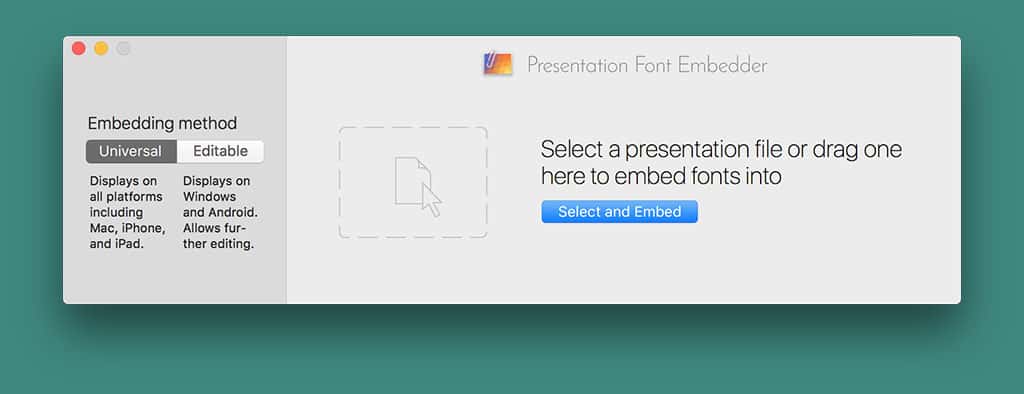
Today, Presentation Font Embedder is the only way to embed fonts in PowerPoint on Mac. It works with both PowerPoint 2011 and 2016 versions, and it actually features two separate embedding methods to select from. This is one more method than what the Windows PowerPoint even offers, which makes this extra method completely exclusive to Mac users.

Geetesh: Can you give us a quick idea of how people are using Presentation Font Embedder? Tell us more.
Ari: The two font embedding methods and the simplicity of use allow for a wide range of use cases for the app. It is not a surprise therefore that our users include graphic designers, branding professionals, business analysts, presentation consultants, teachers, speakers, and more.
For example, we have a user who is a sales professional that shares presentations with potential clients on a daily basis. Her clients obviously own a wide range of devices running different platforms, so it’s important for her that her presentations could show up exactly as she designs them on Macs, PCs, iPhones, iPads, Android devices – you name it.
She uses our Universal embedding method, which automatically and selectively converts all text elements into transparent images. You can actually see the conversion of each element happening right in front of your eyes and it’s really cool to watch. The converted images are supported everywhere, and what’s truly amazing is that we are able to preserve most of the animations of the shapes so that the flow of her sales-pitch stays intact.
Another user of ours is a consultant who uses a Mac even though most of his clients are big corporations with Windows-only networks. He uses our Editable embedding method to generate PowerPoint files with custom fonts for his clients, which they can then fill-in and edit on their own without installing anything. This method is actually similar to the method that the Windows PowerPoint uses for embedding, so our app allows him to complete his entire workflow on his Mac without switching over to Windows every time just to embed the fonts.
So far we are really excited about the responses that we are getting back from our users. People tell us that the app is a big help; it saves them great amounts of time, enables them to offer their clients better services, and enhances their presentations. Thanks to the Feature Request button in the app we are also learning a lot about new ways that we can improve the workflows of our users as we continue to add new features.
The views and opinions expressed in this blog are those of the authors and do not necessarily reflect the official policy or position of any other agency, organization, employer, or company.
Filed Under:
Interviews
Tagged as: Ari Leviatan, Embed Fonts, Fonts, Interviews, Office for Mac, PowerPoint, PowerPoint for Mac, Presentation Font Embedder
Comments Off on Presentation Font Embedder: Conversation with Ari Leviatan
In PowerPoint, a placeholder is a container that you can use to fill in with some content. When you launch PowerPoint, you will see distinctive boxes that invite you to add some content. Haven’t you noticed the “Click to add title” suggestions? All these boxes are placeholders. Each of the default layouts comprises a collection of various placeholders. If none of the available layouts work for you, you can create your own layout with custom placeholders in PowerPoint 2016.

Learn how to add new placeholders within Slide Layouts in PowerPoint 2016 for Windows.
Filed Under:
PowerPoint 2016
Tagged as: Microsoft Windows, Office 2016, PowerPoint 2016, Slide Layouts, Slide Masters, Tutorials
Comments Off on Inserting New Placeholders Within Slide Layouts in PowerPoint 2016 for Windows
Microsoft and the Office logo are trademarks or registered trademarks of Microsoft Corporation in the United States and/or other countries.