
This is the print version of this page. All content is copyright Indezine.com 2000-2026.
Thoughts and impressions of happenings in the world of PowerPoint and presentations, continuously updated since 2003.
See Also:
PowerPoint and Presenting Notes
PowerPoint and Presenting Glossary
Let’s imagine you have four presentations open and you can only see the one that is active. What about the other three presentations? How do you navigate to those presentations without having to close, or minimize the active presentation? In this tutorial, you will learn how to switch between multiple open presentations in PowerPoint 2016. With this option, you can easily switch in between different presentation windows (without reducing the window size).

Learn how to switch views between multiple presentations in PowerPoint 2016 for Windows.
You May Also Like: Using the Pen and Highlighter Tools in Slide Show View in PowerPoint 2016 for Windows | Edit Annotations with Ink Tools in PowerPoint 2016 for Windows | Hide/Unhide Slides in PowerPoint 2016 for Windows
Filed Under:
PowerPoint 2016
Tagged as: Interface, Microsoft Windows, Office 2016, PowerPoint 2016, Reuse Slides, Sw, Tutorials, View
Comments Off on Switch Views Between Multiple Presentations in PowerPoint 2016 for Windows
We begin with a special kind of world map. Why is it special? Because it is all created with circles of all sizes!
We then show you how the differences between Text Placeholders and Text Boxes in PowerPoint 2016 for Windows. Sway users can discover applying Design Styles and customizing them. For PowerPoint 2013 users, we have tutorials about Action Buttons and their Default Behaviors. Finally, you will not want to miss the new discussions and templates of this week!

Read Indezine’s PowerPoint and Presenting News.
Filed Under:
Ezine
Tagged as: Ezine, Indezine, News, PowerPoint
Comments Off on PowerPoint and Presenting News: February 2, 2016
Editing any slide object works the same way, irrespective of whether you are editing a picture, a chart, some SmartArt, or even text. You select the object you want to edit and change some attributes. You then get to see your changes, and then you either undo your changes if you are not too happy with them or just accept them. You can then start working with another object! What if you could see/preview how an actual change will look on the slide object before you decide to accept or decline that change? PowerPoint 2016’s Live Preview allows you to do just that.

Learn how Live Preview works in PowerPoint 2016 for Windows.
You May Also Like: Mini Toolbar | Slides Pane | Quick Access Toolbar
Filed Under:
PowerPoint 2016
Tagged as: Interface, Live Preview, Microsoft Windows, Office 2016, PowerPoint 2016, Tutorials
Comments Off on Live Preview in PowerPoint 2016 for Windows
Each PowerPoint presentation contains several slides. Let’s compare each slide to a blank canvas or an empty sheet of paper! You can thereafter add content to the slides in much the same way as you use brushes to create strokes of paint, or a pen to write. For example, do you want some text? Then you must add a text box. Want a picture? Just insert a picture and place it anywhere on your slide! Wait, this is not really the proper way to work in PowerPoint!
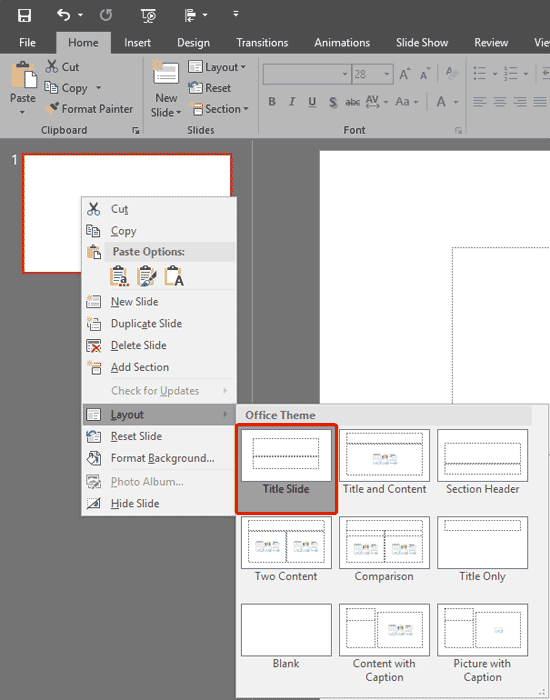
Learn how to change Slide Layouts in PowerPoint 2016 for Windows.
Filed Under:
PowerPoint 2016
Tagged as: Layouts, Microsoft Windows, Office 2016, PowerPoint 2016, Slide Layouts, Tutorials
Comments Off on Change Slide Layout in PowerPoint 2016 for Windows
Just inserting Action Buttons on your slide is not sufficient — you need to apply hyperlinks to them so that they have some function. You have already learnt how to insert Action Buttons. In this tutorial we’ll learn more detailed techniques on working with Action Buttons. Each Action Button has a default action associated — this typically is a hyperlink to some other slide in your presentation. You can change this link, or even add another link such as a link to your web site, another document, and more.
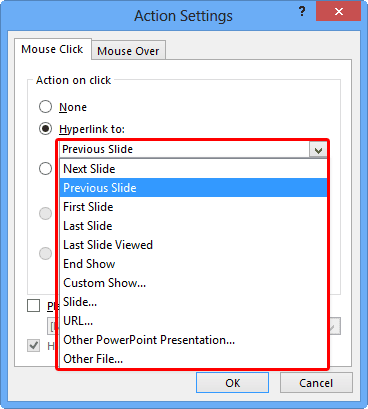
Explore options to add and edit hyperlinks for Action Buttons in PowerPoint 2013 for Windows.
Filed Under:
PowerPoint 2013
Tagged as: Action Buttons, Hyperlinking, Microsoft Office, Office 2013, PowerPoint 2013, Shapes, Tutorials
Comments Off on Hyperlinks for Action Buttons in PowerPoint 2013 for Windows
Microsoft and the Office logo are trademarks or registered trademarks of Microsoft Corporation in the United States and/or other countries.