
This is the print version of this page. All content is copyright Indezine.com 2000-2026.
Thoughts and impressions of happenings in the world of PowerPoint and presentations, continuously updated since 2003.
See Also:
PowerPoint and Presenting Notes
PowerPoint and Presenting Glossary
Editing a presentation uploaded on OneDrive is easy, and you have two choice. You can open and edit a PowerPoint file in PowerPoint installed on your computer or within PowerPoint for the Web. In this tutorial, we’ll explore how to open a PowerPoint file within PowerPoint for the Web.

Learn how to open a PowerPoint file within PowerPoint for the Web.
Filed Under:
PowerPoint for the Web
Tagged as: OneDrive, PowerPoint for the Web, Tutorials
Comments Off on Learn PowerPoint for the Web: Open PowerPoint File
Bucket diagrams are so expressive, useful, and direct in the message they provide. Yes, these diagrams have everything to do with buckets and the water they contain. While the buckets themselves represent a source or destination, the water represents the financial liquidity. Buckets show items in a distribution, they represent the flow of things, or show collections of items. An empty bucket can indicate the capacity to which it can be filled. A bucket pouring water in another could represent distribution. You can have buckets that are full, empty, or somewhat full. And you can also pour the water from one bucket to another!

Download and use these graphics to create your own bucket diagrams.
Filed Under:
Presentation Bank
Tagged as: Design, Graphics, PowerPoint
Comments Off on PowerPoint Infographics: Bucket Diagrams with Water
While collaborating on a presentation with someone else, there will be times when you want to give and receive feedback without actually editing the slides themselves. In situations such as these, the Comments option works very well. We earlier learned how to Add, Edit, or Delete Comments within the PowerPoint 2010 (desktop application). In this tutorial we’ll explain how to use commenting and at the same time collaborate between PowerPoint for the Web and PowerPoint 2010 for Windows.

Filed Under:
PowerPoint All Versions
Tagged as: PowerPoint 2010, PowerPoint for the Web, Tutorials
Comments Off on Learn PowerPoint 2010 for Windows: Commenting and Collaborating with PowerPoint for the Web
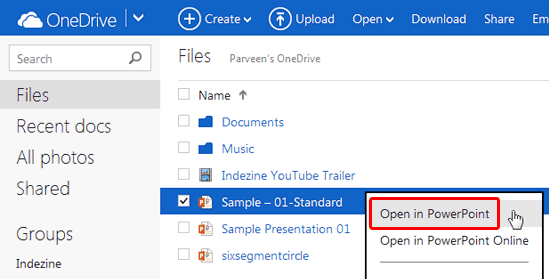
All your PowerPoint files which are uploaded, created, or saved on OneDrive can be edited anytime, right within the PowerPoint Online web app that runs within your browser. But that’s not the only way you can edit these PowerPoint files. Yes, OneDrive also provides you the option to edit it within PowerPoint desktop applications. In this tutorial we’ll first explore how to open a file in your PowerPoint desktop applications from within OneDrive. You will need to have the latest versions of PowerPoint installed on your Windows or Mac operating systems.
Filed Under:
PowerPoint All Versions
Tagged as: OneDrive, PowerPoint for the Web, Tutorials
Comments Off on Open from OneDrive in PowerPoint for Windows
OneDrive is a cloud offering from Microsoft that at its basic level, is completely free for anyone to use. The only requirement is that you need to have a Microsoft account. Thereafter OneDrive allows you to share your files with anyone or everyone. Having said so, you first need to upload the file to OneDrive.

Learn how to upload a PowerPoint file to OneDrive.
Filed Under:
PowerPoint for the Web
Tagged as: OneDrive, PowerPoint for the Web, Tutorials
Comments Off on Learn PowerPoint for the Web: Uploading PowerPoint File to OneDrive
Microsoft and the Office logo are trademarks or registered trademarks of Microsoft Corporation in the United States and/or other countries.