
This is the print version of this page. All content is copyright Indezine.com 2000-2026.
Thoughts and impressions of happenings in the world of PowerPoint and presentations, continuously updated since 2003.
See Also:
PowerPoint and Presenting Notes
PowerPoint and Presenting Glossary
PowerPoint 2013 enables you to insert online pictures in more than one way — we explored these various options in our Insert Online Pictures in PowerPoint 2013 tutorial. This is the last tutorial of this series, and we’ll learn how you can use the Facebook option to insert pictures which are uploaded within your Facebook account.

Learn how to insert pictures using Facebook in PowerPoint 2013 for Windows.
Filed Under:
PowerPoint 2013
Tagged as: Facebook, Pictures, PowerPoint 2013, Tutorials
Comments Off on Learn PowerPoint 2013 for Windows: Insert Picture from Facebook
We begin with an interview with Kurt Dupont of PresentationPoint, who discusses their Dynamic MUSIC add-in for PowerPoint that lets you bring in your playlists in your slides. We then announce the names of 5 winners of the Indezine Snagit giveaway! There’s also a review of Xara’s Photo & Graphic Designer 11 — we show how you can use this program to create graphics for PowerPoint!
PowerPoint 2013 users will enjoy reading an entire series of tutorials on Online Video. And PowerPoint 2007 users can learn about the Edit Points option that lets you modify Shapes. Finally, don’t miss the new discussions and templates of this week!

Read Indezine’s PowerPoint and Presenting News.
Filed Under:
Ezine
Tagged as: Ezine, Indezine, News, PowerPoint
Comments Off on PowerPoint and Presenting News: July 14, 2015
The Shapes Gallery in PowerPoint consists various shapes, both open and closed. Most of the shapes in this gallery are closed shapes, for example, a Rectangle, an Ellipse, and a Triangle. There are also a few open shapes such as the straight point to point line. Also, there are some drawing tools let you draw both open and closed shapes — these are the Freeform Line, Curve, and Scribble tools. In addition, you can convert any closed shape into an open shape and vice versa, as you will learn in this tutorial.

Learn how you can open and close paths for shapes in PowerPoint 2007 for Windows.
Filed Under:
PowerPoint 2007
Tagged as: PowerPoint 2007, Shapes, Tutorials
Comments Off on Learn PowerPoint 2007 for Windows: Open and Close Paths

Kurt Dupont, based out of Belgium heads PresentationPoint, a company that creates several amazing PowerPoint add-ins. After his Computer Science studies, Kurt started with Andersen Consulting (Accenture nowadays) in Brussels. After 3 years he moved to the Brussels Airport Terminal Company that runs the Brussels airport – this last placement inspired the start-up of Take-off (now known as PresentationPoint) in 1998.
In this conversation, Kurt discusses Dynamic MUSIC, an add-in that lets you play music tracks and playlists in PowerPoint.
Geetesh: Tell us about Dynamic MUSIC, your add-in for PowerPoint — and what motivated you to create this product?
Kurt: Sure Geetesh. We PowerPoint users all know that you can insert an MP3 file on your slide, or play MP3 files over multiple slides in your slideshow. And many people use PowerPoint for information screens. Think about companies, factories, hotel lobbies, exhibitions, schools and so on. They all present news, statistics, time schedules and more on a large television screen to inform employees and visitors.

In some environments, they can even add music to their presentation. Think about advertising slides in a shop to promote products and services. They easily can add background music to their presentation. Maybe background music carefully selected to bring the viewers in a certain mood. Think about salsa music accompanied with nice hotel offers at a travel agency. Or romantic music at a restaurant. A good marketer knows that adding the right music to your ads, improves ad quality and customer satisfaction because of the influencing atmosphere.
Now with our Dynamic MUSIC add-in, you can add folders and folders with music files to your presentation. The music files are of course not embedded into the presentation. It is just a playlist with references to the songs or albums. Set up a new playlist and add your music files. When you then start your slide show, the music files are played continuously until the slide show stops. Of course, you can choose to play the songs in a fixed or (more preferred) random order.
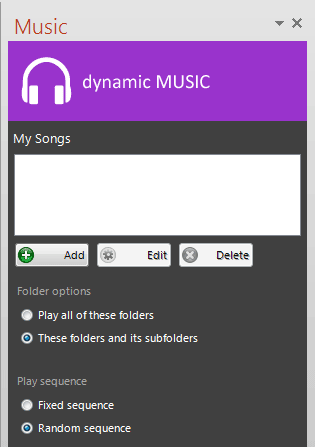
Geetesh: Can you share some information about the other PowerPoint add-ins that are part of your Dynamic ELEMENTS series?
Kurt: Next to our DataPoint add-in for data-driven presentations and our digital signage iPoint product, we are now setting up a new product line called Dynamic ELEMENTS, where we offer easy add-ins with common functionality that more people can use. The first one was Dynamic TIME and now we have Dynamic MUSIC. In the very near future, we will bring out new add-ons to display news of an RSS feed and another one to display weather information for your chosen area. All Dynamic ELEMENTS add-ins exist of the add-on to add the extra functionality to your PowerPoint but also a nice PowerPoint template with many slides that you can use directly on your computer screen. Extra functionality in a professional, design template.
The views and opinions expressed in this blog post or content are those of the authors or the interviewees and do not necessarily reflect the official policy or position of any other agency, organization, employer, or company.
Filed Under:
Interviews
Tagged as: Add-in, Dynamic Music, Interviews, Kurt Dupont, Music, PowerPoint, PresentationPoint
Comments Off on Dynamic MUSIC: Conversation with Kurt Dupont
The last option within our tutorials of the Insert Online Video series is bringing in videos from Facebook. There is a prerequisite though — to insert video from your Facebook account you will first have to add Facebook as a connected Service within your Microsoft account — this needs to be done only once.

Learn how to insert video from your Facebook account in PowerPoint 2013 for Windows.
Filed Under:
PowerPoint 2013
Tagged as: PowerPoint 2013, Tutorials, Video
Comments Off on Learn PowerPoint 2013 for Windows: Insert Video from Facebook
Microsoft and the Office logo are trademarks or registered trademarks of Microsoft Corporation in the United States and/or other countries.