
This is the print version of this page. All content is copyright Indezine.com 2000-2026.
Thoughts and impressions of happenings in the world of PowerPoint and presentations, continuously updated since 2003.
See Also:
PowerPoint and Presenting Notes
PowerPoint and Presenting Glossary
Your text in PowerPoint may or may not show an outline depending upon the Theme applied to the presentation or the WordArt Style applied. So what exactly do we mean by an outline here? The outline is the border for your text. You can change or edit text outlines in the same way as you modify the text fills. PowerPoint’s Text Outline option provides you with plenty of editing options for your text outlines.

Learn how to make changes to the appearance of text outline in PowerPoint 2013 for Windows.
Filed Under:
PowerPoint 2013
Tagged as: Lines, PowerPoint 2013, Text, Tutorials
Comments Off on Learn PowerPoint 2013 for Windows: Text Outline
PowerPoint’s Text Fill gallery offers you various text fill options like Solid Color fill, Picture fill, Gradient fill, Texture fill etc. Additionally, another fill option is available for your text — this is the Pattern fill, and we will show you where you can find this option. Just like any other text fill, the successful appearance of text filled with a Pattern depends upon certain factors like the type of Pattern, colors used to create the Pattern, and also the size of text, etc.

Learn how to add pattern fills to the selected text in PowerPoint 2013 for Windows.
Filed Under:
PowerPoint 2013
Tagged as: Fills, PowerPoint 2013, Text, Tutorials
Comments Off on Learn PowerPoint 2013 for Windows: Pattern Fills for Text
We explored the Clip Organizer previously, especially its interface. However, the real benefit of using Clip Organizer is only if you add your frequently used clips within its Collections. There are essentially two ways to add clip media — in this tutorial we’ll explore them.
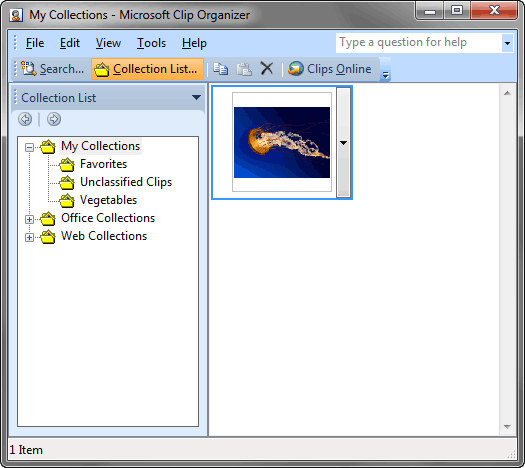
Learn how to add clip media to the Clip Organizer.
Filed Under:
PowerPoint 2010
Tagged as: Clip Media, Graphics, PowerPoint 2010, Tutorials
Comments Off on Learn PowerPoint 2010 for Windows: Adding Clip Media to the Clip Organizer
Handshake pictures again? Not if you can get more ideas about how to go beyond this clichéd concept, as explained in this new article! We then show how the Pie shape can be used to create more shapes such as the Pacman shape. You can also explore Creative Commons and the use of pictures. And we have a guest column from Jerry Weissman who talks about why audiences revolt against PowerPoint. And then we explore Pixabay, a fantastic source of pictures. PowerPoint 2013 users can learn about text fills of various types such as pictures, textures, and gradients. PowerPoint 2010 users can explore viewing Sections and adding clips to the Clip Organizer. And don’t miss the new discussions and templates of this week!

Read Indezine’s PowerPoint and Presenting News.
Filed Under:
Ezine
Tagged as: Ezine, Indezine, News, PowerPoint
Comments Off on PowerPoint and Presenting News: April 21, 2015
First of all, why would you need to highlight text? One answer could be that you want to emphasize some important words or phrases within your slide. There is no ready to use tool within PowerPoint — on both Windows and Mac versions. At least within the Windows versions such as PowerPoint 2013, you can use Word’s highlighting options as a workaround — but this workaround does not work with PowerPoint 2011 for Mac — so we will use fake highlighting for the text, which also works extremely well.

Learn how to fake highlight text in PowerPoint 2011 for Mac.
Filed Under:
PowerPoint 2011
Tagged as: Office for Mac, PowerPoint 2011, Text, Tutorials
Comments Off on Learn PowerPoint 2011 for Mac: Fake Highlight Text
Microsoft and the Office logo are trademarks or registered trademarks of Microsoft Corporation in the United States and/or other countries.