
This is the print version of this page. All content is copyright Indezine.com 2000-2026.
Thoughts and impressions of happenings in the world of PowerPoint and presentations, continuously updated since 2003.
See Also:
PowerPoint and Presenting Notes
PowerPoint and Presenting Glossary
After designing your learning material and quizzes for an online course within Adobe Presenter, you would want to know how this online course will help the learners grasp the content better. Although, the LMS (Learning Management System) provides details about course completion and quiz results, it does not show the learners’ progress. To overcome this issue, Adobe Presenter offers a Learning Analytics dashboard that empowers instructors with the ability to detect potential learning problems and to intervene early-improving the chances for learners to meet and even exceed their expectations.

Learn more about Learning Dashboard in Adobe Presenter.
Filed Under:
Add-ins
Tagged as: Add-in, Adobe Presenter, PowerPoint, Tutorials
Comments Off on Learning Dashboard in Adobe Presenter
PowerPoint does not provide any built-in tool for highlighting text — but you can use Microsoft Word to help you with a workaround. Now imagine that you have hundreds of slides and you need to similarly highlight more text. Working repeatedly with Word for all text highlighting across so many slides can be painful. Fortunately, you can tackle this issue easily by using the Format Painter option within PowerPoint, which let you copy the highlighting for text and also helps in removing the highlight altogether.

Learn how to copy and remove highlighting for text in PowerPoint 2013 for Windows.
Filed Under:
PowerPoint 2013
Tagged as: PowerPoint 2013, Text, Tutorials
Comments Off on Learn PowerPoint 2013 for Windows: Copy and Remove Highlighting for Text
The more pictures you find online, the more difficult it gets to decide whether this picture can be legally used or not. And yes, it’s not too difficult if you are ready to pay for high-quality images, because there are some awesome stock photo sites that have you covered. But in case your pockets are not too deep, or even if you are doing something on a shoestring budget for a pro bono cause, then you will want a source of pictures that’s high quality, and also not expensive at all. And Pixabay, the site we are reviewing today actually exceeds those requirements because not only are the pictures high quality, but they are free as well!
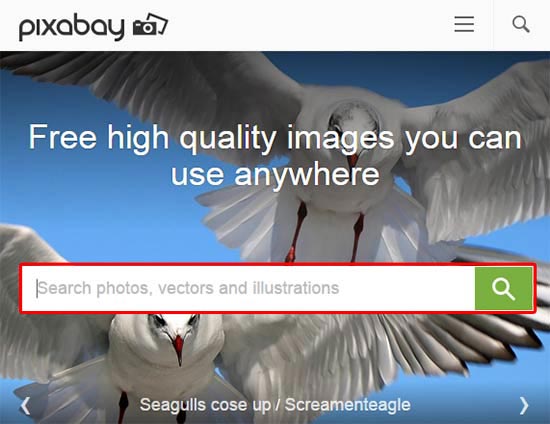
Learn about Pixabay.com, an amazing resource of shared pictures that can be used easily.
Filed Under:
Clip Media
Tagged as: Design, Graphics, Pictures, Pixabay, PowerPoint
Comments Off on Pixabay
First of all, PowerPoint 2013 or any of the previous versions do not support text highlighting. And before we explore getting over this limitation, let’s ask ourselves why do we need to highlight a text? If you want to emphasize some important words within your slide, then the highlighting may indeed help. However, unlike Microsoft Word, PowerPoint doesn’t have a ready-made tool to highlight text — but you can use Word’s highlighting options as a workaround!

Learn how to highlight text in PowerPoint 2013 for Windows.
Filed Under:
PowerPoint 2013
Tagged as: PowerPoint 2013, Text, Tutorials
Comments Off on Learn PowerPoint 2013 for Windows: Highlight Text
Adobe Presenter provides an option to use Themes. These Themes enable you to customize how your presentations appear in the Presenter viewer. Themes let you add static images, colors, and sound to the presentation. A Theme can be added any time, you can select a pre-defined theme for your presentation, customize an existing theme or create a new one. Adobe Presenter provides you with many options for customizing colors, tabs, functionality, graphics, font style, and other design elements of a theme.

Explore Themes in Adobe Presenter.
Filed Under:
Add-ins
Tagged as: Add-in, Adobe Presenter, PowerPoint, Tutorials
Comments Off on Theme Option in Adobe Presenter
Microsoft and the Office logo are trademarks or registered trademarks of Microsoft Corporation in the United States and/or other countries.