
This is the print version of this page. All content is copyright Indezine.com 2000-2026.
Thoughts and impressions of happenings in the world of PowerPoint and presentations, continuously updated since 2003.
See Also:
PowerPoint and Presenting Notes
PowerPoint and Presenting Glossary
Let’s imagine that you cannot deliver your slides in person. You then want to do the next best option, that is to deliver your presentation in front of your computer, almost as if you had a live audience present. All this while, all your narrations are being recorded. Even the time you spend on each slide is recorded along with the time taken for each animation to play. You can also record your laser pointer activity if you use PowerPoint’s built in laser pointer. All of this can be saved as part of your presentation that you can send to others – and they can see this at their convenience, with your voice accompanying the slide show!
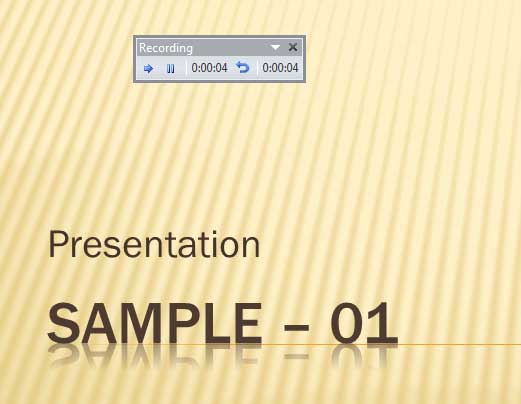
Learn how you can record a slide show in PowerPoint 2010 for Windows.
Filed Under:
PowerPoint 2010
Tagged as: Delivery, PowerPoint 2010, Tutorials
Comments Off on Learn PowerPoint 2010 for Windows: Record Slide Show
In this issue, we first look at Relationship Charts, and how that can add a different dimension to your PowerPoint infographics. We then bring you City Skyline silhouette graphics. We also have two exclusive interviews – the first one is about the Presentation Hero Academy with Matteo Cassese. And Irwin Hipsman discusses Brainshark’s 7th Annual Sharkies, a contest that is now open for entries, and where you can submit your slides, and win in return. We also have tutorials on importing and managing quizzes in Adobe Presenter, an add-in for PowerPoint. Plus PowerPoint 2013 users can learn about reusing slides through the Reuse Slides task pane, and via drag and drop. We also cover getting started with Sections, and adding or renaming them – for PowerPoint 2013 and 2010 for Windows – and also for PowerPoint 2011 for Mac. And don’t miss the new discussions and templates of this week!

Read Indezine’s PowerPoint and Presenting News.
Filed Under:
Ezine
Tagged as: Ezine, Indezine, News, PowerPoint
Comments Off on PowerPoint and Presenting News: February 10, 2015
After creating your presentation slides, you may be satisfied with the outcome. And now it’s time to practice your presentation delivery. You need to practice your slide timings, your pace, and most importantly, you need to be comfortable with your slides. And what better to help you than PowerPoint’s powerful Rehearse feature that we will explore within this tutorial.

Explore the Rehearse feature in PowerPoint 2011 for Mac.
Filed Under:
PowerPoint 2011
Tagged as: Office for Mac, PowerPoint 2011, Slide Management, Tutorials
Comments Off on Learn PowerPoint 2011 for Mac: Rehearse Slide Timings
If you are happy with the presentation slides you created, you should then move towards practicing your presentation delivery, your timing, and your pace. More importantly, it is time to be comfortable with your slides. PowerPoint itself can help you better handle this job via it’s PowerPoint’s powerful Rehearse Timings feature that we will explore within this tutorial.

Explore the Rehearse Timings feature in PowerPoint 2010 for Windows.
Filed Under:
PowerPoint 2010
Tagged as: PowerPoint 2010, Slide Management, Tutorials
Comments Off on Learn PowerPoint 2010 for Windows: Rehearse Slide Timings
Sometimes we are exposed to slides that can be so hazardous to our vision! One look at a slide, and it really doesn’t matter if the content is great or not — because this slide has nothing understated about it. Such loud slides can ensure that audiences look more at the look of the slide rather than the content. You might end up with such slides even with no fault of yours, because someone else mis-designed them for you! Fortunately, there is an easy, one-click process to restore the sanity in the slides — it’s called the Reset button. Remember, the Reset button is your friend.

Learn how to reset your slide formatting with one click in PowerPoint 2013 for Windows.
Filed Under:
PowerPoint 2013
Tagged as: PowerPoint 2013, Slide Management, Tutorials
Comments Off on Learn PowerPoint 2013 for Windows: Reset Slide
Microsoft and the Office logo are trademarks or registered trademarks of Microsoft Corporation in the United States and/or other countries.