
This is the print version of this page. All content is copyright Indezine.com 2000-2026.
Thoughts and impressions of happenings in the world of PowerPoint and presentations, continuously updated since 2003.
See Also:
PowerPoint and Presenting Notes
PowerPoint and Presenting Glossary

Tim Stumbles is the co-founder of Office Timeline, a start-up focused on making project presentations simple. Office Timeline offers timeline maker and Gantt chart software, natively built for Microsoft PowerPoint. With Office Timeline, over 500,000 PowerPoint users easily create impressive project presentations for important client and executive meetings.
In this conversation, Tim discusses the Plus Edition of Office Timeline.
Geetesh: How is the Plus Edition of Office Timeline different than the regular version?
Tim: Office Timeline is a PowerPoint timeline maker that makes it incredibly simple for anyone who has a project of any size to communicate it visually. There are two versions of the add-in, a Free version and a Plus Edition. The Free version is fully functional, and the Plus Edition unlocks sophisticated features.

We are fortunate enough to have a broad customer base using the Plus Edition. Many of these customers use it because it enables them to import data and transform it into beautiful timelines or Gantt charts instantly. The Plus edition also has the functionality they need to make busy project schedules really easy to understand and easy to present.
Some other favorite Plus features include the ability to show percentage complete for project tasks, additional timeline and Gantt chart templates, and the intelligence that Office Timeline Plus has to dynamically manage the layout of detailed slides.

Geetesh: Can you tell us more about the new features that you have added to this Plus Edition?
Tim: Our customers are passionate about it and have provided a steady stream of requests, many of which we delivered in the 14 releases we published last year. Some of these were behind-the-scenes innovations, such as a new algorithm that better manages layout and how timeline slides are rendered in PowerPoint.
Other Plus edition developments increased functionality, such as the ability to style any timeline object in multiple ways and the addition of more templates. We also expanded our importing options, most recently integrating with Smartsheet. And finally, we tightened our integration with PowerPoint, so slides created with Office Timeline are easily shared with colleagues, managers, or clients who have PowerPoint.
See Also: Office Timeline: Conversation with Tim Stumbles
The views and opinions expressed in this blog post or content are those of the authors or the interviewees and do not necessarily reflect the official policy or position of any other agency, organization, employer, or company.
Filed Under:
Interviews
Tagged as: Add-in, Diagrams, Interviews, PowerPoint, Tim Stumbles
Comments Off on Office Timeline Plus Edition: Conversation with Tim Stumbles
After you create your eLearning project using Adobe Presenter within PowerPoint, you will no doubt want to publish your content in a format suitable to deploy. Adobe Presenter provides various publish options, and you can opt to publish locally, or even host via the Adobe Connect Server. You can also publish to SWF, HTML5, leading LMSs, and video sharing sites like YouTube or Vimeo. Let us explore how you can use these Publish options.

Explore various publish options within Adobe Presenter.
Filed Under:
Add-ins
Tagged as: Add-in, Adobe Presenter, PowerPoint, Tutorials
Comments Off on Adobe Presenter: Publish Options
Dividing a large number of slides into Sections helps you to manage them better. And even for presentations that do not have a large number of slides, you can benefit from Sections. However, the mere act of dividing slides into Sections will not achieve much unless you create and name these Sections in a proper manner to represent what the slides within each Section contain. In this tutorial, let us learn how to add Sections, and also how to rename them.

Learn how to add and rename sections in PowerPoint 2013 for Windows.
Filed Under:
PowerPoint 2013
Tagged as: PowerPoint 2013, Slide Management, Tutorials
Comments Off on Learn PowerPoint 2013 for Windows: Adding and Renaming Sections
Relationship as a term is very broad, and can represent how a hierarchy within an organization is structured, who reports to whom, and more. Do you want to show this structure within your slides, but don’t want to use rigid organization charts? Then you are on the right page, exploring something different called Relationship Charts! These Relationship Charts are already in place – you just need to change or add pictures of the people within your chart! You will quickly create relationship charts that are linked and intuitive!

Download and use these relationship charts in your slides.
Filed Under:
Presentation Bank
Tagged as: Diagrams, Graphics, PowerPoint, Presentation Samples, Shapes
Comments Off on Infographics: Relationship Charts for PowerPoint
Presentations that have a large number of slides may get unwieldy and also pose a challenge as far as managing them is concerned, unless they are logically divided into Sections. On the other hand, even presentations that do not have a large number of slides can benefit from Sections. However, the mere act of dividing slides into Sections will not achieve much unless you create and name these Sections in a proper manner to represent what the slides within each Section contain. In this tutorial, let us learn how to add Sections, and also how to rename them.
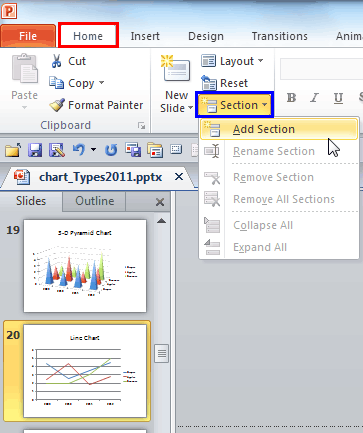
Learn how to add and rename sections in PowerPoint 2010 for Windows.
Filed Under:
PowerPoint 2010
Tagged as: PowerPoint 2010, Slide Management, Tutorials
Comments Off on Learn PowerPoint 2010 for Windows: Adding and Renaming Sections
Microsoft and the Office logo are trademarks or registered trademarks of Microsoft Corporation in the United States and/or other countries.