
This is the print version of this page. All content is copyright Indezine.com 2000-2026.
Thoughts and impressions of happenings in the world of PowerPoint and presentations, continuously updated since 2003.
See Also:
PowerPoint and Presenting Notes
PowerPoint and Presenting Glossary
Once you add an audio/sound track to your PowerPoint presentation, you can let the inserted audio span across all your slides from the first one to the last by selecting the Play across slides option. That’s great if you need the same music playing on all your slides. But what if you want the music to play only across some successive slides? What if you want the music to play from slide 1 to 12, and let all slides thereafter play without any music? Or you may want to add another audio clip for the next set of slides? Either way, it is possible to limit the number of slides that your music will play across.
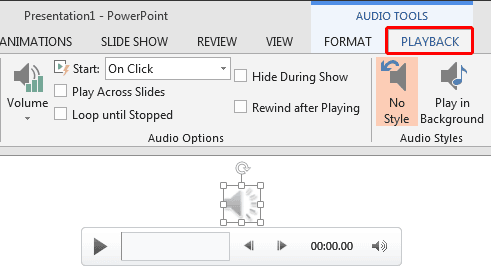
Loop audio clips to play across specific slides in PowerPoint 2013 for Windows.
Filed Under:
PowerPoint 2013
Tagged as: PowerPoint 2013, Sounds, Tutorials
Comments Off on Sound Across Specific Slides in PowerPoint 2013 for Windows
These Fall Leaves Clip Arts for PowerPoint are ready to use clip-art graphics that you can use within your PowerPoint presentation slides. These clip art graphics are available in black and white colors — both variations are contained within two separate sample presentations you can download. Copy the clip art graphics of your choice from the downloaded presentations, and paste them into your PowerPoint presentation slide, or you can also paste them into a Word document or an Excel worksheet. Additionally, these Fall Leaves graphics are vector shapes, so you can easily edit them within your Microsoft Office program.


Download and use these fall leaves in your slides.
Filed Under:
Presentation Bank
Tagged as: Graphics, PowerPoint, Presentation Samples
Comments Off on Fall Leaves Clip Arts for PowerPoint
After inserting an audio file such as a sound track within your PowerPoint presentation, do you want to play this sound track across slides without any interruption when you move from one slide to another? Of course you must first be sure that the sound track you are using is suitable for this purpose. You can opt for a soothing background music score to play across your presentation slides without distracting your audience. Of course, if a live speaker is spearheading the presentation, then you don’t want to add a sound that spans across slides. This will distract the audience, and also the speaker.

Loop an audio clip to play across slides in PowerPoint 2013 for Windows.
Filed Under:
PowerPoint 2013
Tagged as: Music, PowerPoint 2013, Sounds, Tutorials
Comments Off on Sound Across Slides in PowerPoint 2013 for Windows
There are many, many options as far as inserting pictures from online sources within PowerPoint are concerned. After exploring the Office.com Clip Art and the Bing Image Search options, the third option we will learn about is Flickr. Flickr is probably the greatest online resource of pictures uploaded by photographers and enthusiasts all over the world.

Learn how to insert picture using Flickr in PowerPoint 2013 for Windows.
Filed Under:
PowerPoint 2013
Tagged as: Flickr, Pictures, PowerPoint 2013, Tutorials
Comments Off on Learn PowerPoint 2013 for Windows: Insert Picture from Flickr
You can insert an audio file from your PC into your PowerPoint slide. PowerPoint 2013 even enables you to insert an audio file from online sources without any need to open your web browser.

Learn how to insert online sound (audio) clips in PowerPoint 2013 for Windows.
Filed Under:
PowerPoint 2013
Tagged as: PowerPoint 2013, Sounds, Tutorials
Comments Off on Learn PowerPoint 2013 for Windows: Insert Online Audio (Sound)
Microsoft and the Office logo are trademarks or registered trademarks of Microsoft Corporation in the United States and/or other countries.