
This is the print version of this page. All content is copyright Indezine.com 2000-2026.
Thoughts and impressions of happenings in the world of PowerPoint and presentations, continuously updated since 2003.
See Also:
PowerPoint and Presenting Notes
PowerPoint and Presenting Glossary
A Hyperbola is essentially composed of a smooth curve that is not too different from a parabola, but this smooth curve also has a mirrored image of itself so that the finished shape looks like two infinite bows. In thus tutorial we’ll show you how you can draw a hyperbola using the drawing tools available in PowerPoint 2013 for Windows.

Learn how to draw a hyperbola in PowerPoint 2013 for Windows.
Filed Under:
PowerPoint 2013
Tagged as: Graphics, PowerPoint 2013, Shapes, Tutorials
Comments Off on Learn PowerPoint 2013 for Windows: Drawing Hyperbolas
Color in electronic devices is made up from light, as already discussed in our Color Models article. The three primary colors of this electronic color model are Red, Blue, and Green, and that explains why this model is called the RGB color model. RGB is essentially an abbreviation for Red Green Blue.

Learn about how Red, Green and Blue comprise the primary colors within our computer screens.
You May Also Like: Working with RGB Colors in PowerPoint 2013 | Working with RGB Colors in PowerPoint 2010 | Working with RGB Colors in PowerPoint 2011 for Mac
Filed Under:
Color
Tagged as: Color, PowerPoint, Tutorials
Comments Off on Color Models: RGB
Unlike in PowerPoint 2010, there is no direct option to insert video clips from online sources such as Microsoft’s clip art collection in PowerPoint 2013! What’s more, Microsoft has removed its online clip art collection from its Office Online web site – so there’s no way you can get those video clips from within a web browser and insert them in PowerPoint 2013 easily.

Filed Under:
PowerPoint 2013
Tagged as: PowerPoint 2013, Tutorials, Video
Comments Off on Learn PowerPoint 2013 for Windows: Insert Video Clips from the Clip Art Pane
When you insert a new chart in PowerPoint 2013, you might notice that an instance of the Excel sheet containing some dummy data for your chart pops up within PowerPoint — you then change the data within that instance of the Excel sheet to auto-update the chart on your slide. However, this Excel instance that stores your data has no separate existence — there’s no separate Excel sheet that contains your data. In fact, this Excel sheet is stored within your PowerPoint presentation itself.
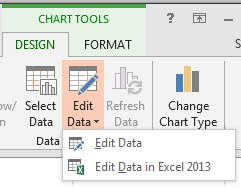
Learn how to edit chart data in PowerPoint 2013 for Windows.
Filed Under:
PowerPoint 2013
Tagged as: Charting, Excel, PowerPoint 2013, Tutorials
Comments Off on Learn PowerPoint 2013 for Windows: Edit Chart Data

Nancy Duarte has been Principal at Duarte Design since 1990. Her firm is in the heart of the Silicon Valley, and the client list is loaded with Fortune 500 companies. Her passion for business communications that are clear, meaningful and attractive has opened doors for her in a business world full of cluttered and complex visual communications.
In this conversation, Nancy discusses Duarte’s new Persuasive Presentations eCourse.
Geetesh: What motivated you to create the Persuasive Presentations eCourse? And what can a participant of this course expect to be his or her takeaway?
Nancy: The eLearning space needs imagination right now. Training is moving online at a rapid pace, but that doesn’t mean it’s effective. We originally started considering online training after several clients asked for it. Technology allows companies to collaborate globally, so it doesn’t always make sense to bring a facilitator onsite. We wanted to build something that ensured people would engage and be as effective as our instructor-led workshops.

Filed Under:
Interviews
Tagged as: Duarte Design, Interviews, Nancy Duarte, Presentation Skills, Training
Comments Off on Persuasive Presentations eCourse: Conversation with Nancy Duarte
Microsoft and the Office logo are trademarks or registered trademarks of Microsoft Corporation in the United States and/or other countries.