
This is the print version of this page. All content is copyright Indezine.com 2000-2026.
Thoughts and impressions of happenings in the world of PowerPoint and presentations, continuously updated since 2003.
See Also:
PowerPoint and Presenting Notes
PowerPoint and Presenting Glossary
When you create charts within PowerPoint, typically the Chart Area doesn’t show any fill or any kind of formatting. The exception to this rule is if you have applied a particular Chart Style. Thus in most scenarios, the Chart Area is completely transparent with no fill or outline attributes. This default status works well most of the time since the Chart Area is just the area above which all chart elements are placed. However, if your slide background is crowded, then the Chart Area’s transparency can pose a problem. To counter this issue, you can fill the Chart Area with a solid color, a gradient or even a pattern to add some visual separation from the slide’s background.
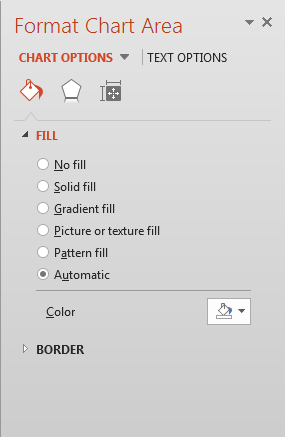
Learn about the Fill and Line options for the Chart Area in PowerPoint 2013 for Windows.
Filed Under:
PowerPoint 2013
Tagged as: Charting, PowerPoint 2013, Tutorials
Comments Off on Learn PowerPoint 2013 for Windows: Fill and Line Options for the Chart Area
Connectors may be different than lines in some ways because they are linked to the shapes they connect — move the linked shape, and the connector repositions itself with the shape. Yet in other ways, connectors are just like conventional lines in PowerPoint, especially when you explore their formatting options. You can thus add arrowheads to your connectors (or remove them), make your connector a dashed line rather than an undashed one, and also change the thickness of the connector.

Learn how to format connectors in PowerPoint 2013 for Windows.
Filed Under:
PowerPoint 2013
Tagged as: PowerPoint 2013, Shapes, Tutorials
Comments Off on Learn PowerPoint 2013 for Windows: Formatting Connectors
We start with an exclusive conversation with Rick Altman who discusses Presentation Summit 2014, a conference event slated to be held in San Diego this October. Celebrated author Jeremey Donovan then discusses his new co-authored book, Speaker, Leader, Champion. Also we explore the reinstated support for YouTube movies in PowerPoint 2010 and 2013.
PowerPoint 2013 for Windows users can learn about fills and borders in charts, applying Themes, connectors, and more. PowerPoint 2011 for Mac users can learn about identifying and applying Themes. PowerPoint 2003 users will learn about creating a default template.
And finally, do not miss the new discussions and templates of this week!

Read Indezine’s PowerPoint and Presenting News.
Filed Under:
Ezine
Tagged as: Ezine, Indezine, News, PowerPoint
Comments Off on PowerPoint and Presenting News: April 29, 2014
There are essentially three types of connectors that you can use to link shapes in PowerPoint 2013 — also you can add any of these three connectors (Straight, Elbow, or Curved) as per your requirements. However, what will you do if you added a connector of one type and later realize that you should have used a different type? You need not delete the existing connector and draw another one because PowerPoint 2013 allows you to change from one connector type to another fairly easily.

Learn how to change between connector types in PowerPoint 2013 for Windows.
Filed Under:
PowerPoint 2013
Tagged as: PowerPoint 2013, Shapes, Tutorials
Comments Off on Learn PowerPoint 2013 for Windows: Change Connector Type
PowerPoint and a microphone — what is it that holds these two together? More often than not, you use a microphone to record voice-overs for your slides. And this again is done in one of two ways. Recording voice-overs in PowerPoint using the Record Narration feature — or using similar features provided through add-ins such as Adobe Presenter or Articulate Presenter. The other way is recording voice-overs outside PowerPoint and importing them. The first process is the quickest and the second may take a longer time — whichever process you use, a nice microphone can work wonders. And that brings us to the reason behind this article — what exactly is a “nice” microphone?

Explore some of the best microphones used for voice-overs in PowerPoint.
Filed Under:
Thoughts
Tagged as: Opinion, PowerPoint
Comments Off on PowerPoint Microphones: The Favorites
Microsoft and the Office logo are trademarks or registered trademarks of Microsoft Corporation in the United States and/or other countries.