
This is the print version of this page. All content is copyright Indezine.com 2000-2026.
Thoughts and impressions of happenings in the world of PowerPoint and presentations, continuously updated since 2003.
See Also:
PowerPoint and Presenting Notes
PowerPoint and Presenting Glossary
Table Styles are pre-defined styles for tables that contain combinations of formatting elements such as fills, borders, and font colors. PowerPoint provides various such styles to choose from — just a single click can make your selected table look great.
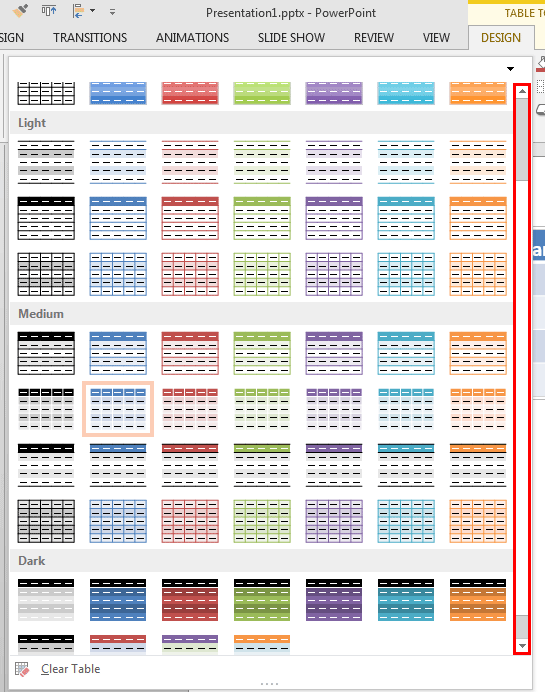
Learn how to apply preset Table Styles to your tables in PowerPoint 2013 for Windows.
Filed Under:
PowerPoint 2013
Tagged as: PowerPoint 2013, Tables, Tutorials
Comments Off on Learn PowerPoint 2013 for Windows: Table Styles
In an earlier tutorial, we’ve showed you how a distance cartogram can be created in PowerPoint 2013 by using the native shapes and the Merge Shape commands. Now that you have the “donut” structures and a small circle of the cartogram in place, let us create an actual cartogram from this structure.
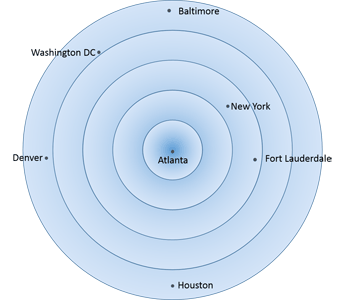
Learn how to customize a distance cartogram created in PowerPoint.
Filed Under:
PowerPoint 2013
Tagged as: Diagrams, Graphics, PowerPoint 2013, Tutorials
Comments Off on Learn PowerPoint 2013 for Windows: Distance Cartograms – Part 2
If you want to use a table in your presentation, you can insert a new table on your PowerPoint slide and then enter content within this table as required. However, as it happens frequently, there may be a table already created within Excel or Word, or the table content may already be populated in a bunch of contiguous Excel cells. Whether you have, a ready-made table, or just a group of in contiguous cells in Excel, it is very easy to import it into PowerPoint 2013 as a table. Since the Copy and Paste options work similarly for both Excel and Word tables, it really does not matter what your source is, although in this example we are taking a table created within Excel.

Learn how to import tables that are created in Excel or Word into PowerPoint.
Filed Under:
PowerPoint 2013
Tagged as: Excel, PowerPoint, Tables, Tutorials, Word
Comments Off on Learn PowerPoint 2013 for Windows: Import Tables
Before we explore distance cartograms, let us first understand what a cartogram is. A cartogram is a combination of a chart/diagram and a map and represents data in a way that makes it easier for the audience to grasp the point. We will not explore the creation of Area Cartograms in PowerPoint since that’s out of the scope of what you would be expected to create within a slide program! However, it’s entirely and easily possible to create a Distance Cartogram using PowerPoint’s native Shapes and the Merge Shape commands.

Learn how to create a Distance Cartogram in PowerPoint.
Filed Under:
PowerPoint 2013
Tagged as: Diagrams, Graphics, PowerPoint 2013, Tutorials
Comments Off on Learn PowerPoint 2013 for Windows: Distance Cartograms – Part 1
A cartogram is a visual that is driven by geography. It explores sizes or distances visually.
Cartograms come in various types. The easiest and most effective cartograms you can create within PowerPoint are distance cartograms. These distance cartograms are now becoming extremely popular, but creating them requires a fair amount of time and knowledge. But we’ve made this task easier for you. Try our “Distance Cartogram PowerPoint templates” kit. This kit contains ready-to-use templates that come with three types of distance cartogram samples, one each for Air Fares, Flight Times, and Driving Distances. You can easily change the topics, names and values as required. Remember that each larger circle you see in these cartogram graphics are not really circles – these are all individual donut shapes, sized perfectly for you so that you don’t have to work harder in creating and arranging them perfectly!
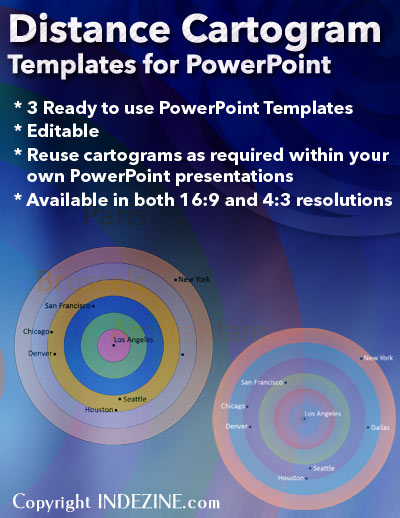
Download and use these cartograms in your slides.
Filed Under:
Presentation Bank
Tagged as: Diagrams, Graphics, PowerPoint
Comments Off on Distance Cartogram Templates for PowerPoint
Microsoft and the Office logo are trademarks or registered trademarks of Microsoft Corporation in the United States and/or other countries.