
This is the print version of this page. All content is copyright Indezine.com 2000-2026.
Thoughts and impressions of happenings in the world of PowerPoint and presentations, continuously updated since 2003.
See Also:
PowerPoint and Presenting Notes
PowerPoint and Presenting Glossary
Applying a Glow effect adds a nice halo around a selected shape or most other slide objects. You may find that the Glow effect defaults just do not work for you all the time. Especially since the default glow options are limited only to Theme Colors — so if you want to make some changes, you have to step outside these defaults and change the glow color, alter the spread or transparency, etc.

Learn how to make changes to the Glow effect applied to shapes in PowerPoint 2013 for Windows.
Filed Under:
PowerPoint 2013
Tagged as: Effects, PowerPoint 2013, Shapes, Tutorials
Comments Off on Learn PowerPoint 2013 for Windows: Advanced Glow Options
Here are some Hanukkah clip art graphics for PowerPoint using the Menorah theme – these are perfect for the festive season. We provide you with 4 typical graphics in a silhouette style. These graphics are available in both black and white and are contained within two separate sample presentations you can download. Just copy the clip art graphic you like and paste into another PowerPoint slide, or even a Word document or Excel worksheet.

Download and use in your slides.
Filed Under:
Clip Media
Tagged as: Clip Media, Graphics, PowerPoint
Comments Off on Hanukkah Menorah Clip Arts for PowerPoint
A Glow effect adds a hazed color perimeter outside the shape area — and by default, the Glow colors emanate from the active Theme. These default Glow colors works most of time but of course, you can change the Glow color to something entirely different. In this tutorial, you’ll learn how you can change this Glow color to any color you want.
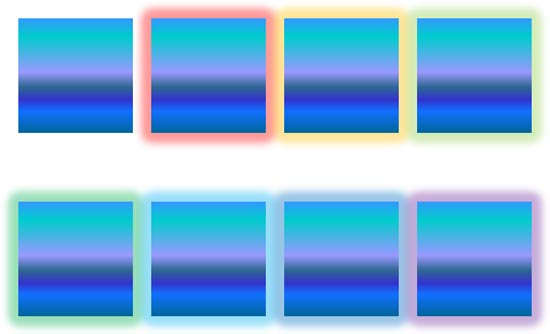
Learn how to change the Glow effect’s color applied to shapes in PowerPoint 2013 for Windows.
Filed Under:
PowerPoint 2013
Tagged as: Effects, PowerPoint 2013, Shapes, Tutorials
Comments Off on Learn PowerPoint 2013 for Windows: More Glow Colors
Here are some more Thanksgiving clip art graphics for PowerPoint – these again are perfect for the fall, festive season. We provide you with 4 typical graphics in a silhouette style. These graphics are available in both black and white and are contained within a separate sample presentation you can download. Just copy the clip art graphic you like and paste into another PowerPoint slide, or even a Word document or Excel worksheet. Additionally, these Thanksgiving clip art graphics are vector shapes, so you can easily edit them within your Microsoft Office program by changing fills, lines, and effects or even applying Shape Styles.

Download and use these graphics in your slides.
Filed Under:
Clip Media
Tagged as: Clip Media, Graphics, PowerPoint
Comments Off on More Thanksgiving Clip Arts for PowerPoint
The next PowerPoint effect for shapes that we will explore is the Glow effect. This effect adds a hazed color perimeter outside the shape area. This is an Outer Glow surrounding the shape — and not an Inner Glow effect. You can choose from various glow colors such as Theme colors or even any other color of your choice to match the look of the slide content.
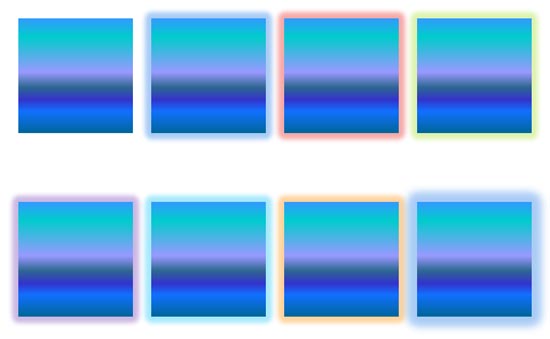
Learn how to apply glow effects to shapes in PowerPoint 2013 for Windows.
Filed Under:
PowerPoint 2013
Tagged as: Effects, PowerPoint 2013, Shapes, Tutorials
Comments Off on Apply Glow Effects to Shapes in PowerPoint 2013 for Windows
Microsoft and the Office logo are trademarks or registered trademarks of Microsoft Corporation in the United States and/or other countries.