
This is the print version of this page. All content is copyright Indezine.com 2000-2026.
Thoughts and impressions of happenings in the world of PowerPoint and presentations, continuously updated since 2003.
See Also:
PowerPoint and Presenting Notes
PowerPoint and Presenting Glossary
Just the other day, someone in one of the several PowerPoint forums asked about a keyboard shortcut to get the Paste Special dialog in PowerPoint 2010 for Windows — and someone actually recommended that you hold the Alt and E keys at the same time, let them go and quickly press S. And that answer response was chosen as the best answer! Well, you could have just pressed Ctrl+Alt+V together and saved the trouble — and you would still see the Paste Special dialog box. That was just one instance — trust me there are PowerPoint keyboard shortcuts that are not documented even in the program’s Help. Want to know about all these missing shortcuts? Or do you want to know if your favorite keyboard shortcuts are documented?
Go and get a copy of our PowerPoint Keyboard Shortcuts e-book.
Filed Under:
Books
Tagged as: PowerPoint, Tutorials
Comments Off on PowerPoint Keyboard Shortcuts: 2013, 2010, 2007, and 2003
The Reflection effects that PowerPoint 2013 provides can be applied with a single click, and can indeed do wonders for your shapes. However, too much of anything cannot be good and if you get too carried away by the swanky looking reflections, you may end up distracting your audiences. Most of PowerPoint’s reflection presets are attractive, and somewhat distracting. Still, you can tone down the effect a little — or if you want, you can let your creativity work and enhance the reflection effect! Whatever your scenario may be, you can edit the reflection properties to suit your creative freedom — for instance, you can change the transparency or distance of the reflection.

Filed Under:
PowerPoint 2013
Tagged as: Effects, PowerPoint 2013, Shapes, Tutorials
Comments Off on Learn PowerPoint 2013 for Windows: Advanced Reflection Options
These Thanksgiving tree branches for PowerPoint are perfect for the fall, festive season. We provide you with 4 types of branches in a silhouette style – these have been designed to be used in a slide corner. These graphics are available in black and are contained within a separate sample presentation you can download. Just copy the clip art graphic you like and paste into another PowerPoint slide, or even a Word document or Excel worksheet.

Download and use these graphics in your slides.
Filed Under:
Clip Media
Tagged as: Clip Media, Graphics, PowerPoint
Comments Off on Thanksgiving Tree Branches for PowerPoint
In this issue, we bring you some Movember graphics at the tail end of the month. PowerPoint 2013 for Windows users can learn about working with arrowheads. And learn about gradient outlines, a feature that lets you create a single outline with more than one color. We also show you how you can get rid of outlines altogether! We then discuss shape effects, including presets and shadows. And finally, do not miss the new discussions and templates of this week!

Read Indezine’s PowerPoint and Presenting News.
Filed Under:
Ezine
Tagged as: Ezine, Indezine, News, PowerPoint
Comments Off on PowerPoint and Presenting News: November 26, 2013
Apply any of the various effects in PowerPoint, and your shapes may stand out — literally out of the slide! In this series on Shape Effects in PowerPoint 2013, we have explored several effect types. On this page, you will learn how you can quickly add a convincing Reflection effect to a shape. While this tutorial pertains to shapes, there’s no reason why you cannot use the same Reflection effects on other slide objects. Reflection applies a blurred, semi-transparent duplication of the original object — in the same way as you may have seen reflection on water or glass.
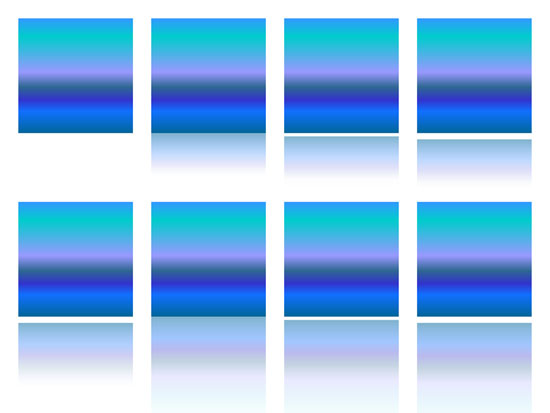
Learn how to apply Reflection effects to selected shape(s) in PowerPoint 2013 for Windows.
Filed Under:
PowerPoint 2013
Tagged as: Effects, PowerPoint 2013, Shapes, Tutorials
Comments Off on Learn PowerPoint 2013 for Windows: Apply Reflection Effects to Shapes
Microsoft and the Office logo are trademarks or registered trademarks of Microsoft Corporation in the United States and/or other countries.